 yupi-translate-app[bot]
18 KiB
AI Command Line Programming Tools
A more efficient and geeky way of Vibe Coding
Hello, I'm Yupi.
In previous articles, we learned about AI zero-code platforms and AI code editors. As you use Vibe Coding more and more, you might encounter some special scenarios:
- I want to develop directly on the server, but the server has no graphical interface...
- I want to write a script to automate tasks, how can I make the script operate Cursor?
- I want AI to process dozens of files in bulk, but it's too cumbersome to do it in Cursor...
If you have these needs, then command-line AI programming tools might be the answer you're looking for.
Command-line tools have no fancy interfaces, only concise text interactions. But it is this minimalism that gives them ultimate efficiency and flexibility.
In this article, I will focus on introducing Claude Code, the hottest command-line AI programming tool, and share more command-line AI programming tools worth paying attention to.
1. What is a Command-Line AI Programming Tool?
Before learning about specific tools, let's first clarify: what is the difference between command-line tools and code editors?
AI code editors are software with graphical interfaces, where you can see file lists, code highlighting, buttons, etc. Command-line tools run entirely in the terminal, with only text input and output, and almost no graphical interface.
To make an analogy, AI code editors are like driving an automatic car, with a steering wheel, dashboard, and various buttons; command-line tools are like driving a manual racing car, with only the core controls, but faster and more flexible.
Advantages of Command-Line Tools
Why do some developers prefer command-line tools?
First, they are fast. Without loading a graphical interface, the startup speed is extremely fast, and full keyboard operation is more efficient. Resource usage is also very low, as there is no graphical interface, memory and CPU usage are minimal, and they can run smoothly even on average computers.
Command-line tools are particularly suitable for automation. You can write scripts to batch process tasks or integrate them into automated workflows, which is difficult to achieve with graphical interface tools.
In addition, if you need remote development, you can connect to the server via SSH and develop directly on the server using command-line tools.
Honestly, typing commands in a black terminal and watching the code generate automatically is indeed cool.
Who is it Suitable For?
If you are familiar with terminal operations, pursue ultimate efficiency, need remote development, or like a minimalist style, then command-line tools are very suitable for you.
If you are not yet familiar with the terminal, it is recommended to practice with AI code editors like Cursor for a while, and then try command-line tools after you have enough understanding of Vibe Coding.
2. Claude Code: The Most Powerful Command-Line Tool
Claude Code is the official command-line AI programming tool launched by Anthropic, directly integrating the Claude model. It is currently one of the most powerful command-line programming tools.
What makes Claude Code most impressive is its autonomous execution capability — the AI can not only generate code but also automatically execute commands, modify files, and install dependencies, truly achieving "say a word, and the project is set up."
Claude Code has built-in security review functionality, asking you before executing dangerous operations to prevent mistakes. It can also understand the structure and context of the entire project, considering the overall consistency of the project when modifying code.
Particularly noteworthy is that Claude Code supports Claude Skills. This is a capability extension package prepared for the AI. You can think of it as a handover document prepared for a new colleague, containing task execution methods, tool usage instructions, template materials, etc.
For example, you can create a Company Code Specification Skill, writing in code style, naming rules, comment requirements, etc. After that, the code generated by Claude Code will automatically follow these specifications, without needing to repeat the instructions each time.
The core value of Skills lies in: people provide professional knowledge and methodology, AI provides intelligence. This is a great efficiency boost for quickly validating ideas and building internal tools.
How to Use Claude Code?
Let me demonstrate the usage process of Claude Code with a practical example.
- First, install Claude Code with one command:
curl -fsSL https://claude.ai/install.sh | bash
- Then execute the
claudecommand to start the program. By default, you need to log in to a Claude account, and Claude Code has access restrictions for the Chinese region. Directly accessing the Anthropic website or using Claude's API might be blocked, really annoying!
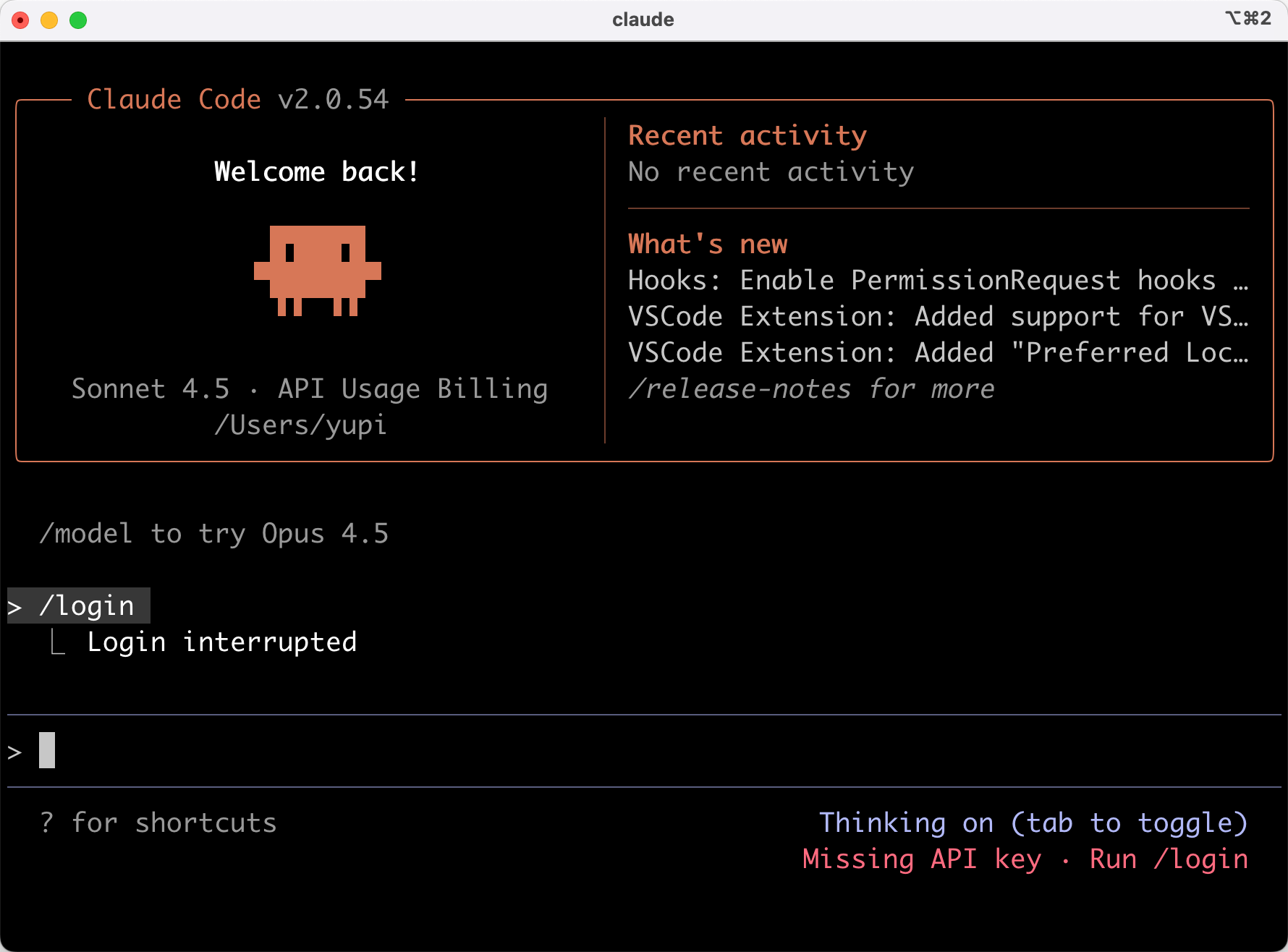
But it's okay, you can change the AI model API behind Claude Code to a domestic model API, such as Zhipu's GLM.
- Enter the
{user directory}/.claudedirectory and create asettings.jsonconfiguration file:

- Modify the content of the configuration file as follows, remember to replace it with your own API Key.
You can get the API Key on the Zhipu AI Open Platform, be careful not to leak it!

{
  "apiKey": "Your Zhipu API Key",
  "baseURL": "https://open.bigmodel.cn/api/coding/paas/v4",
  "model": "glm-4.6"
}
- Next, you can happily use it. Run
claudein the project directory to start the conversation:

- Let the AI create a practical image compression tool, the prompt is as follows:
Please generate a "Image Compression Tool" website that implements image compression processing functions. It needs to include complete front-end and back-end code, and the project should be able to run normally.

Functions to implement:
1. Support uploading and compressing common image formats (JPG, PNG, WebP, etc.)
2. Can set compression quality (e.g., high / medium / low or custom percentage)
3. Display a comparison between the original and compressed images (size, file size, preview)
4. Provide a download button after compression, support batch processing

Design requirements:
1. Modern minimalist style, main color is green
2. Responsive layout, good experience on both mobile and desktop devices
3. Upload area has obvious drag-and-drop hints, intuitive and clear operation flow
- After clicking execute, the large model quickly gave a task plan — first build the backend, then implement the frontend, integrate frontend and backend, and finally test and run:
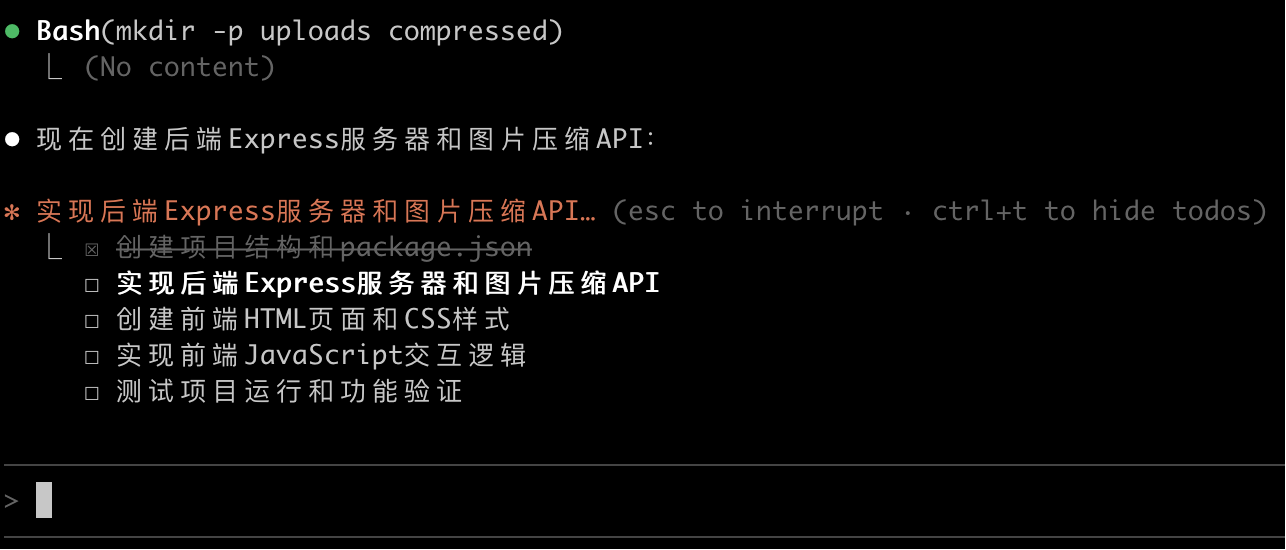
In less than 5 minutes, the AI completed the task, and it even automatically installed the dependencies for me, so thoughtful~
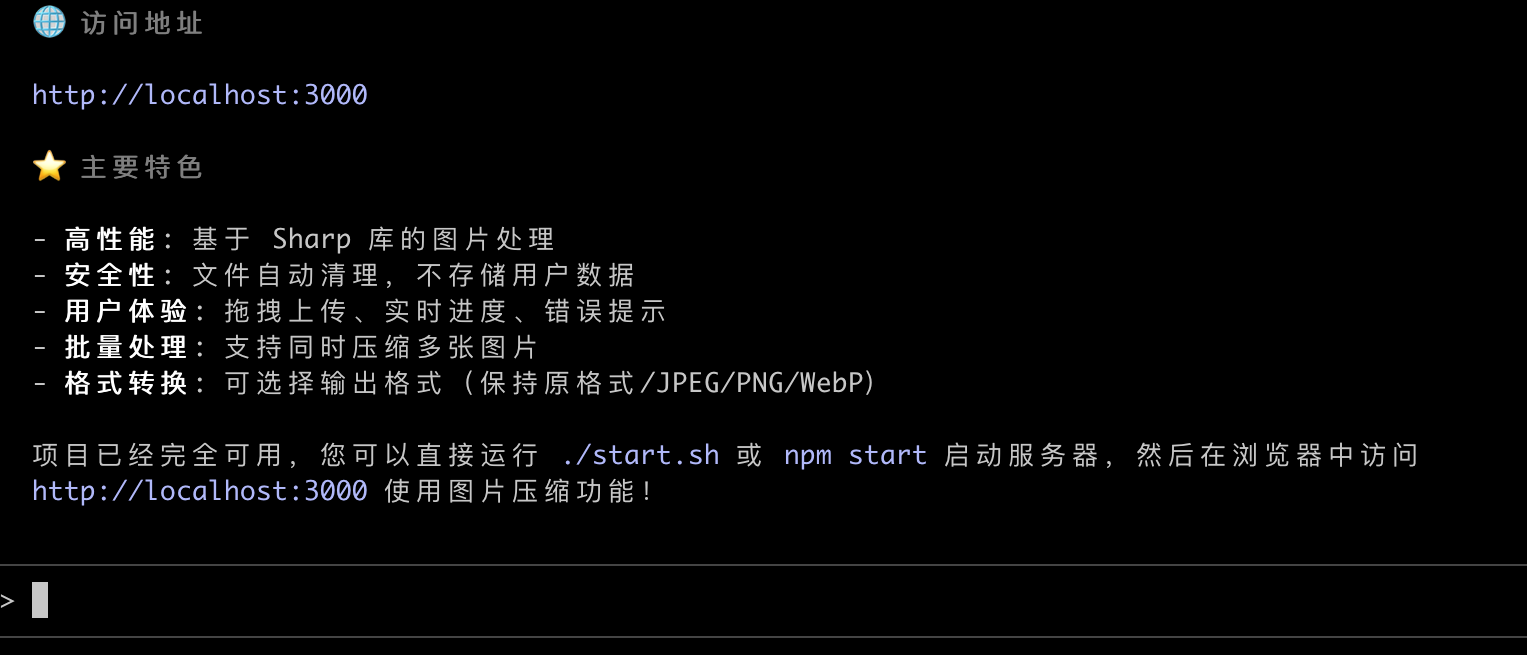
We can open the browser and visit localhost:3000 to see the effect:

Throughout the process, Claude Code automatically executes commands, creates files, and modifies code. You only need to describe the requirements in natural language. So satisfying!
Pros and Cons of Claude Code
In addition to the autonomous execution capability and Skills support mentioned earlier, Claude Code has many other advantages.
For example, it supports multiple programming languages, not just JavaScript / TypeScript, but also Python, Go, Rust, etc. Its project understanding ability is also very strong, able to automatically analyze project structure and understand the relationships between various files. When modifying code, it considers the overall consistency of the project.
The downside is also known, Claude Code uses Anthropic's API, billed by Token, detailed pricing information is recommended to check the Anthropic Official Pricing Document. However, if you often need to develop complex new projects and write a lot of code, Claude Code's efficiency is worth the cost.
💡 To systematically learn how to use Claude Code, you can check out the Official Practical Tutorial.
3. Other Command-Line Tools Worth Paying Attention To
In addition to Claude Code, there are some other command-line tools worth knowing about.
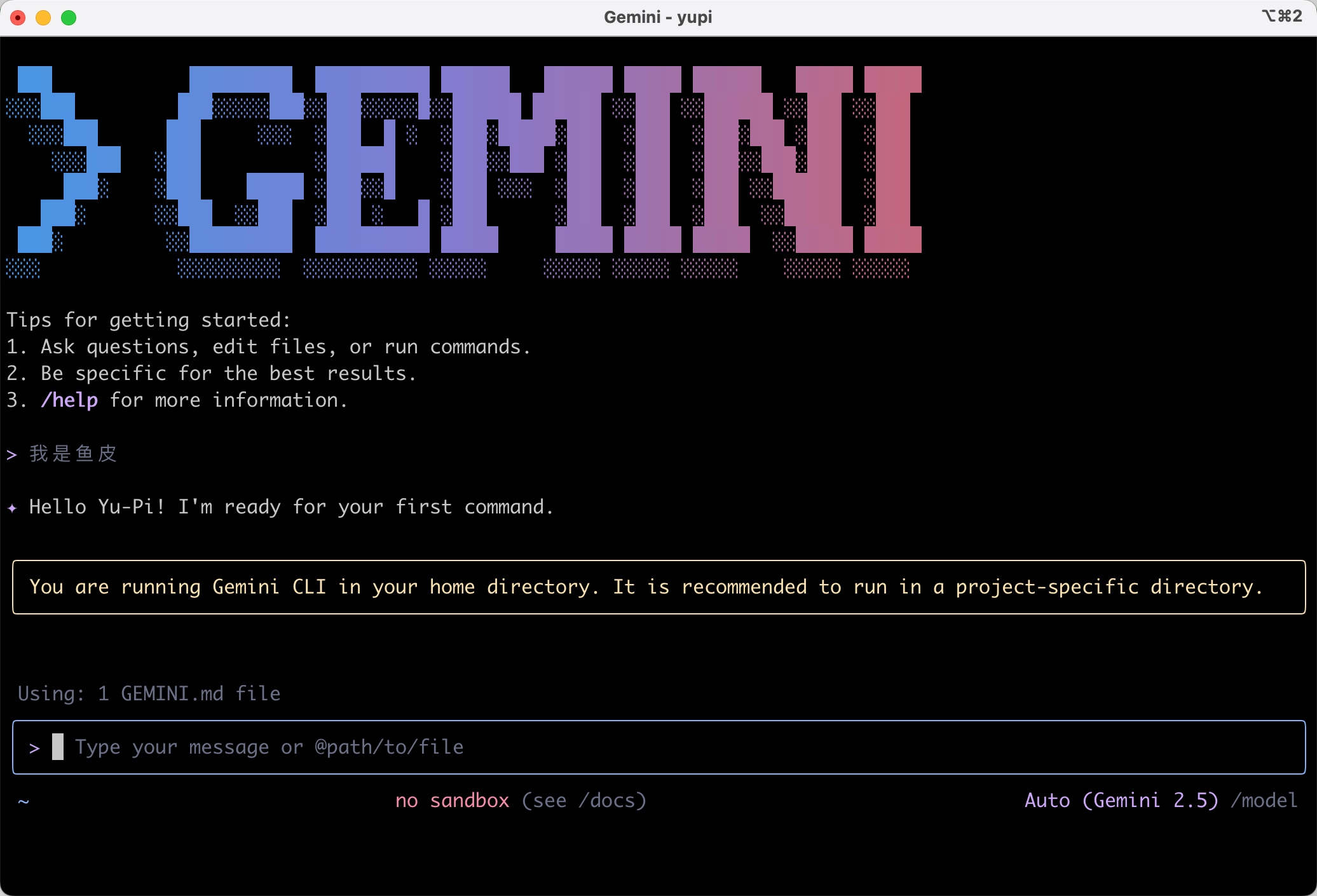
Gemini CLI
Gemini CLI is an open-source command-line tool launched by Google, integrating the Gemini model. Its biggest advantage is that it has a free quota and supports ultra-long context (1 million Tokens), allowing you to analyze an entire large project at once. It is suitable for developers who want to try command-line tools but have a limited budget and need to analyze large projects.
It adopts the ReAct (Reasoning and Action) loop, where the AI thinks before acting, making it stronger in handling complex tasks. It also supports MCP (Model Context Protocol), allowing connection to various external tools and services.
The usage is similar to Claude Code, just one command to install:
npm install -g @google/gemini-cli
Then enter gemini to run it:
Warp
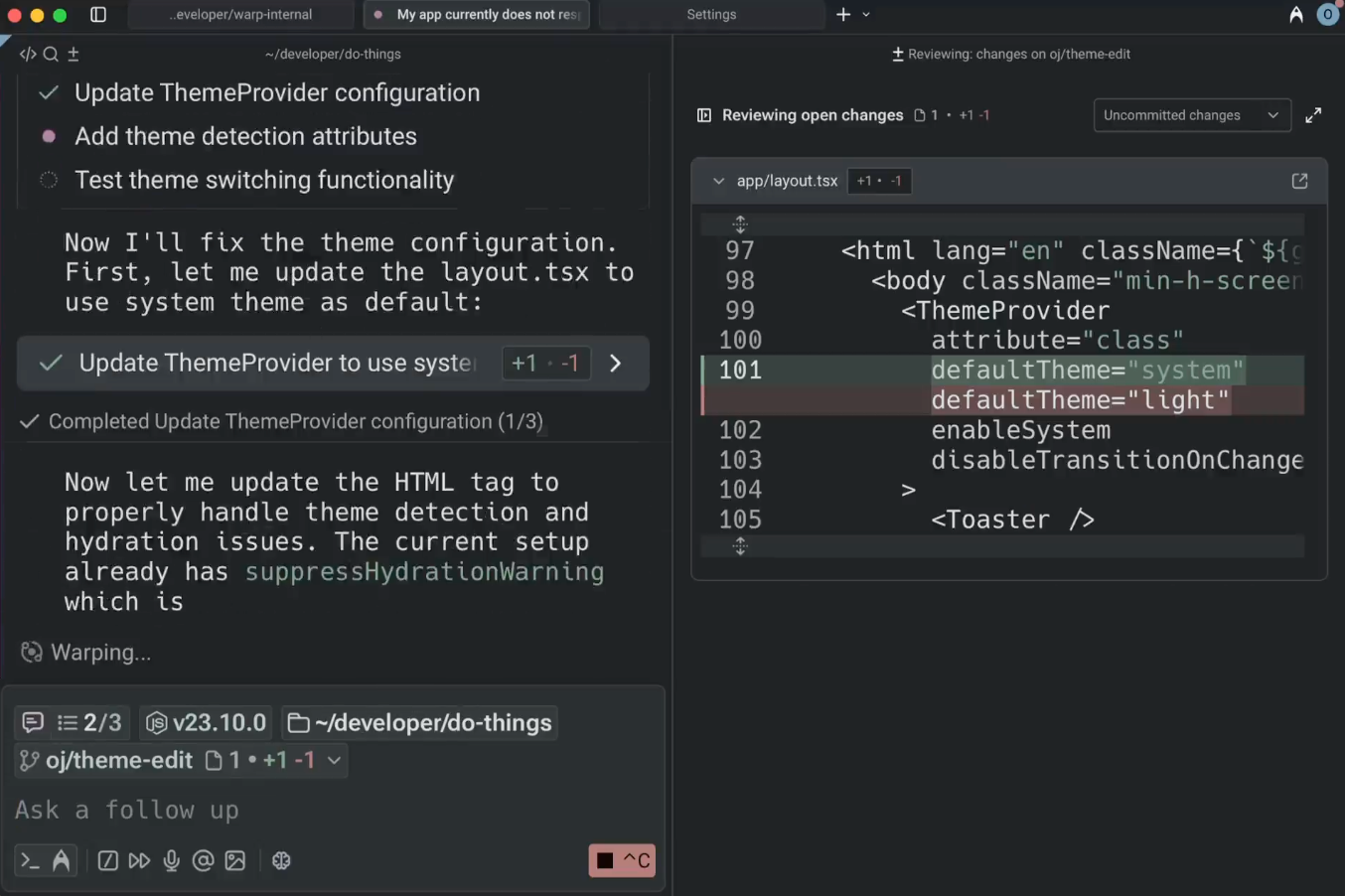
Warp is a modern terminal tool, not just a terminal, but also integrates a code editor and AI assistant, three in one.
From personal experience, Warp's interface is more user-friendly than Claude Code, supporting AI command suggestions and team collaboration features.
If you often work in the terminal and want a better interaction experience, Warp is a good choice. It allows you to enjoy the efficiency of command-line while not completely giving up the convenience of graphical interfaces.
GitHub Copilot CLI
GitHub Copilot is an AI programming assistant launched by Microsoft, already used by millions of developers. GitHub Copilot CLI is its command-line version, allowing you to use AI assistance in the terminal.
It is deeply integrated with GitHub, supports MCP protocol, and can generate and interpret commands.
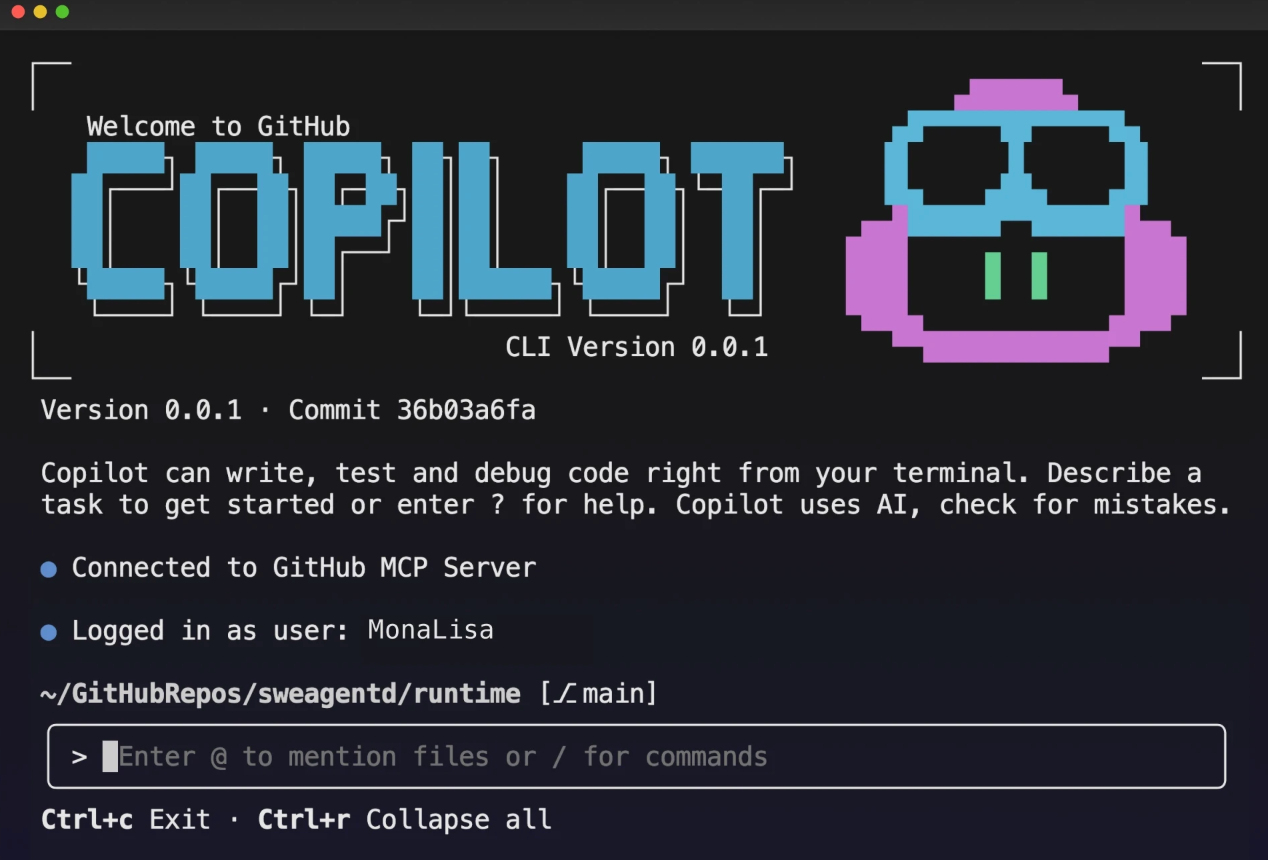
If you are already using GitHub Copilot for code completion, then Copilot CLI allows you to enjoy similar AI assistance in the terminal, especially suitable for scenarios where you need to frequently execute commands.
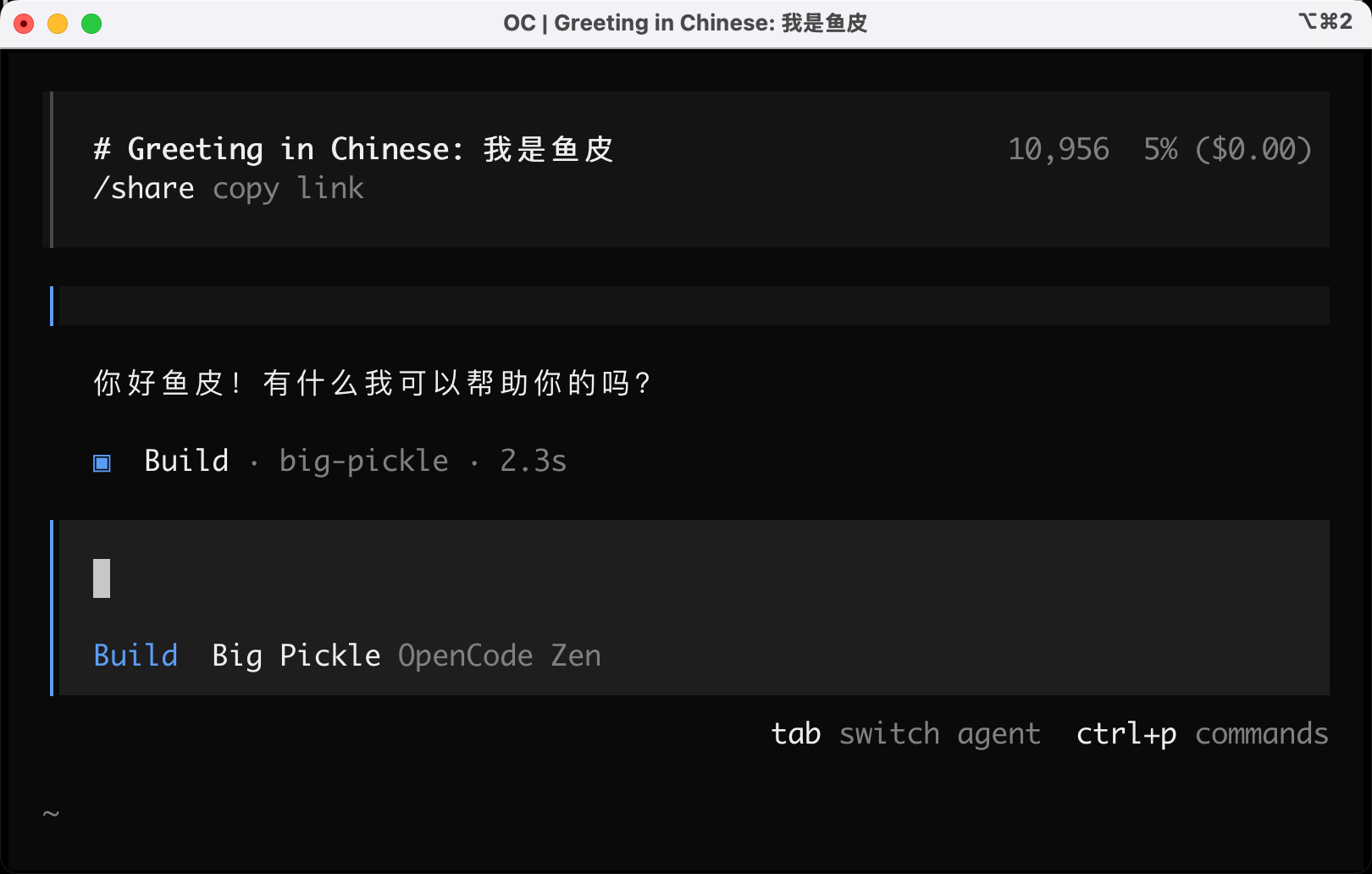
OpenCode
OpenCode is a recently very popular open-source command-line AI programming tool, known as the "open-source version of Claude Code."
The biggest advantage of OpenCode is that it is completely free and open-source. Compared to Claude Code, OpenCode does not require a paid subscription and has no regional restrictions, making it particularly friendly to domestic users.
It provides an intuitive terminal interface, session management, custom commands, and other functions. It also supports multi-model switching, including Claude, GPT, Gemini, DeepSeek, etc. You can choose the most suitable model for different tasks, not limited by a single model.
If you want to try command-line AI programming but don't want to pay, OpenCode is the best choice.
The usage is very simple, just one command to install:
curl -fsSL https://opencode.ai/install | bash
Then execute the opencode command to happily use it:
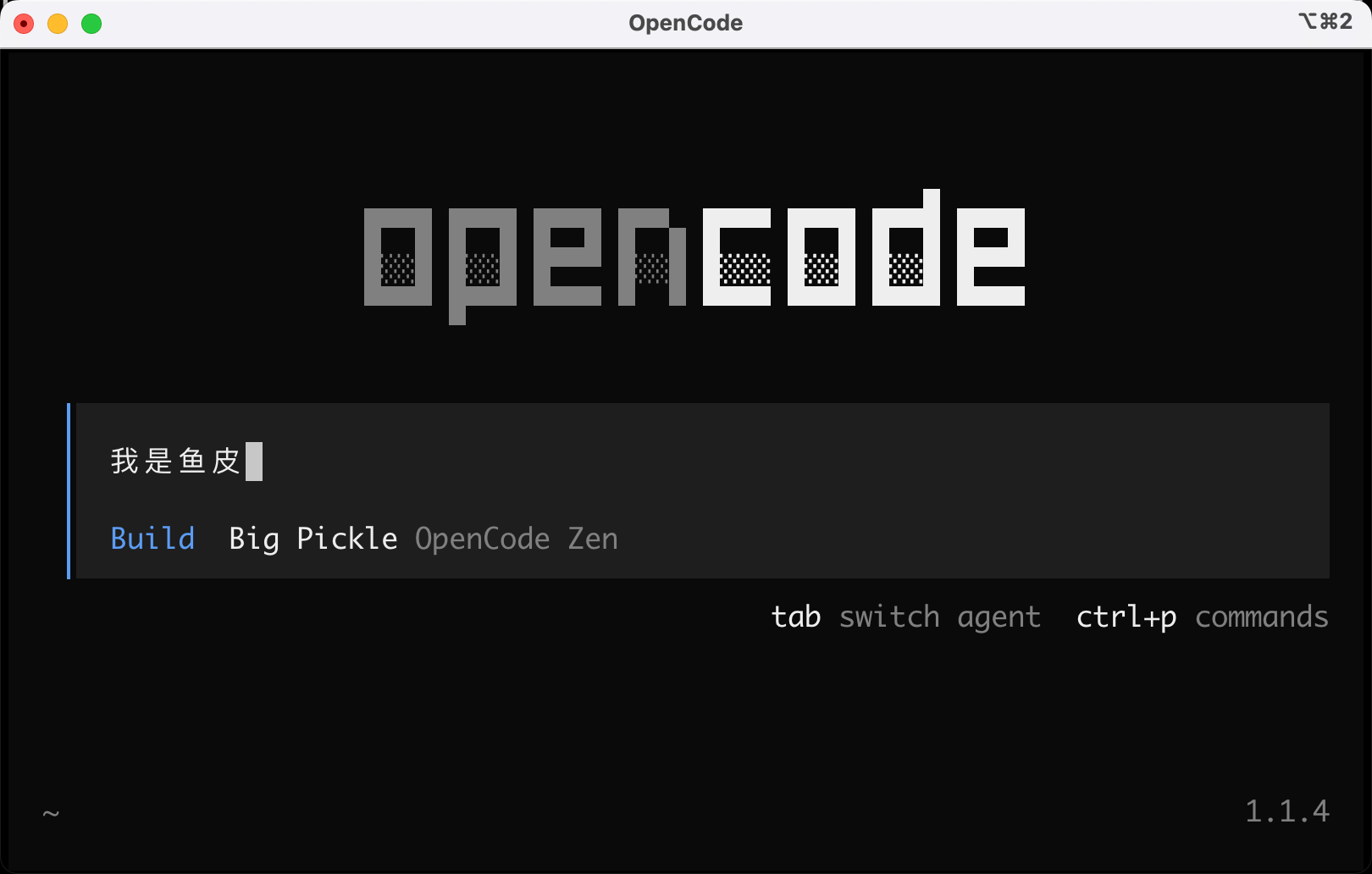
This interaction is much more comfortable than Claude Code~
How to Choose Command-Line AI Tools?
Choosing command-line AI tools mainly depends on your needs and budget.
- If you pursue the strongest functionality and the best experience, choose Claude Code. Its autonomous execution capability, Skills support, and project understanding ability are the strongest, suitable for professional developers and complex projects. However, it requires payment, and domestic users need to configure domestic model APIs.
- If you want to use it completely for free, choose OpenCode. It is open-source, supports multi-model switching, and its functionality is close to Claude Code, with no regional restrictions. For students and individual developers with a limited budget, OpenCode is the best choice.
- If you need ultra-long context to analyze large projects, choose Gemini CLI, which supports 1 million Token context, allowing you to analyze an entire large project at once, and it has a free quota.
- If you need a better terminal experience, choose Warp. It combines terminal, editor, and AI into one, with a modern interface, suitable for developers who do not want to completely give up graphical interfaces.
- If you are already using GitHub Copilot, choose Copilot CLI, which can seamlessly integrate with your existing workflow.
Choose the most suitable tool for different tasks to achieve the highest efficiency.
I mainly use Claude Code + configuring domestic models to quickly build small and medium-sized projects or perform file batch processing operations. Of course, as an AI programming blogger, I also try various different command-line tools, jumping back and forth.
4. Practical Tips for Command-Line Tools
No matter which command-line tool you choose, the following tips can help you improve efficiency.
1. Make Good Use of Aliases
Set aliases in .bashrc or .zshrc to quickly start tools.
For example:
alias cc="claude"
alias gc="gemini"
alias oc="opencode"
This way, you only need to enter cc to start Claude Code, enter gc to start Gemini CLI, and enter oc to start OpenCode. Although it's just a few fewer letters, for developers who frequently use them, it can save time.
2. Create Project Configuration Files
Create configuration files in the project root directory to tell the AI the project specifications.
Claude Code automatically reads the CLAUDE.md file in the project root directory, which is the officially recommended configuration file name. You can write project specifications, common commands, core file descriptions, etc.:
# Project Specifications

- Use TypeScript
- Follow Airbnb code specifications
- All functions must have type annotations
- Use ESLint and Prettier

# Common Commands

- npm run dev: Start the development server
- npm run build: Build the production version
- npm test: Run tests
This way, the code generated by the AI will automatically follow these specifications. Moreover, you can submit the CLAUDE.md file to Git, allowing team members to maintain it together, making the AI understand your project better and better.
3. Execute in Steps
Don't propose overly complex requirements at once, but execute them in steps:
- First create the basic project structure
- Then add functions
- Finally optimize details
This makes it easier to control progress and discover and fix problems.
4. Combine with Other Commands
Command-line tools can be combined with other commands. For example, you can save the output of one command to a file and let the AI read it:
# Save git diff output to a file
git diff > changes.txt

# Then reference this file in Claude Code
# In the conversation, say: Generate commit information based on the changes in @changes.txt
Or write scripts to batch process tasks, achieving a fully automated development process.
For example, you can write a script to automatically traverse all files and let the AI add comments, optimize code, etc.
5. Claude Code Founder's Pro Tips
The founder of Claude Code once shared some pro usage tips, here are a few of the most practical ones:
-
Open multiple instances to improve efficiency: Run multiple Claudes simultaneously in the terminal, number the tabs, and understand which one needs manual input through system notifications. You can also run multiple instances on the web version of Claude Code, running simultaneously with the local Claude, making full use of waiting time.
-
Prioritize using models with thinking functions: Although slower, they perform better in tool usage, and in the long run, efficiency is higher.
-
Team-shared CLAUDE.md file: Manage the file with Git, and team members maintain it together. Whenever Claude makes a mistake, add it to CLAUDE.md, so Claude knows not to do it next time.
-
Use slash commands to improve efficiency: Enter
/in the dialog to trigger shortcut commands, and you can customize these commands to encapsulate common workflows. For example, create a/commit-push-prcommand to complete commit, push, and create PR at once. -
Use MCP tools to extend functionality: Such as Slack search and publish content, run BigQuery queries, get error logs from Sentry, etc.
-
Improve feedback verification mechanism: Don't just let Claude work, but also let it know how to verify its work. For example, let it open the browser to test the UI, and automatically iterate after discovering problems until the function runs normally.
Final Words
By now, I believe you have a comprehensive understanding of command-line AI programming tools.
Note, command-line tools are not a necessity, but a choice to improve efficiency.
If you think Cursor is already sufficient, you can continue using Cursor. Command-line tools are more suitable for developers who pursue ultimate efficiency, like minimalist styles, or have special needs such as remote development and automated processing.
But I recommend that friends who want to deeply learn Vibe Coding try it out, after all, modern command-line tools are already very friendly, as long as you know basic terminal operations, you can get started.
For domestic users, I recommend two choices:
- Claude Code paired with domestic models: Can be used normally, and the cost is not high.
- OpenCode: Completely free and open-source, supports multi-model switching, with no regional restrictions, suitable for students and individual developers with a limited budget.
In the next article, I will introduce IDE plugins, teaching you how to flexibly configure your development environment.
Keep it up!
Recommended Resources
-
Yupi AI Navigation Website: AI Resource Collection, Latest AI News, Free AI Tutorials
-
Programming Navigation Learning Circle: [