 yupi-translate-app[bot]
10 KiB
Here's the translated Markdown content:
AI IDE Plugins
Adding AI capabilities to your familiar editor
Hello, I'm Yupi.
In previous articles, we learned about AI code editors and AI command-line programming tools.
But if you already have programming experience and are accustomed to using integrated development environments (IDEs) like VS Code or IntelliJ IDEA, and don't want to switch editors while still wanting to experience AI coding, what should you do?
IDE AI plugins are the answer you're looking for.
In this article, I'll introduce the most popular IDE AI plugins to help you add AI capabilities to your familiar editor.
1. Why Choose IDE Plugins?
Before diving into specific plugins, let's clarify: What's the difference between IDE plugins and Cursor? Why use plugins?
Cursor is a standalone editor, though based on VS Code, it's a complete software package. IDE plugins are extensions installed on your existing editor (VS Code, IntelliJ IDEA, etc.), requiring no editor switch.
To use an analogy: Cursor is like buying a new car with all features pre-installed; IDE plugins are like adding new features to your current car—the car remains the same.
The advantages of IDE plugins are clear. First, there's no need to switch editors. If you're already comfortable with a particular editor, have configured various plugins and shortcuts, and don't want to adapt to a new environment, plugins are the best choice.
Moreover, you can install different plugins as needed, freely combining them, and uninstall any plugin you don't like at any time. Many plugins are open-source and free, or allow you to use your own API key, making costs more controllable.
If you're a beginner without a fixed editor preference, using Cursor directly might be simpler. But if you're already a seasoned user of a specific editor, plugins are the better option.
2. Cline: The Most Powerful Open-Source AI Plugin
Cline is currently the most powerful open-source AI programming plugin, often called the open-source version of Cursor.
Cline's biggest advantage is its cross-platform support, working not only with VS Code but also with JetBrains IDEs like IntelliJ IDEA, PyCharm, and WebStorm.
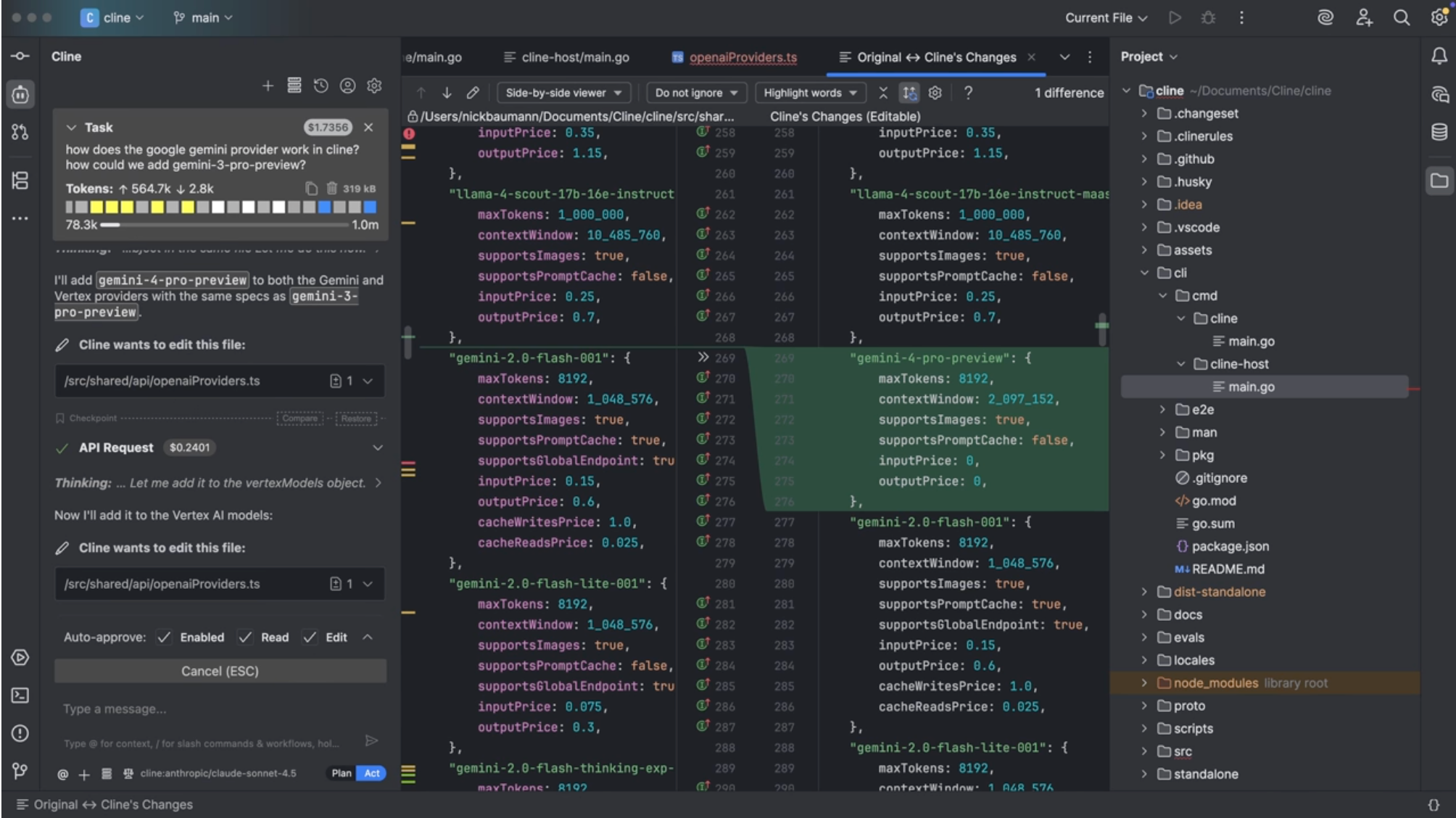
It's completely open-source and free, supporting various large models like Claude, GPT, Gemini, and DeepSeek. It can also deploy MCP services to extend functionality. Beyond generating code through conversation, it can autonomously execute commands, modify multiple files, and use browsers—making it incredibly versatile.
Let's walk through a demo of using Cline.
Using Cline in VS Code
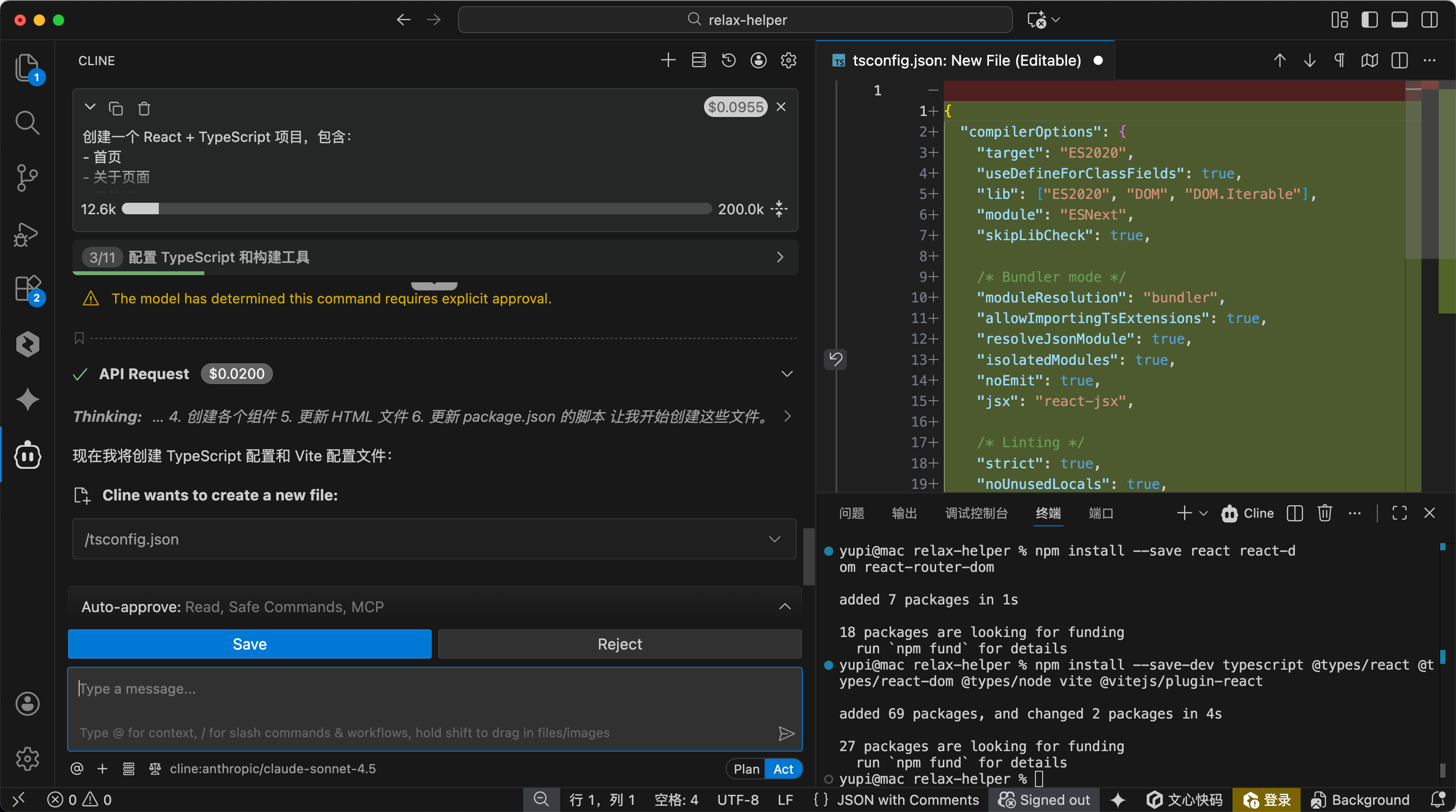
For example, let's use Cline in VS Code to create a React project.
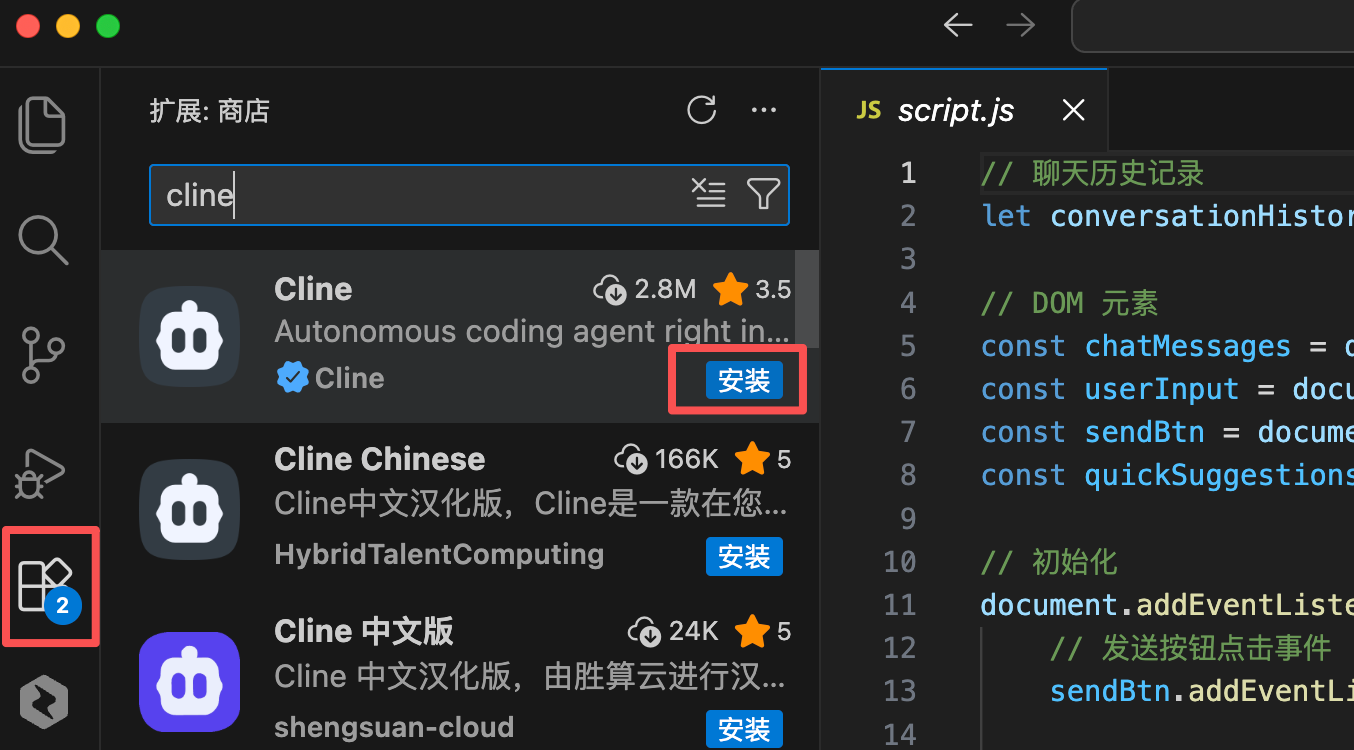
- Open the VS Code extension marketplace, search for "Cline," and click install.
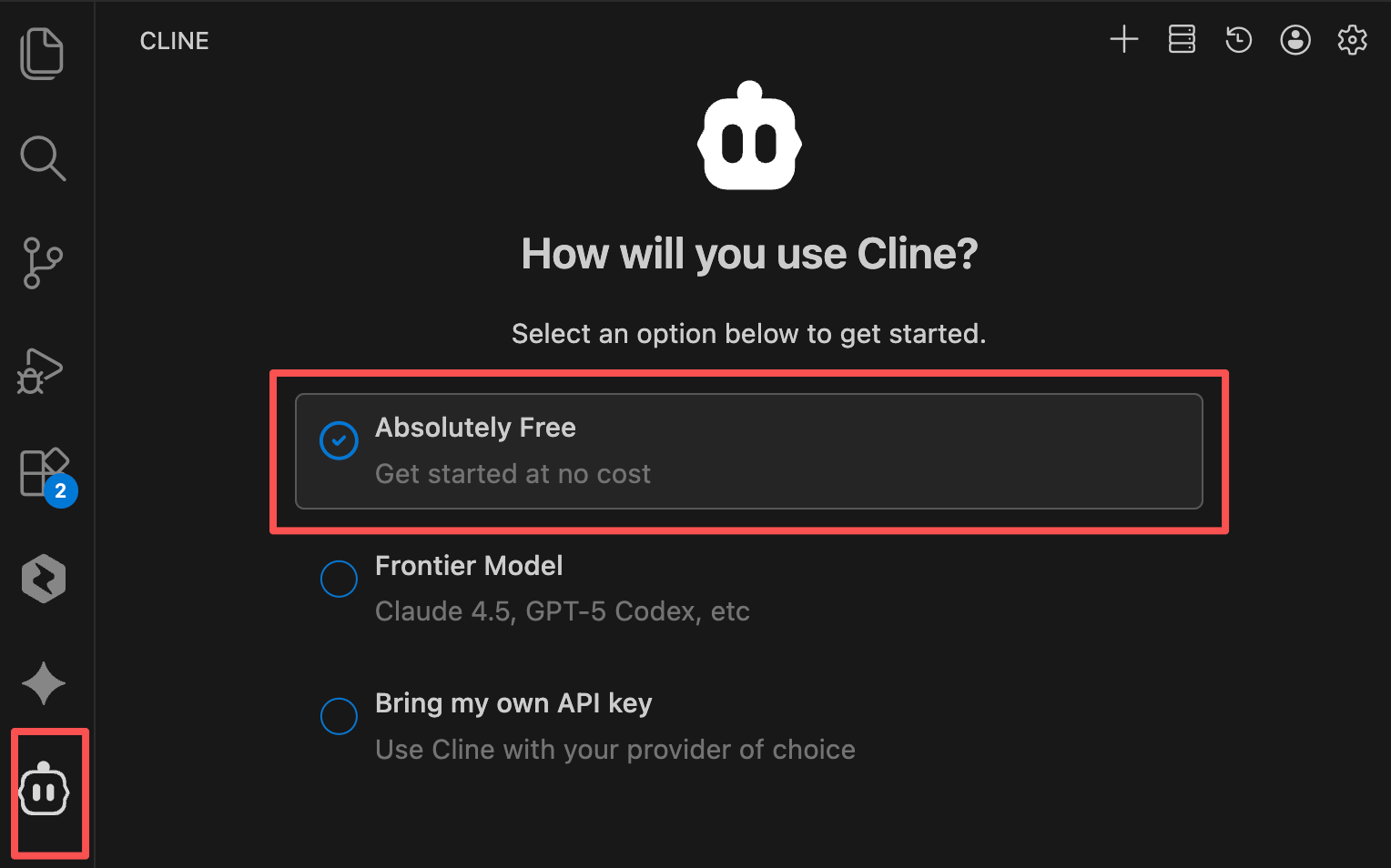
- After installation, click the Cline icon in the sidebar. You can use it for free or with your own large model API key.
-
Click "Next," and Cline will guide you through creating an account. Register using GitHub or email.
-
Once your account is set up, you're ready to go. Simply input your requirements in the Cline panel:
Create a React + TypeScript project with:
- Home page
- About page
- Navigation bar
- Using React Router
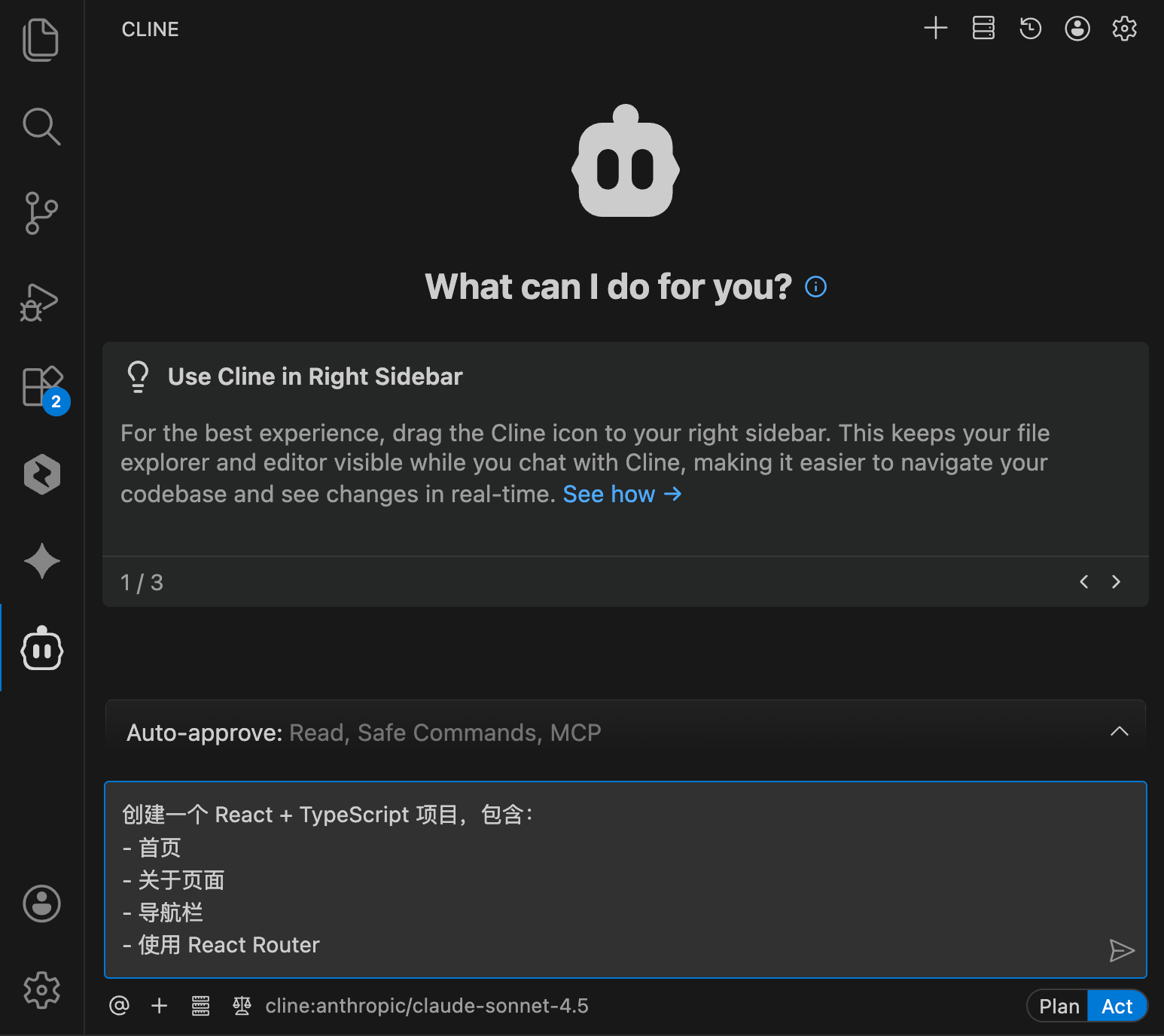
- Cline will automatically run commands, install necessary dependencies, create component files, configure routing, and modify styles. You only need to confirm each step or let it run fully autonomously.
Using Cline in JetBrains
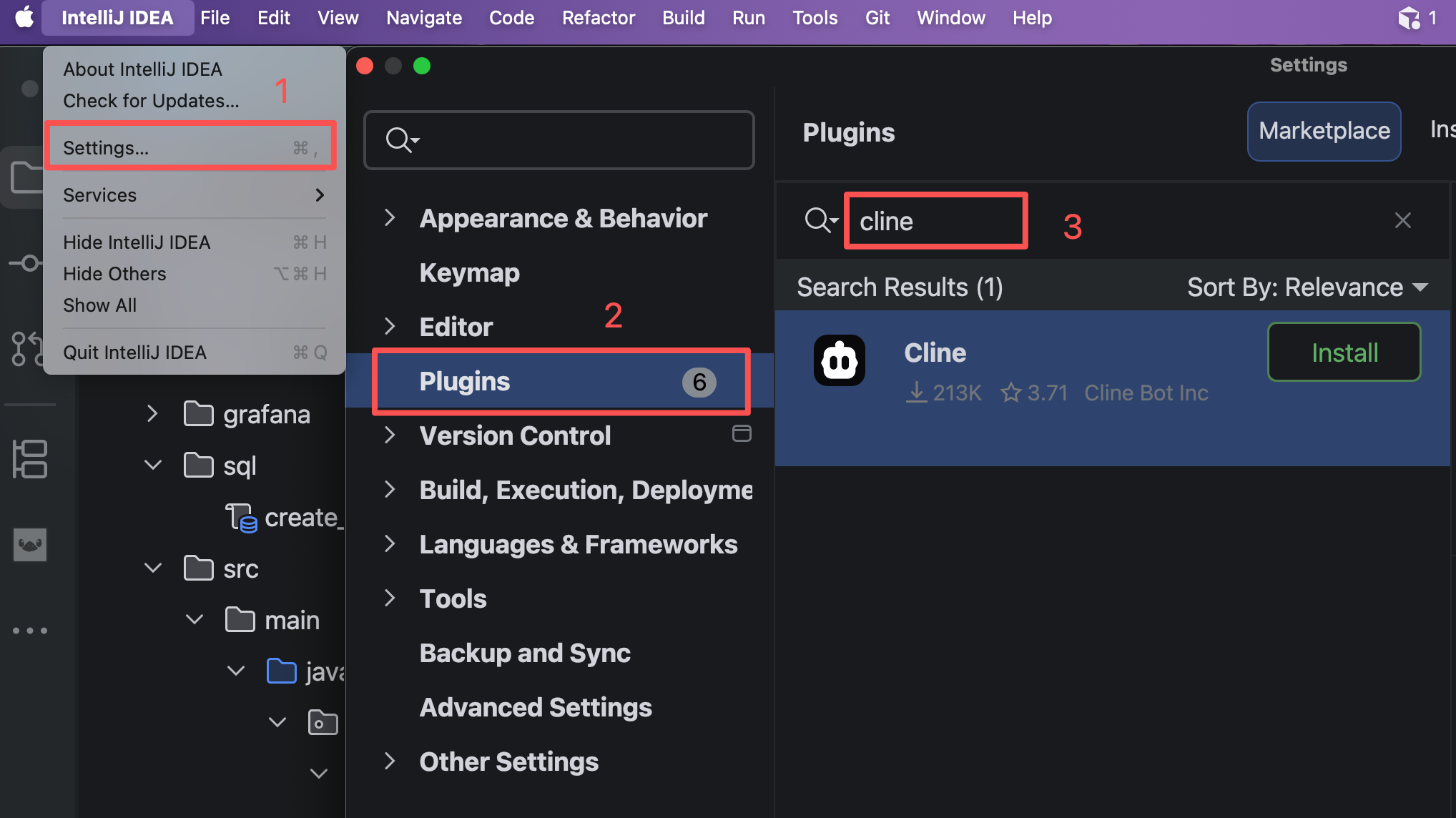
If you're a JetBrains IDE user, open Settings → Plugins, search for "Cline," and install it. The usage is identical to the VS Code version.
3. AI Programming Assistant IDE Plugins
Besides Cline, here are some other noteworthy AI programming assistant IDE plugins.
Claude Code Official Extension
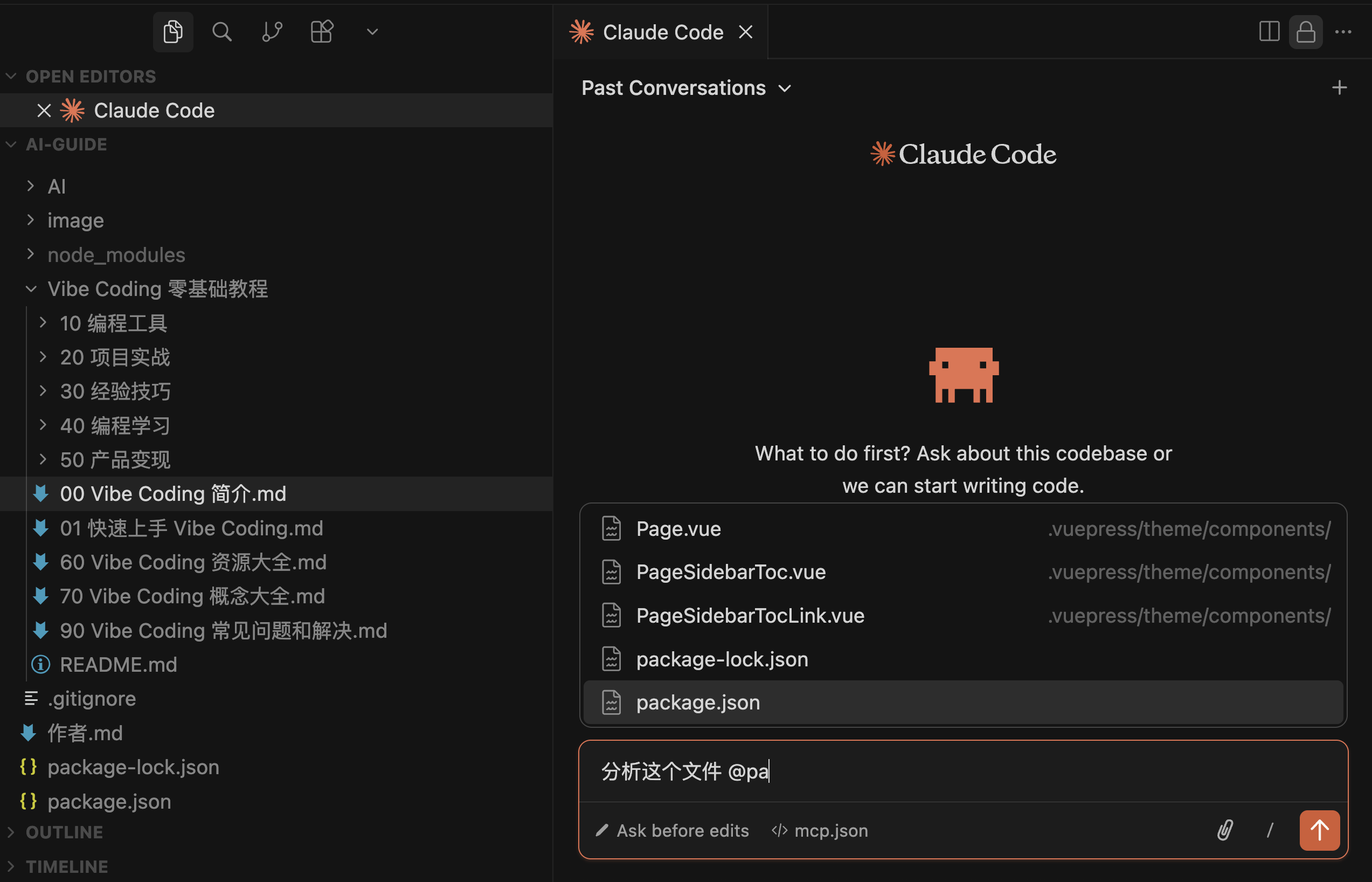
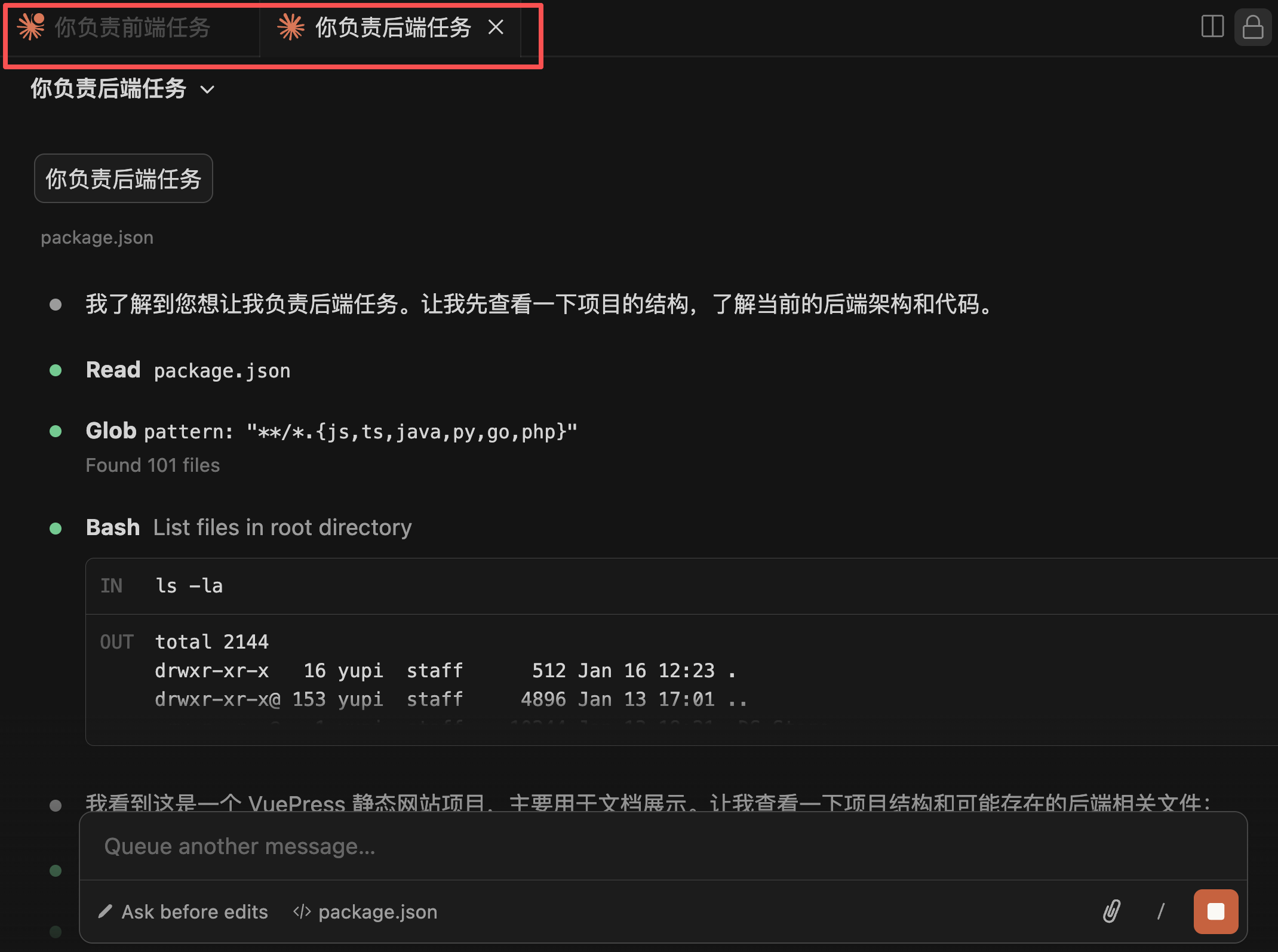
Claude Code is an AI programming assistant by Anthropic, originally a standalone command-line tool. The Claude Code VS Code Extension lets you use Claude Code directly in your code editor without opening an additional terminal.
This extension's advantage is its graphical interface, allowing you to chat with Claude via the sidebar panel and input text flexibly.
When AI modifies code, you can see changes in real-time within the editor, with automatic diff comparisons showing exactly what was altered.
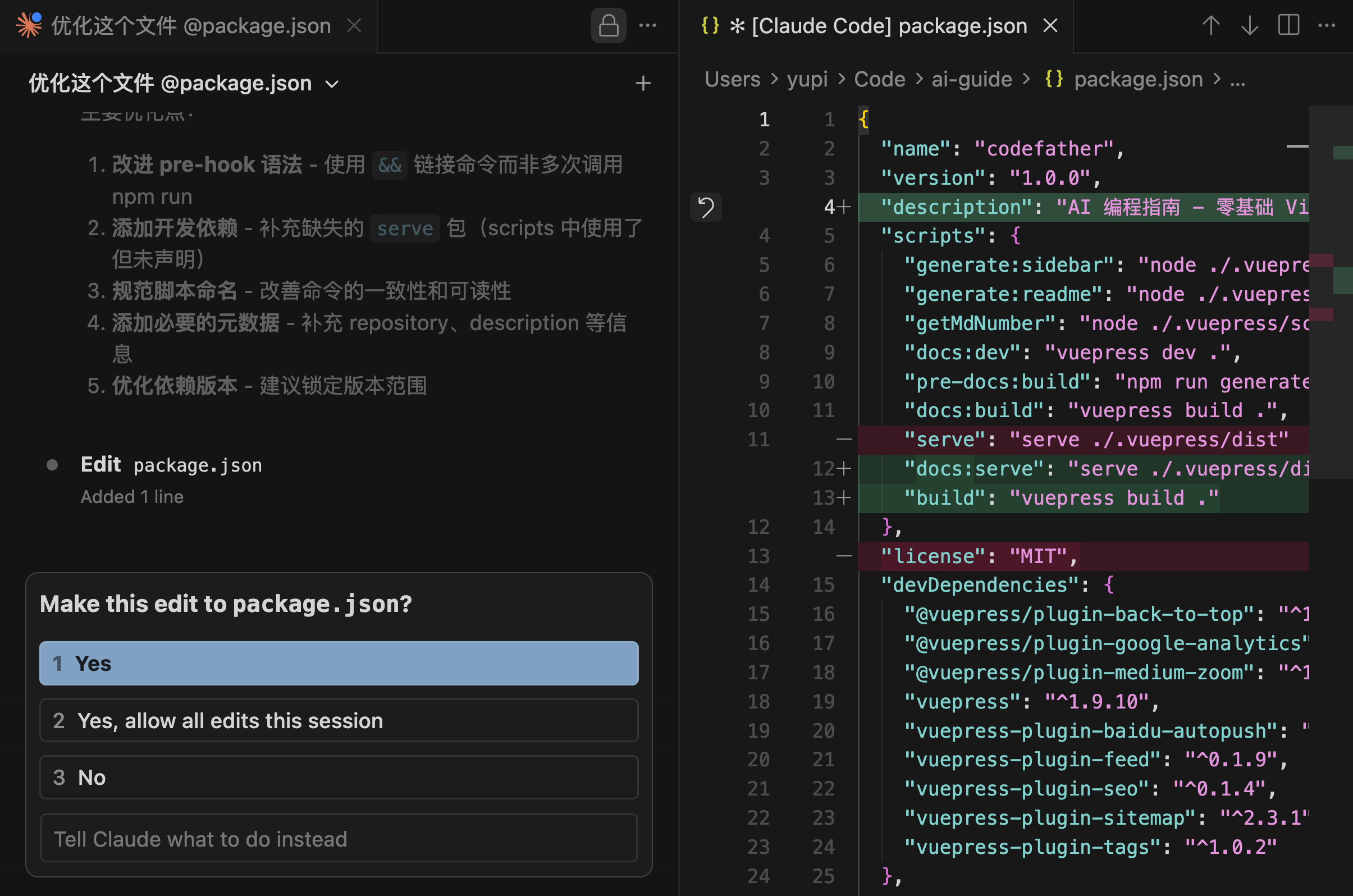
I often use it for refactoring code, fixing bugs, and adding new features. It also supports multiple concurrent sessions, meaning you can have multiple Claude agents working on different tasks simultaneously—like one handling frontend and another backend—greatly improving development efficiency.
GitHub Copilot
GitHub Copilot is the most mature AI programming assistant, supporting VS Code, JetBrains IDEs, Vim, Neovim, and more.
Its main feature is code completion, automatically suggesting the next line as you code. It also includes Copilot Chat for conversing with AI in the sidebar.
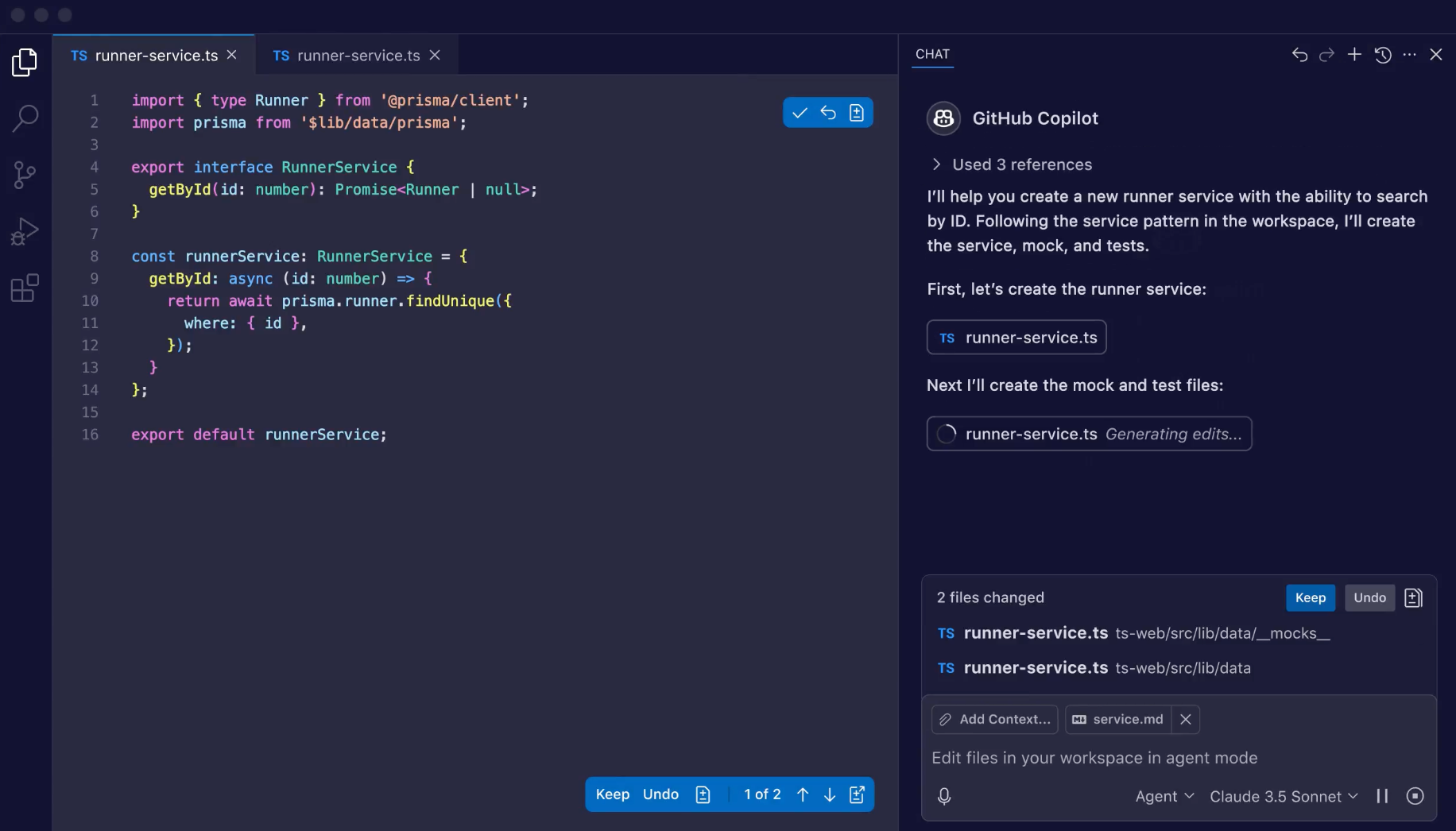
Its strengths are maturity, stability, high-quality code completion, and cross-platform support. Most importantly, it's free for students and open-source contributors.
JetBrains AI Assistant
JetBrains AI Assistant is JetBrains' official AI programming assistant, optimized for JetBrains IDEs. Yupi even demoed it live at the Alibaba Cloud Summit.

It offers not only code completion but also test generation, code explanation, refactoring, documentation generation, and more. Deeply integrated with IDE features like debugging, refactoring, testing, and commit message generation.
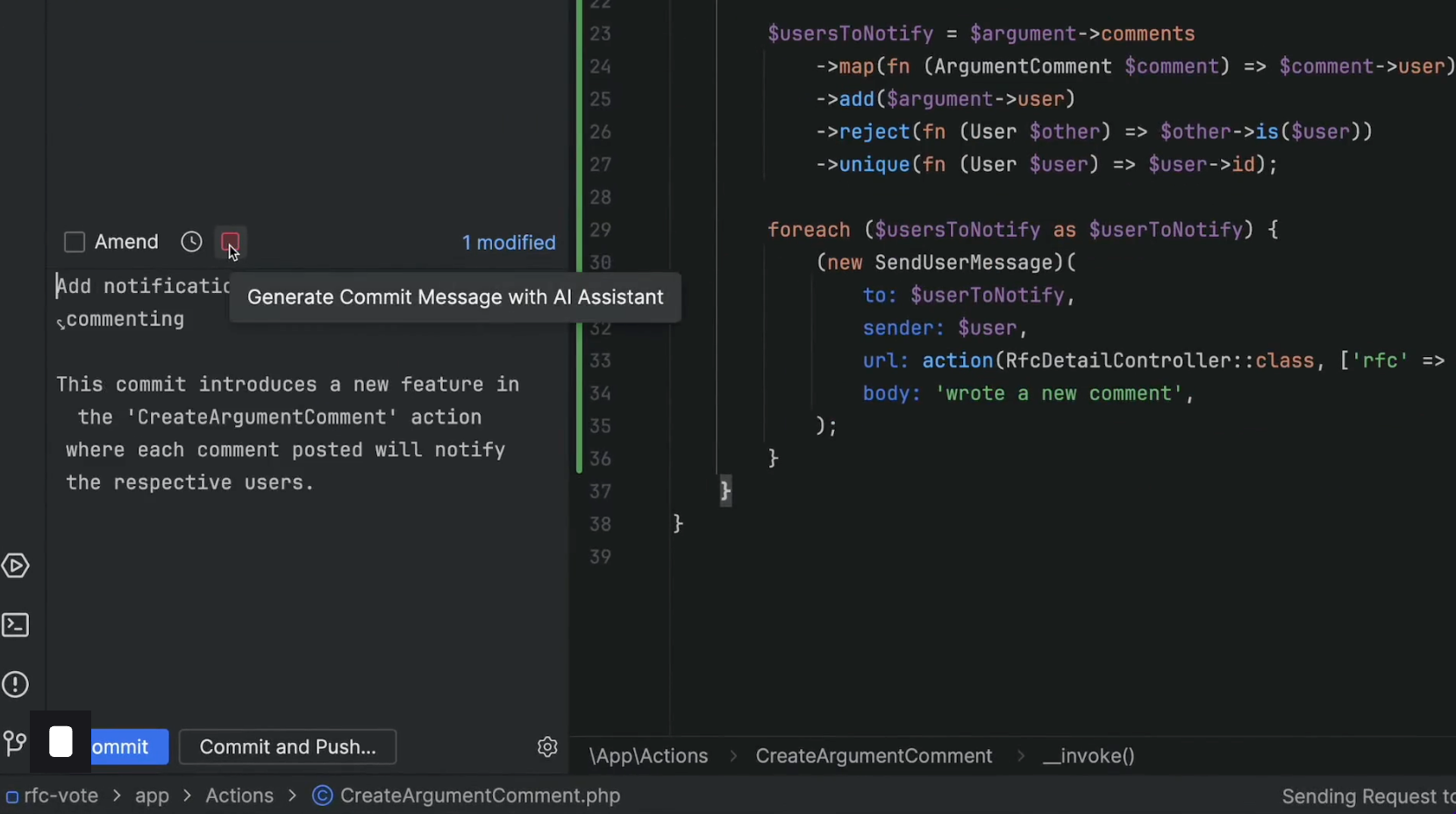
Its advantage is being official, with the best IDE integration and support for multiple AI models. The downside is it requires a paid JetBrains subscription.
Continue
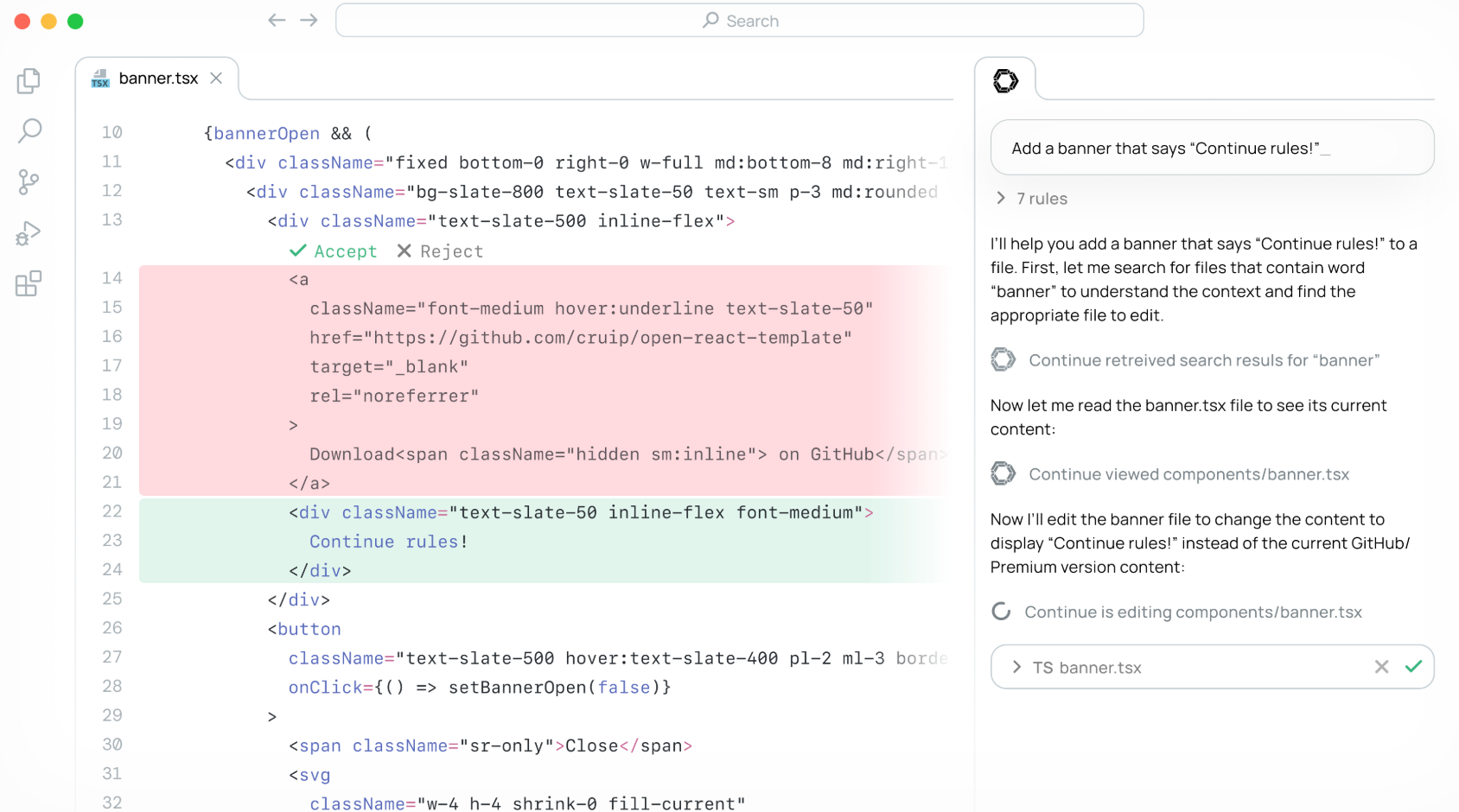
Continue is an open-source AI programming plugin similar to Cline but lighter. It supports multiple AI models, offering code completion, chat, and code editing in a simple interface. Completely free, it works with VS Code and JetBrains.
Amazon Q Developer
Amazon Q Developer (formerly CodeWhisperer) is Amazon's AI programming assistant.
Its features include deep AWS service integration, support for multiple IDEs (VS Code, JetBrains, etc.), a free tier, and code security scanning. Ideal for AWS users and teams needing code security checks.
4. IDE Extension Plugins
Beyond AI programming assistants, here are some practical IDE extension plugins.
While not AI tools, these plugins can significantly boost your development efficiency when used alongside AI programming.
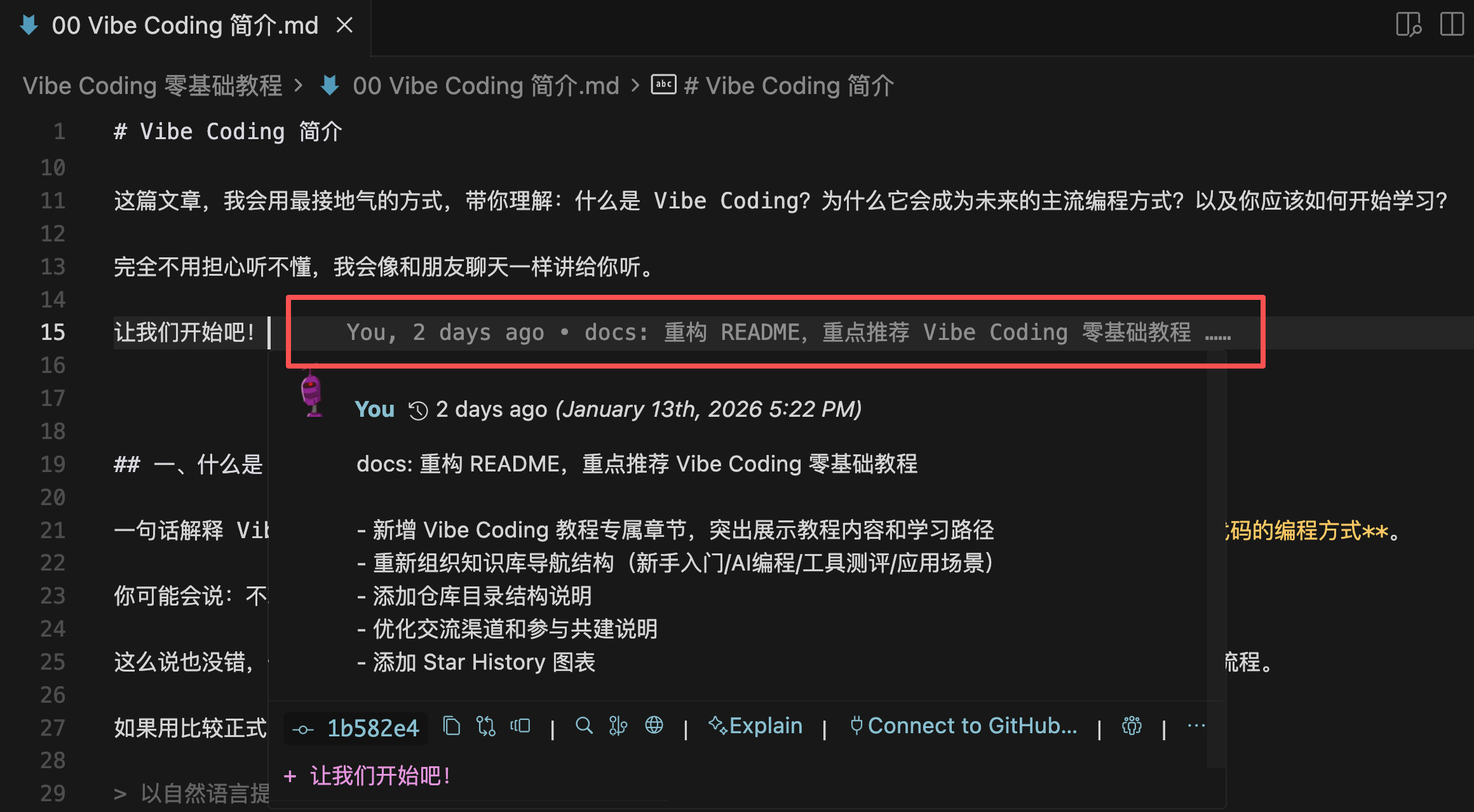
GitLens
GitLens lets you visually explore Git history, showing code authorship and commit dates when hovering over any line.
Office Viewer
Office Viewer allows direct preview and editing of documents like Markdown, Excel, Word, and PDF within the editor, eliminating window switching.

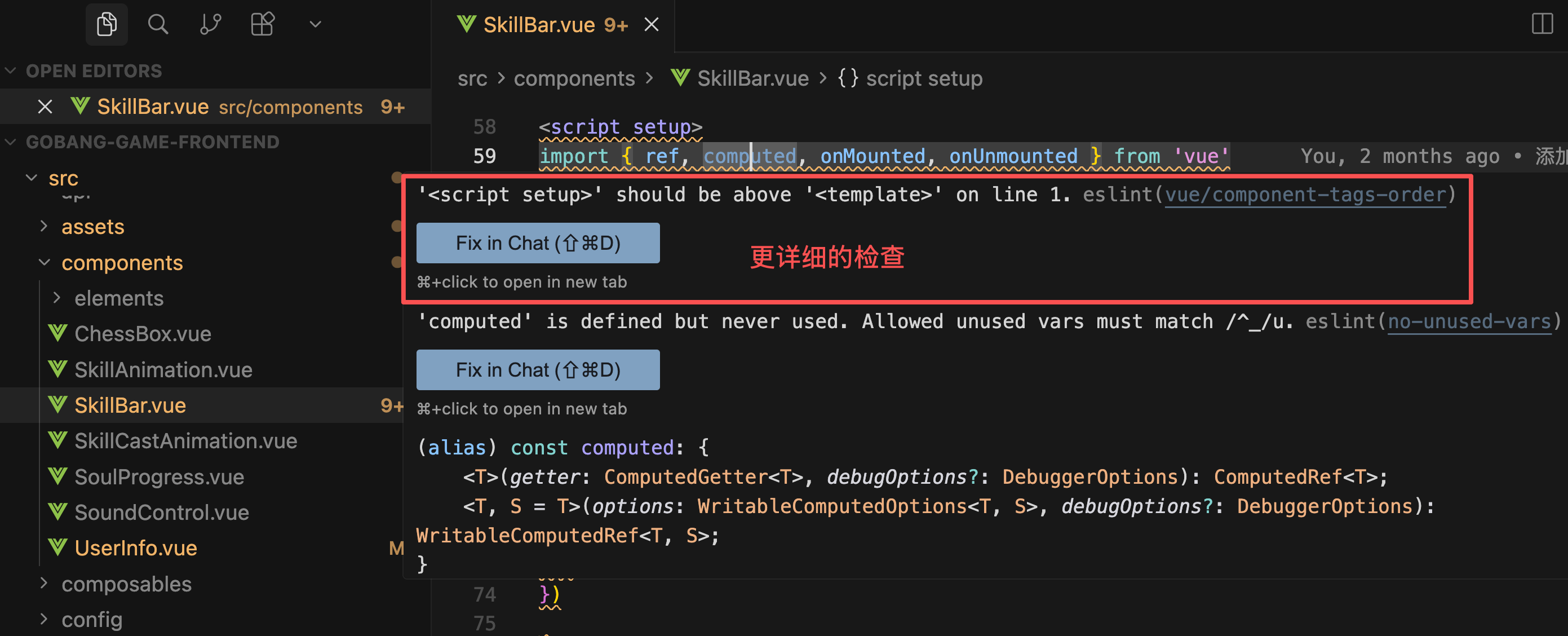
ESLint and Prettier
ESLint checks code quality, while Prettier formats code. These plugins help maintain code standards and prevent formatting issues in AI-generated code.
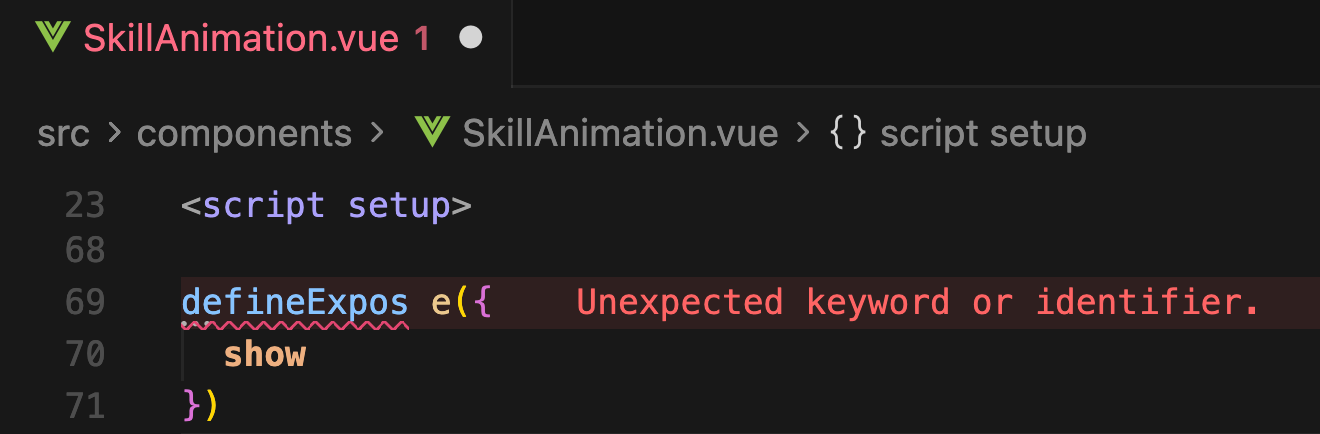
Error Lens
Error Lens highlights error messages directly at the end of code lines, making issues instantly visible.
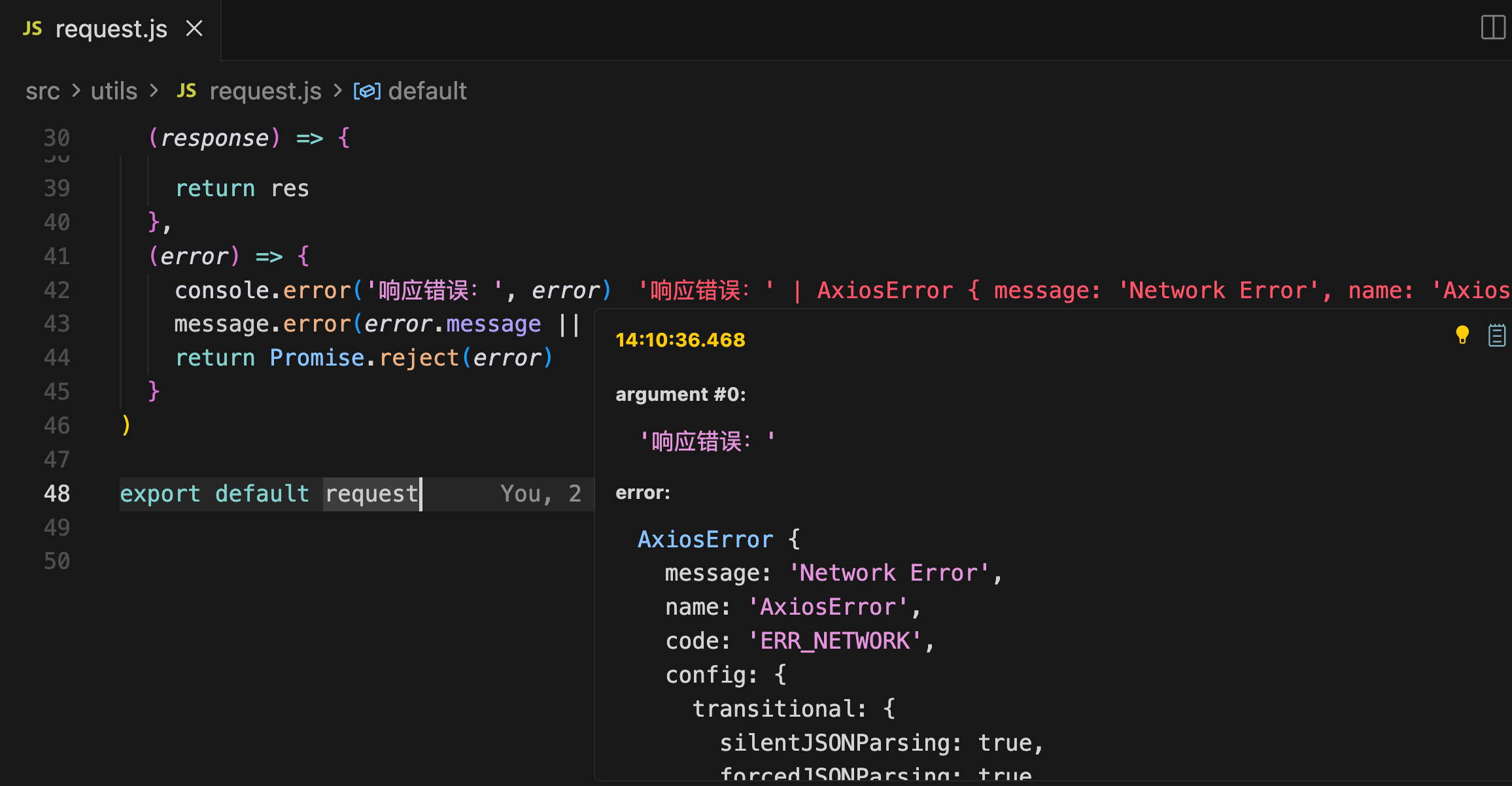
Console Ninja
Console Ninja lets you view code execution results directly in the editor, reducing the need to switch to browser consoles.
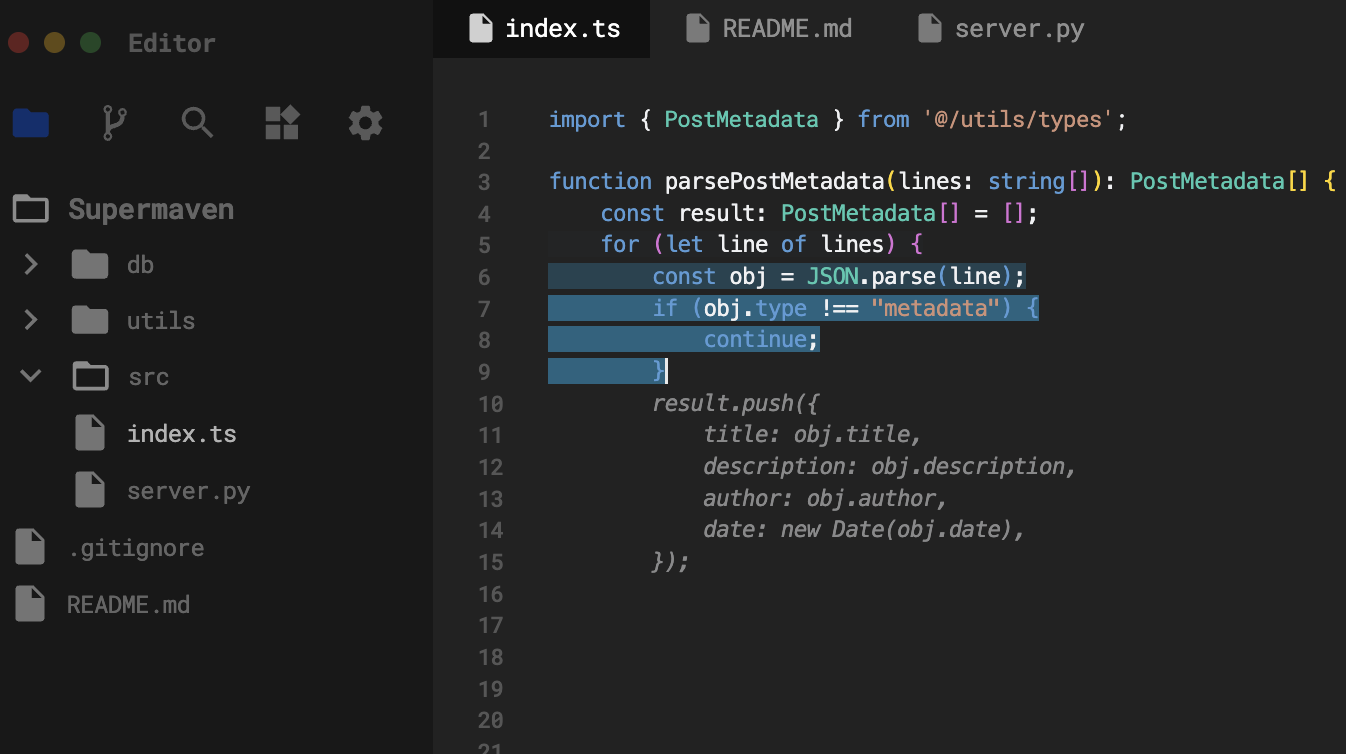
Supermaven
Supermaven focuses on code completion, boasting a 1-million-token context window, blazing-fast suggestions, and high accuracy.
5. How to Choose an AI IDE Plugin?
- For the most powerful features (agents, multi-file editing), choose Cline. It supports VS Code and JetBrains, is completely free, and rivals Cursor.
- If you mainly need code completion, GitHub Copilot is the choice. It's the most mature, with top-notch completion and cross-platform support.
- If you're already a JetBrains subscriber, JetBrains AI Assistant is ideal for its deep IDE integration.
- For a lightweight tool, try Continue.
I don't use IDE plugins too frequently these days, mostly relying on Cline (feature-rich + free), GitHub Copilot (high-quality completion), and some domestic AI plugins like CodeGeex or Tongyi Lingma.
Final Thoughts
By now, I've covered all mainstream AI programming tools. I recommend trying them out to find what suits you best.
In the next article, I'll introduce auxiliary tools to complete your development toolkit.
Keep coding!
Recommended Resources
-
Yupi's AI Navigation Site: Comprehensive AI Resources, Latest AI News, Free AI Tutorials
-
Programming Navigation Learning Circle: Learning Paths, Coding Tutorials, Practical Projects, Job Hunting Guides, Q&A
-
Programmer Interview Cheat Sheets: Internship/Campus/Job-Hunting FAQs, Company Problem Analysis
-
Resume Builder for Programmers: Professional Templates, Rich Examples, Interview-Ready
-
1-on-1 Mock Interviews: Essential for Internship/Campus/Job-Hunting Offers