yupi-translate-app[bot]
16 KiB
Top AI Programming Extensions Recommendations
Hello everyone, I'm programmer Yupi. Today I'll share some AI programming extensions I personally use to significantly improve AI programming efficiency and code quality.
10,000-word guide + 100+ images, pure干货! Bookmark this and let's get started~
1. MCP Server Category
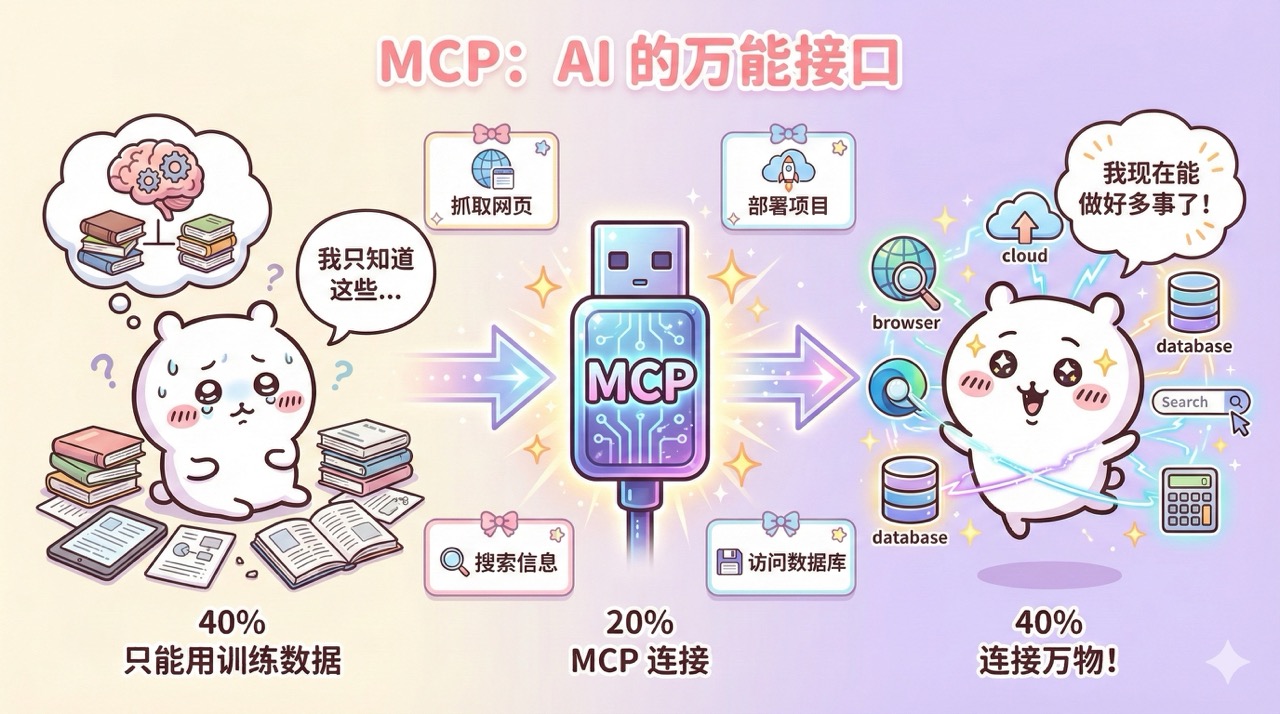
MCP stands for Model Context Protocol. Simply put, it's an open standard that allows AI models to connect with external tools and data sources.
Think of MCP as a USB-C port for AI. Originally, AI could only answer questions or generate code based on its training data. But with this universal interface, it can now connect to various external tools - like opening browsers to view websites, searching and scraping web content, deploying projects to the cloud, accessing databases, etc. Its capabilities instantly become much richer.
⭐️ Firecrawl MCP for Web Content Scraping
First is Firecrawl MCP, which enables AI to automatically scrape and understand web content.
When developing projects, I often need to gather reference materials from the web, read official documentation and tech blogs, or analyze competitors' feature implementations. Doing this manually requires opening websites, copying and pasting content, or writing custom scraping scripts - a huge hassle.
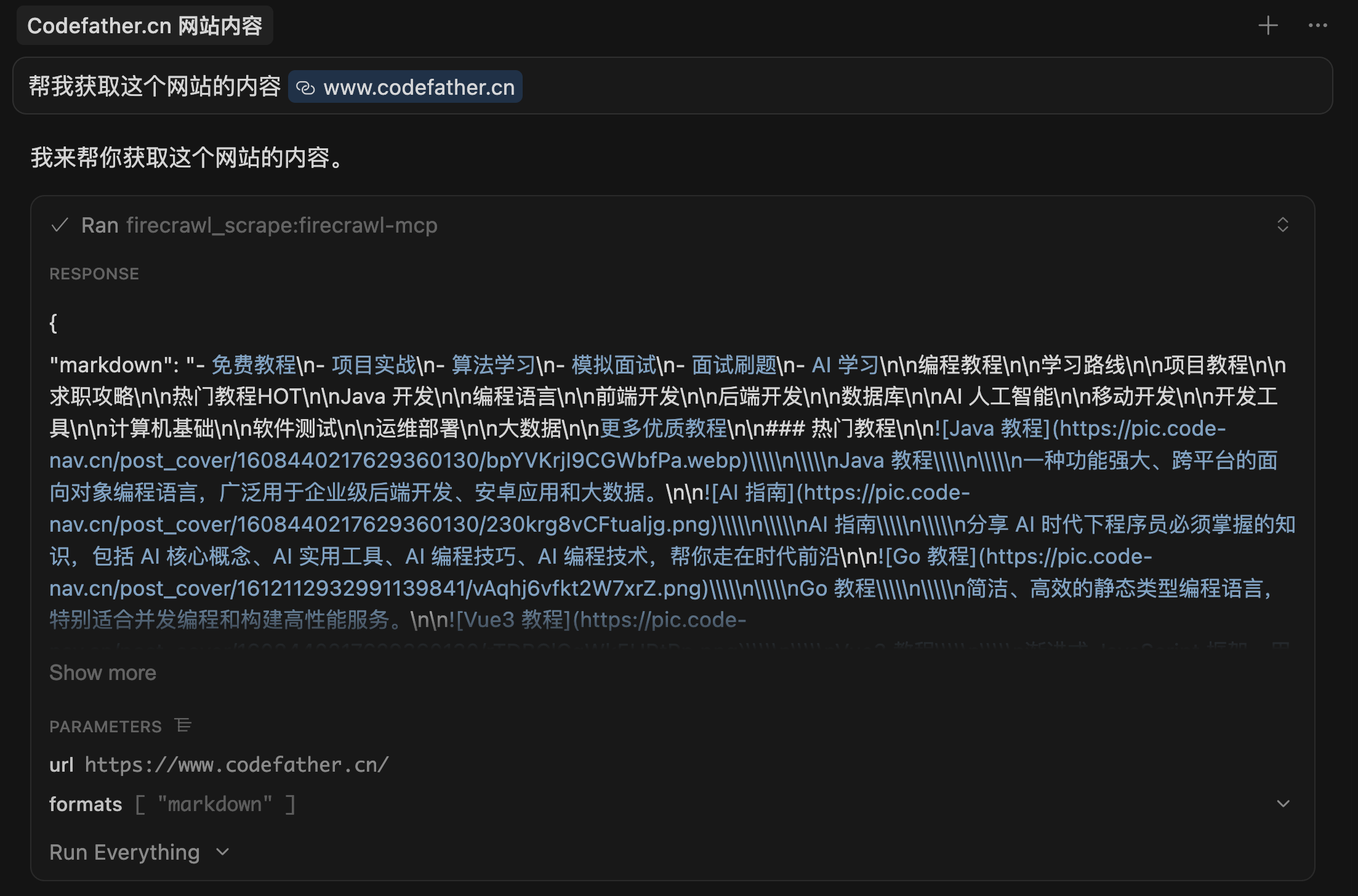
With Firecrawl MCP, it becomes much simpler. I just tell my AI programming tool:
- Get me the content from this website
- Read this document for me
- Search online for information about XX
It automatically retrieves the webpage's content, structure, even dynamically loaded data.
How to use?
First register on Firecrawl's website and create an API Key for service calls.
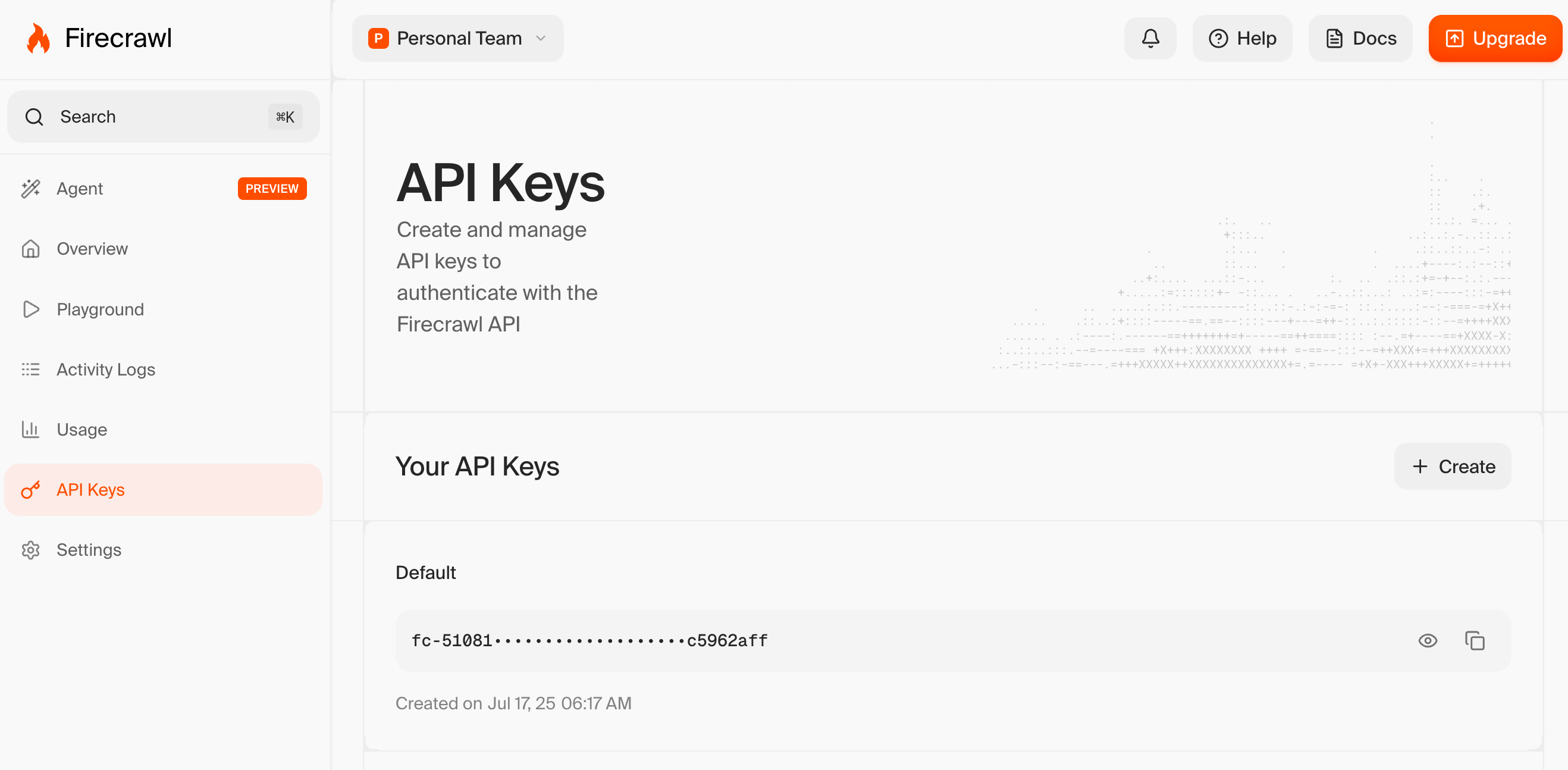
Then configure the MCP server in your AI programming tool. Using Cursor as an example (other tools have similar MCP integration methods - check their official docs like Claude Code MCP integration).
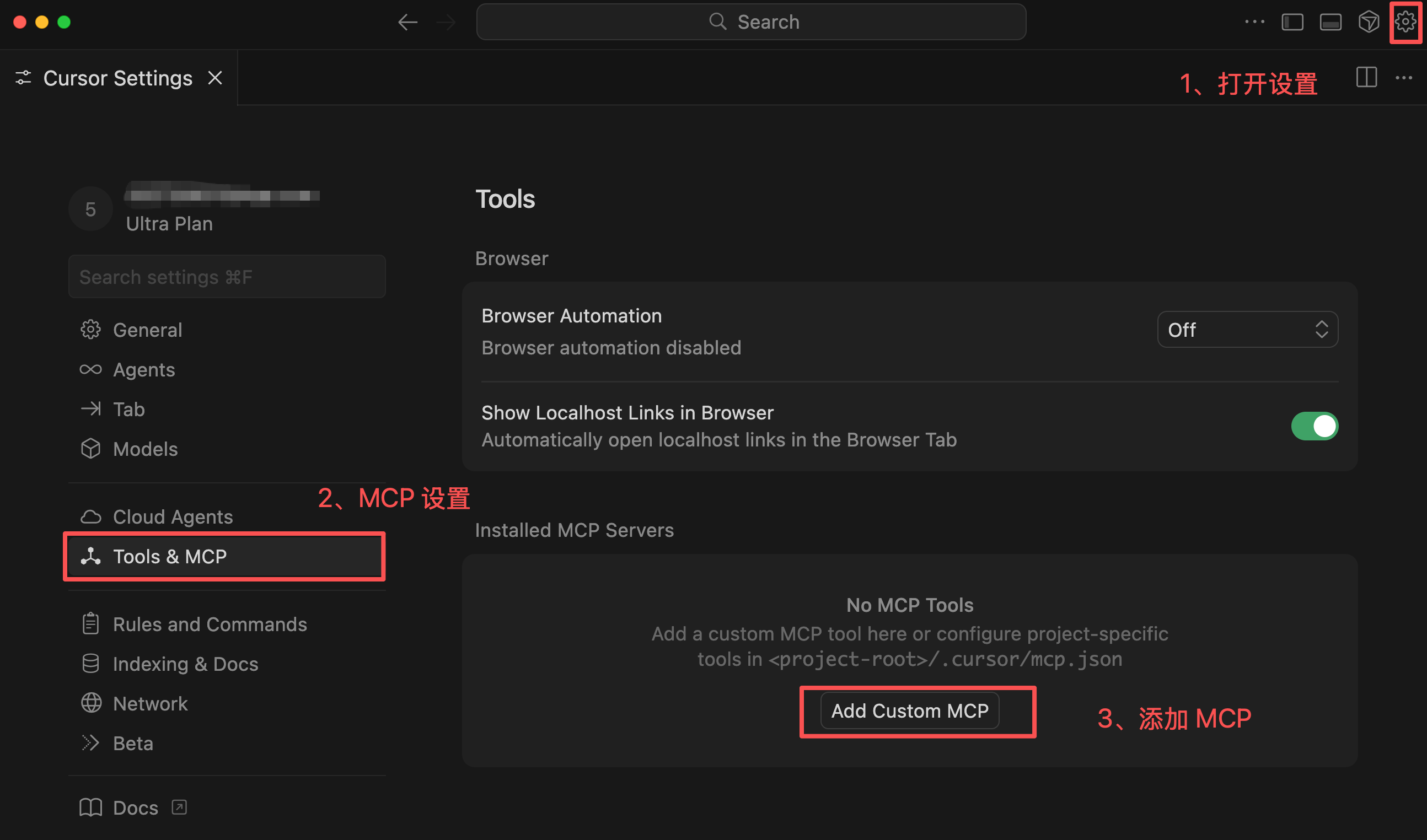
Open Cursor settings, find Tools & MCP, click + New MCP Server.
Essentially you're modifying the MCP config file to add:
{
  "mcpServers": {
    "firecrawl-mcp": {
      "command": "npx",
      "args": ["-y", "firecrawl-mcp"],
      "env": {
        "FIRECRAWL_API_KEY": "Your_API_Key"
      }
    }
  }
}
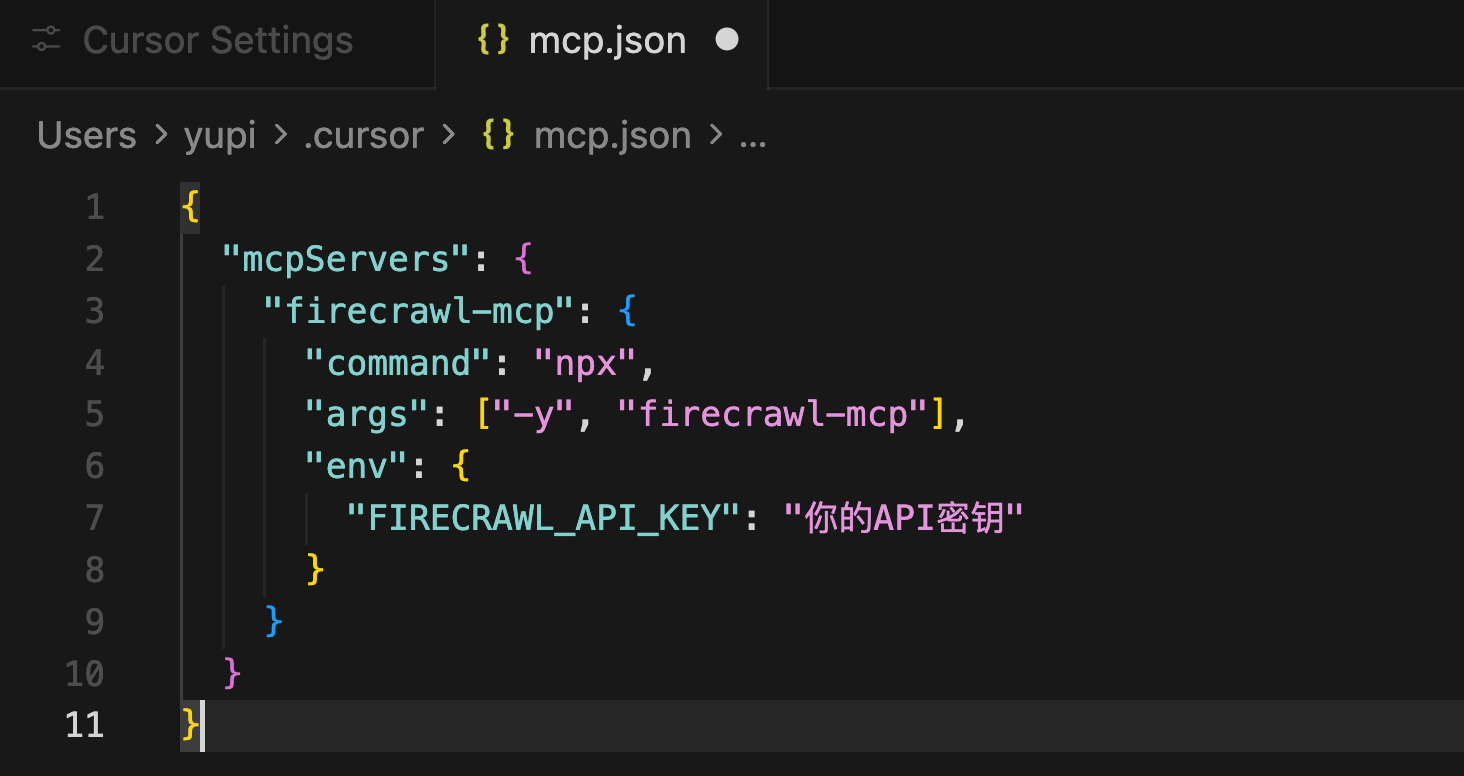
This configuration means: Run the firecrawl-mcp tool via npx command and pass your API key to it. If you don't have npx installed, first install Node.js - npx comes bundled with it.
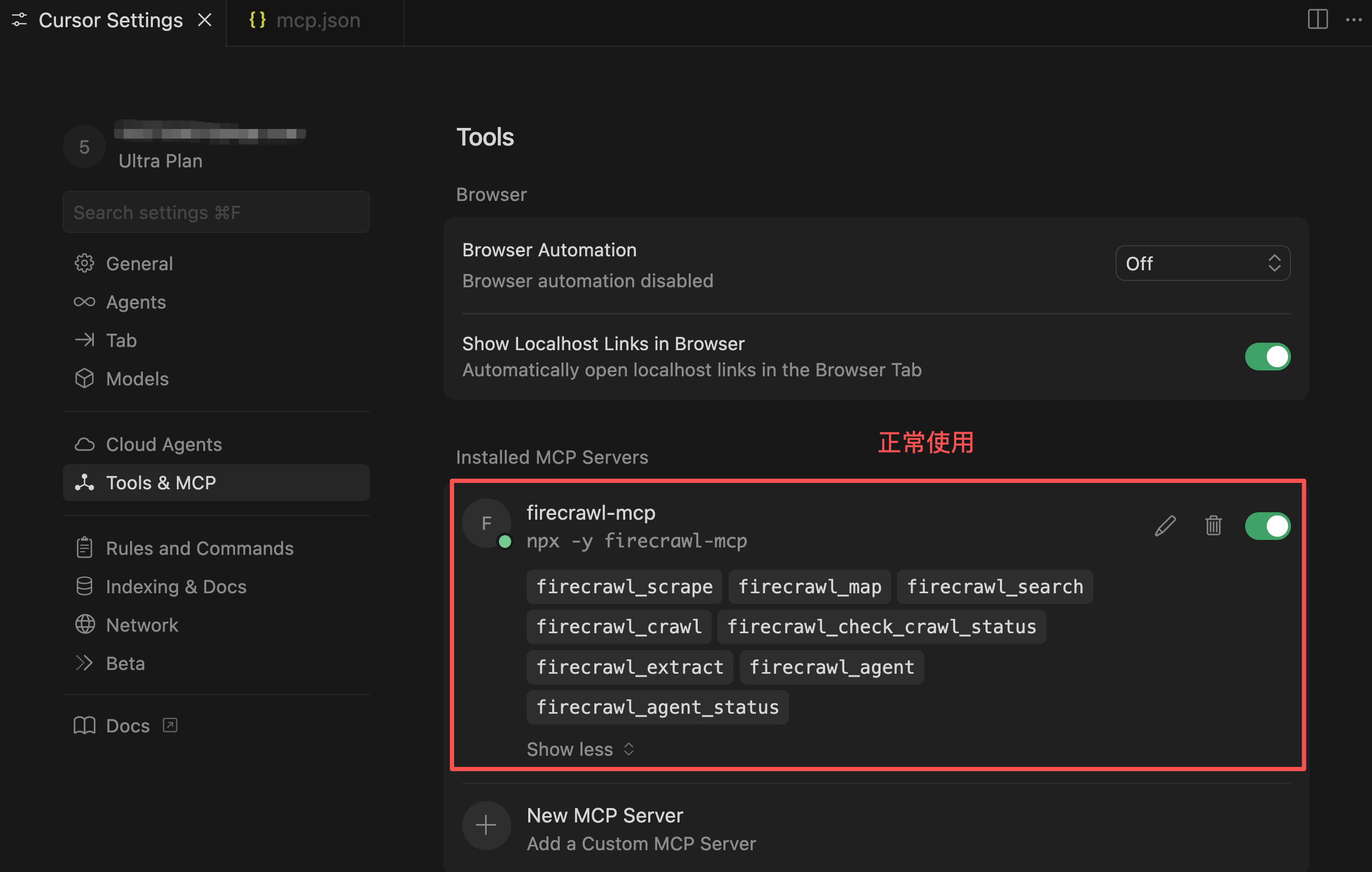
After configuration, green success dots indicate it's ready to use.
Beyond basic web scraping, Firecrawl MCP also supports batch site scraping, recursive multi-layer link scraping, automatic retries on failure, and other advanced features.
Brave Search MCP for Private Searching
Next is Brave Search MCP, enabling AI to perform privacy-focused web searches.
During development, I often need AI to search for the latest technical materials, find library usage examples, or troubleshoot technical issues. The traditional approach requires manually searching and copying results to AI - quite tedious.
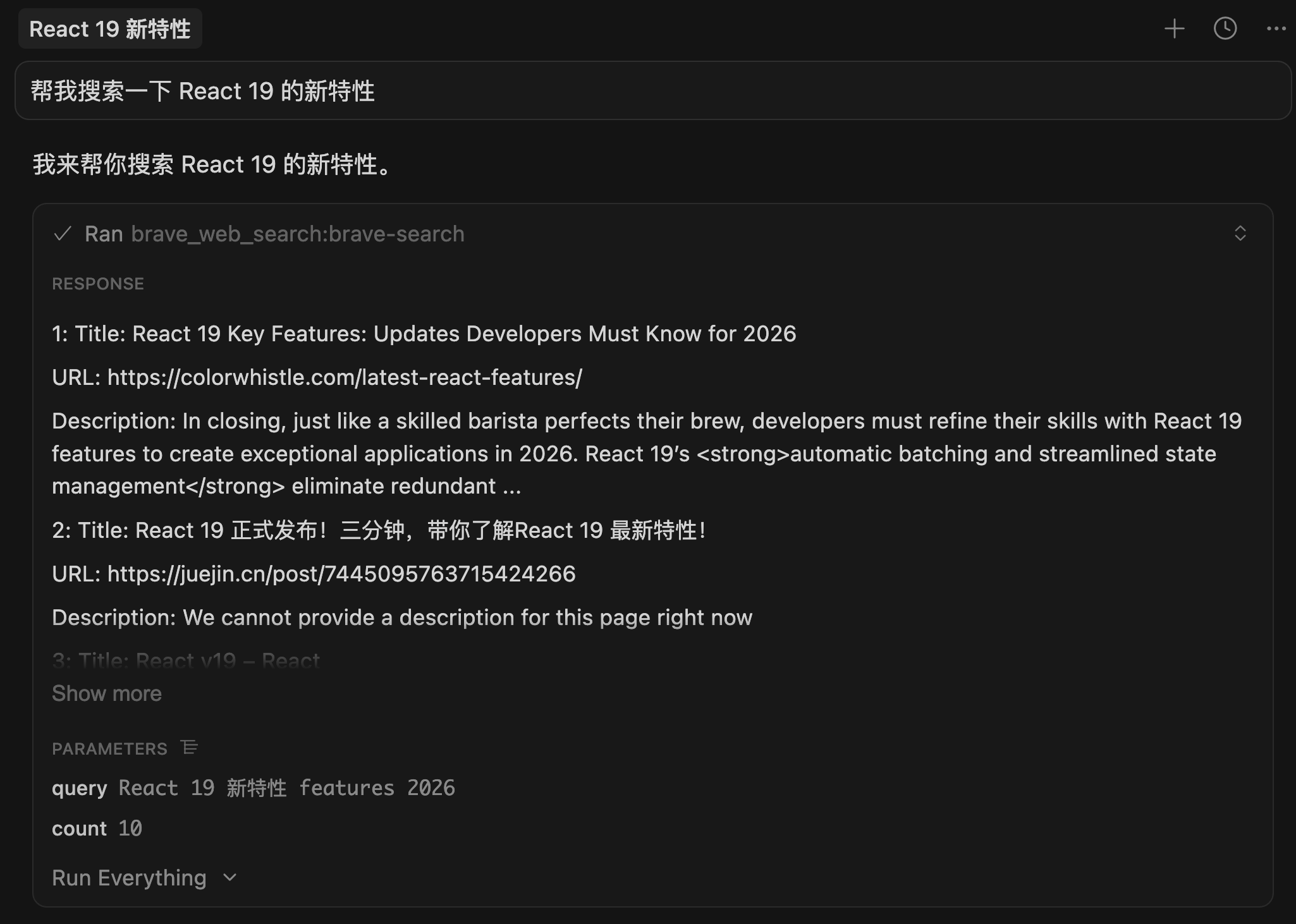
With Brave Search MCP, I simply tell AI:
- Search for React 19's new features
- Look up how to fix this error
It uses Brave Search to find answers. Brave doesn't track search history, offering excellent privacy protection.
How to use?
First register at Brave Search API, then go to API Key management. You must select the free plan! 2000 monthly queries are enough for personal development.
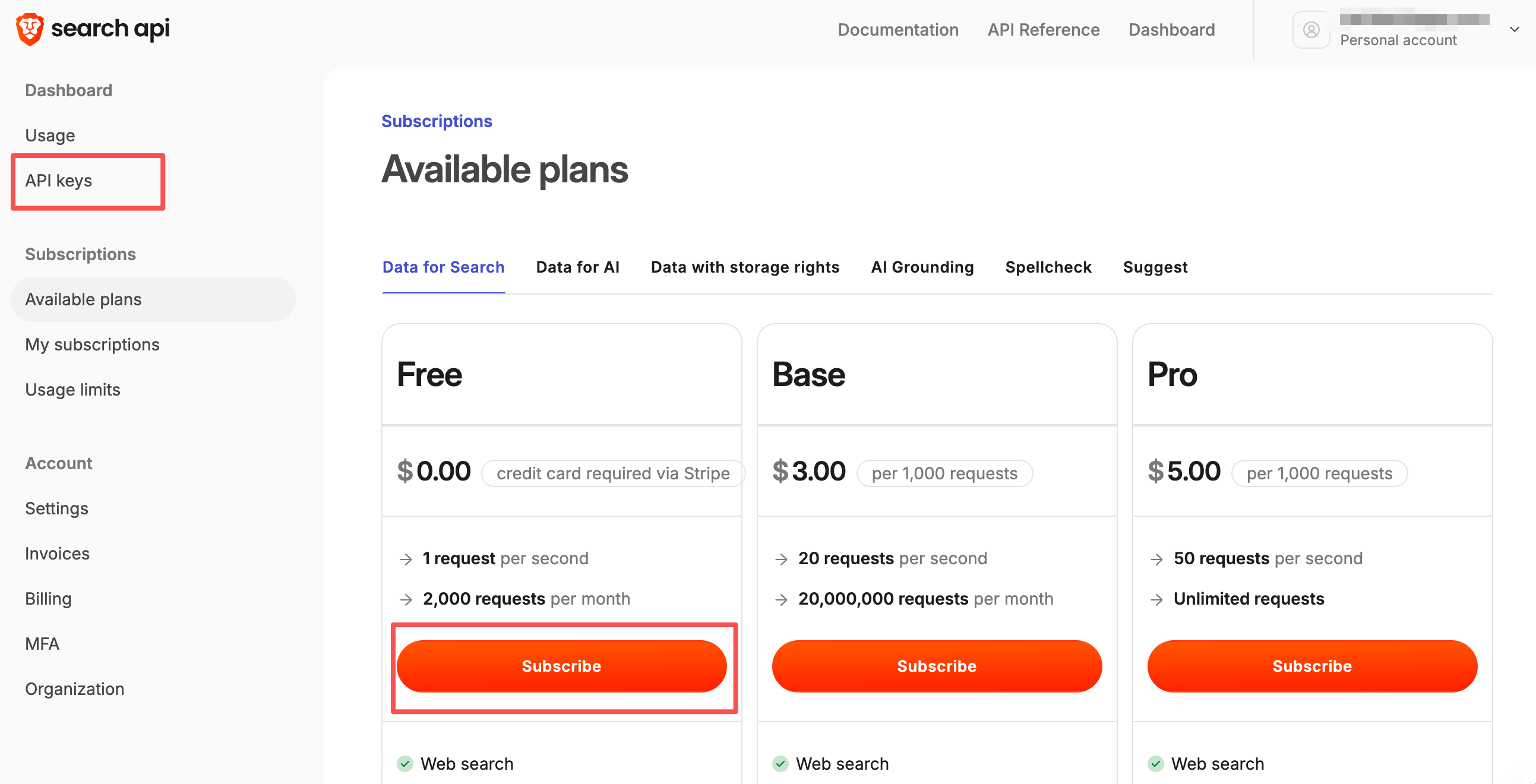
One catch: Even the free plan requires payment method setup. Those without overseas bank cards may need to skip.
After subscription, create an API Key:
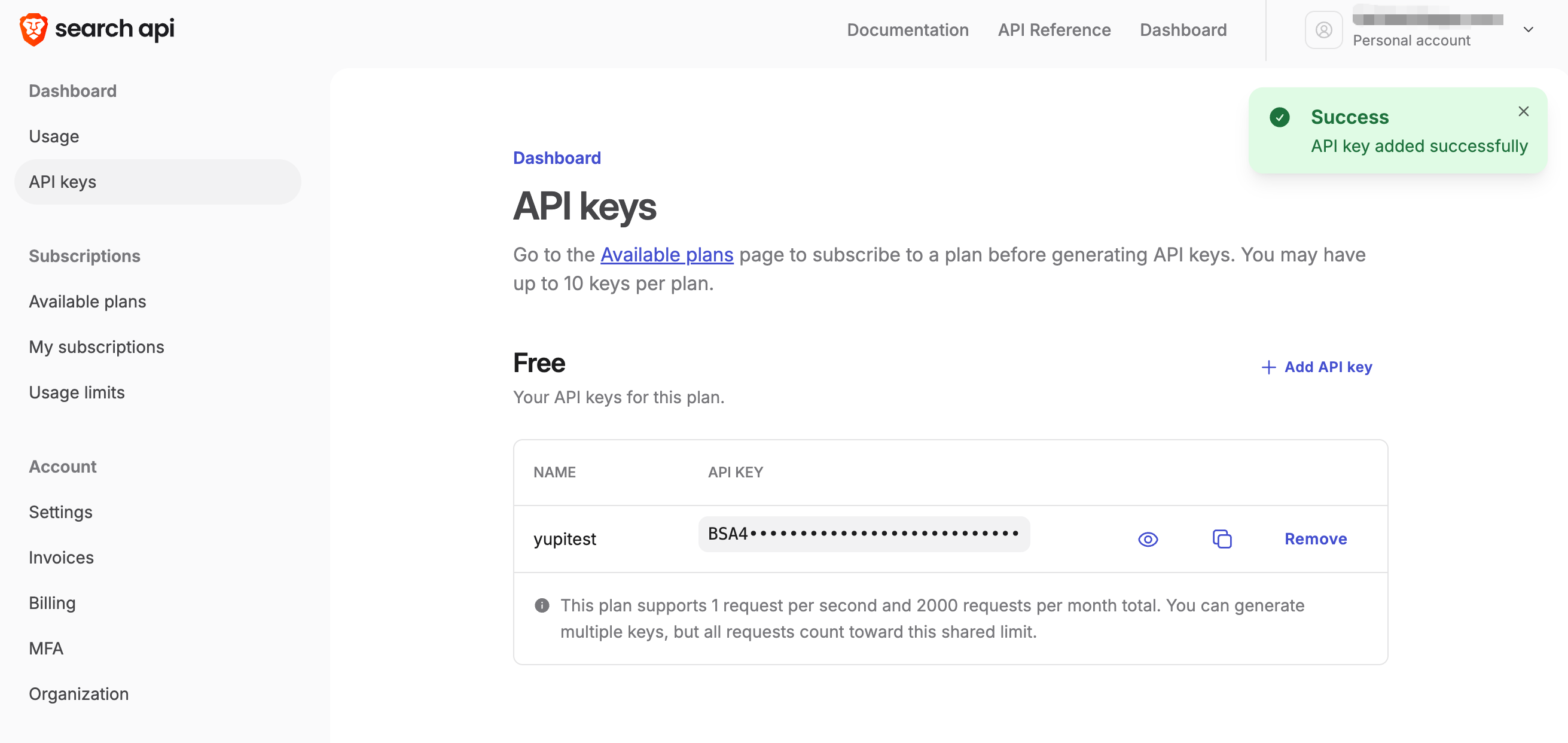
With the API Key, add to Cursor's MCP config:
{
  "mcpServers": {
    "brave-search": {
      "command": "npx",
      "args": ["-y", "brave-search-mcp"],
      "env": {
        "BRAVE_API_KEY": "Your_API_Key"
      }
    }
  }
}
Once configured, AI can search for latest information anytime.
Supports web, image, video, news searches, even local business info (like nearby coffee shops).
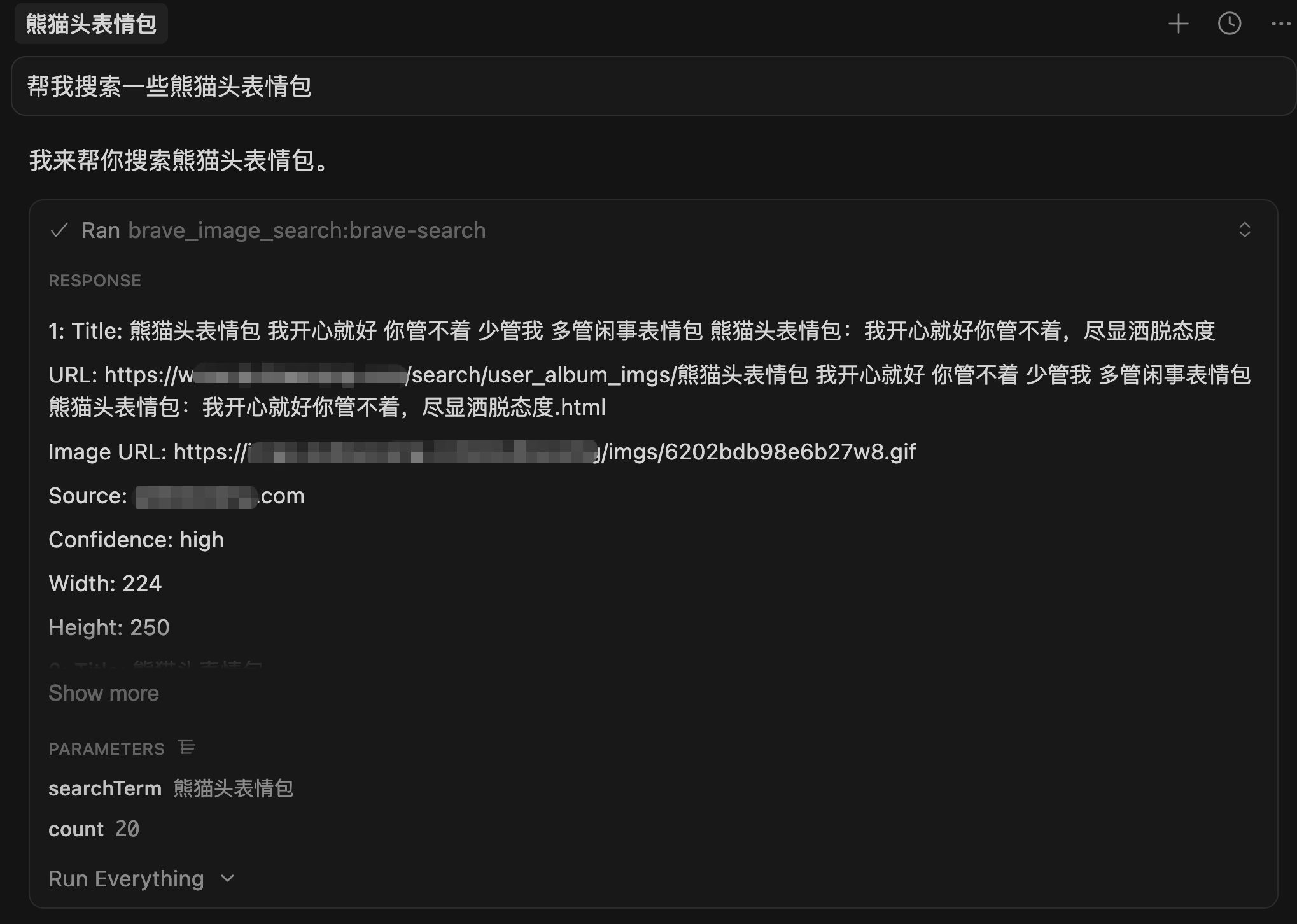
It also features AI summarization, automatically condensing search results into concise answers.
⭐️ Context7 for Latest Documentation
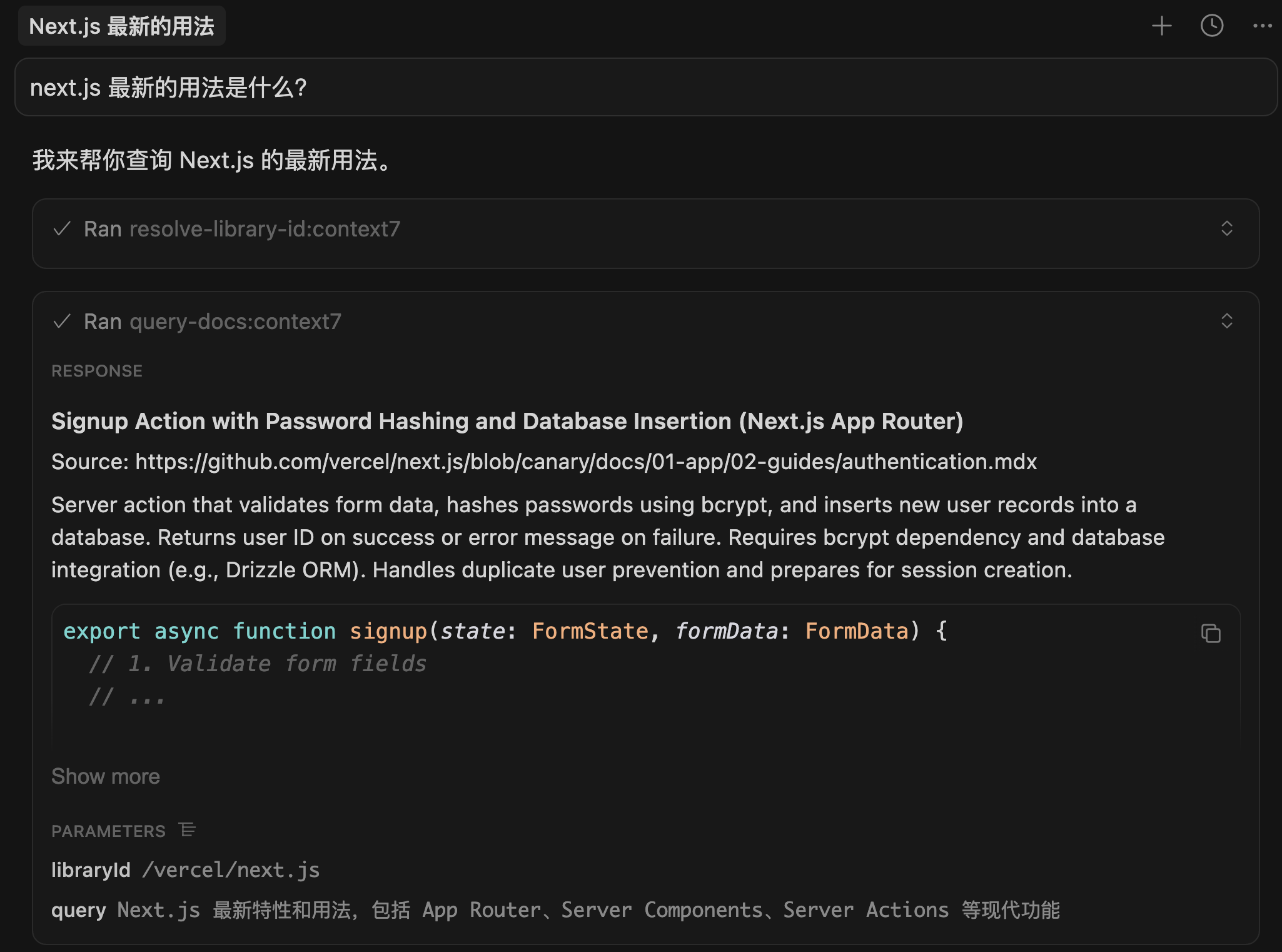
Context7 helps AI access the latest technical documentation.
We know AI training data has cutoff dates - GPT-4's knowledge might only be current until 2023. This creates problems when asking about latest framework versions - answers may be outdated.
Context7 solves this by automatically scraping latest version-specific docs from official sites for AI.
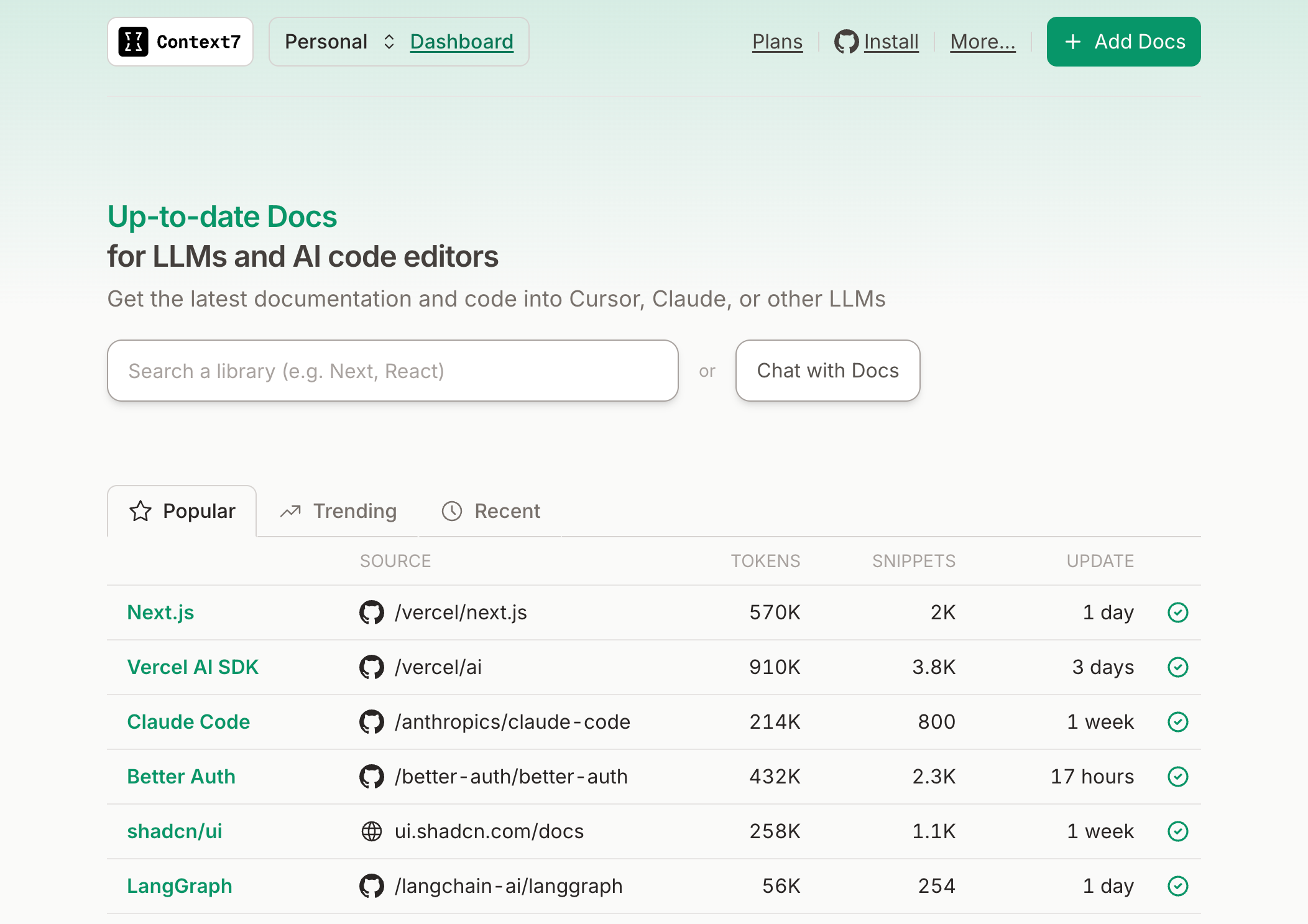
Thus, AI's code examples and suggestions are based on current docs, avoiding deprecated practices, significantly improving project success rates.
How to use?
Visit Context7 Dashboard to register and get an API Key (free for personal use).
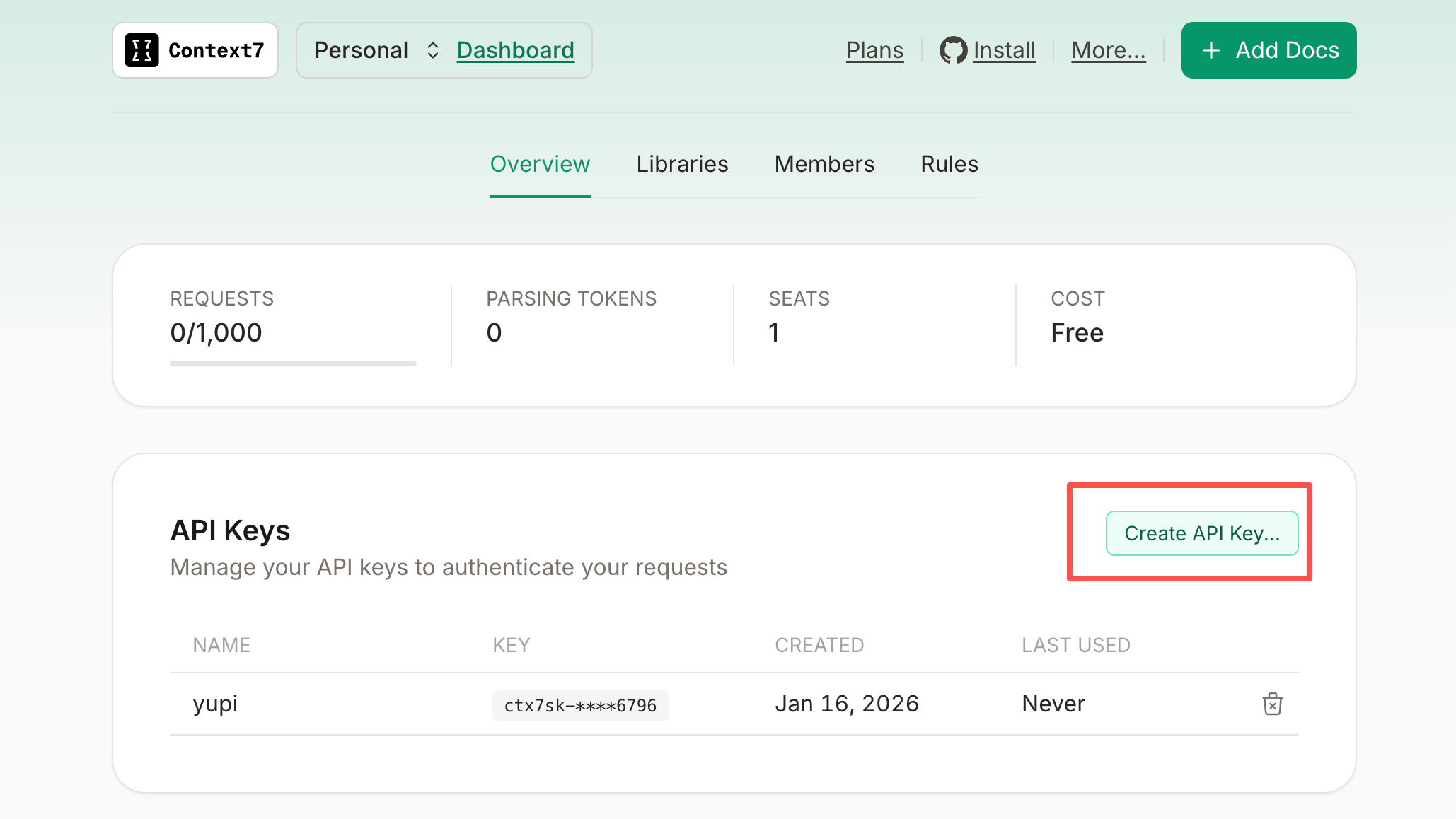
Add to MCP config:
{
  "mcpServers": {
    "context7": {
      "url": "https://mcp.context7.com/mcp",
      "headers": {
        "CONTEXT7_API_KEY": "Your_API_Key"
      }
    }
  }
}
When discussing technical docs with AI or mentioning "use context7", it automatically fetches latest documentation.
Web to MCP for UI Component Replication
Web to MCP is a Chrome extension that works with MCP to send any webpage UI component directly to AI for code generation - the fastest way to "copy homework"!
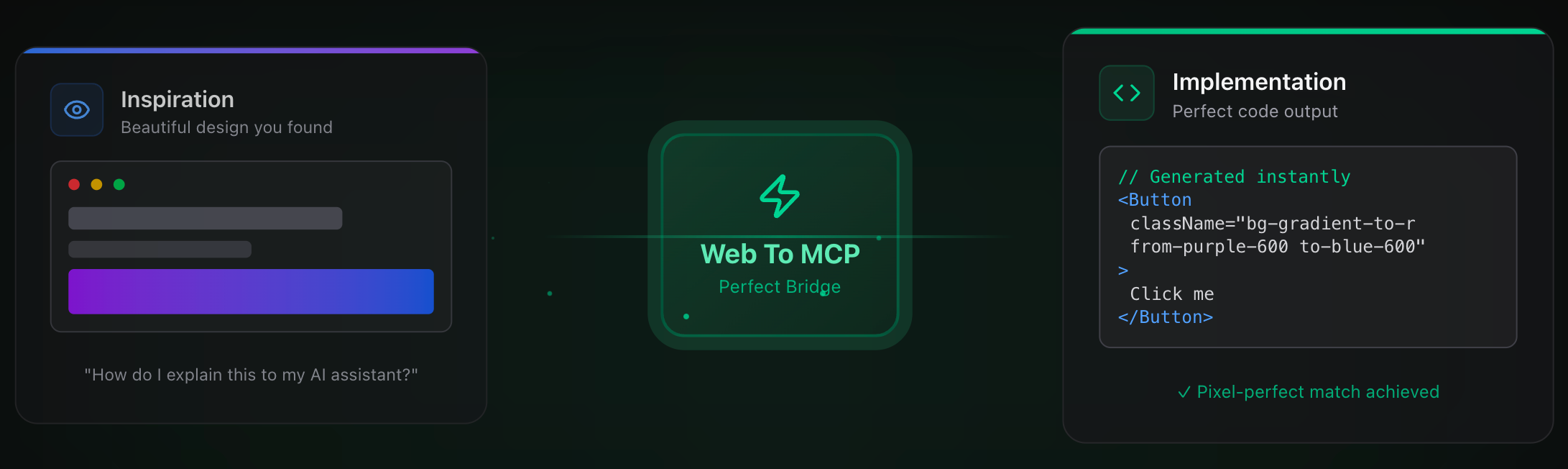
Often when browsing sites, I see nice UI components and want AI to recreate similar effects. Previously, I'd screenshot and describe: "Make a button like this - rounded corners, gradient, with shadow..." Time-consuming and imprecise.
With Web to MCP, I just click the element I want to replicate:
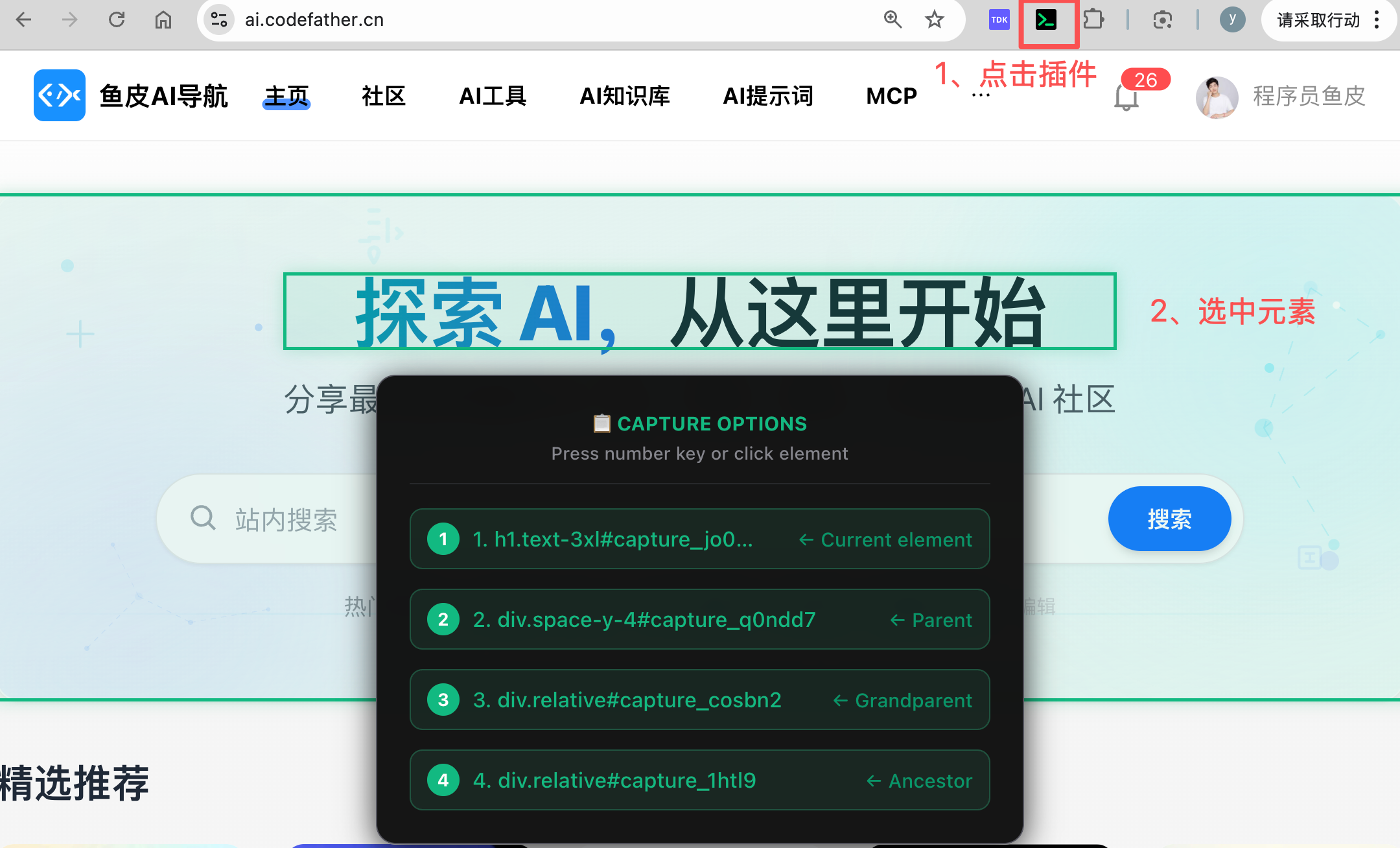
It automatically captures the component's DOM structure, CSS styles, even interactions, providing a prompt for AI replication.
Just send the prompt to AI, which uses MCP to get complete component info and generates replication code.
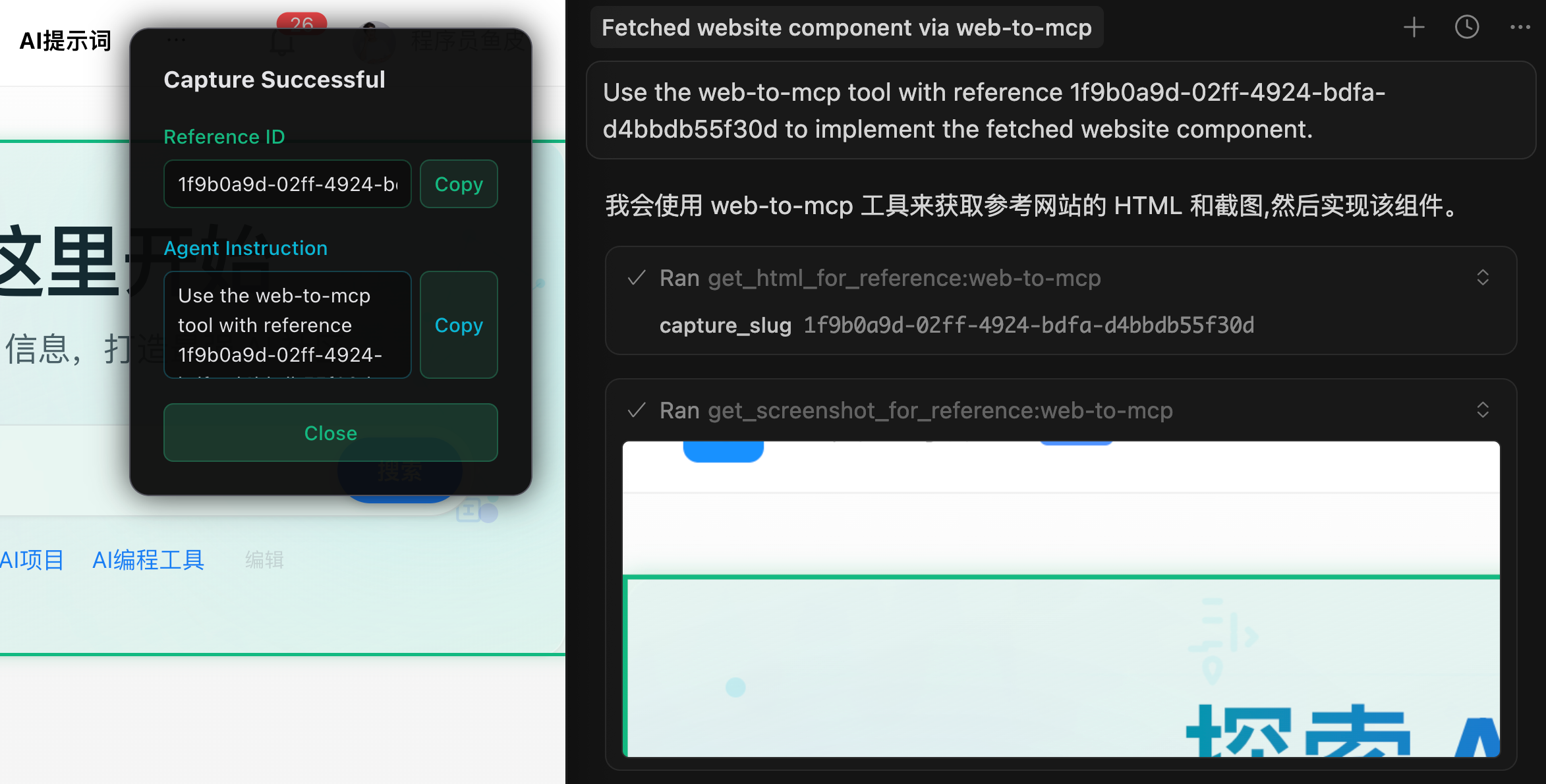
Compared to vague screenshots, the generated code is much more accurate.

How to use?
- Install extension via website or Chrome Web Store search
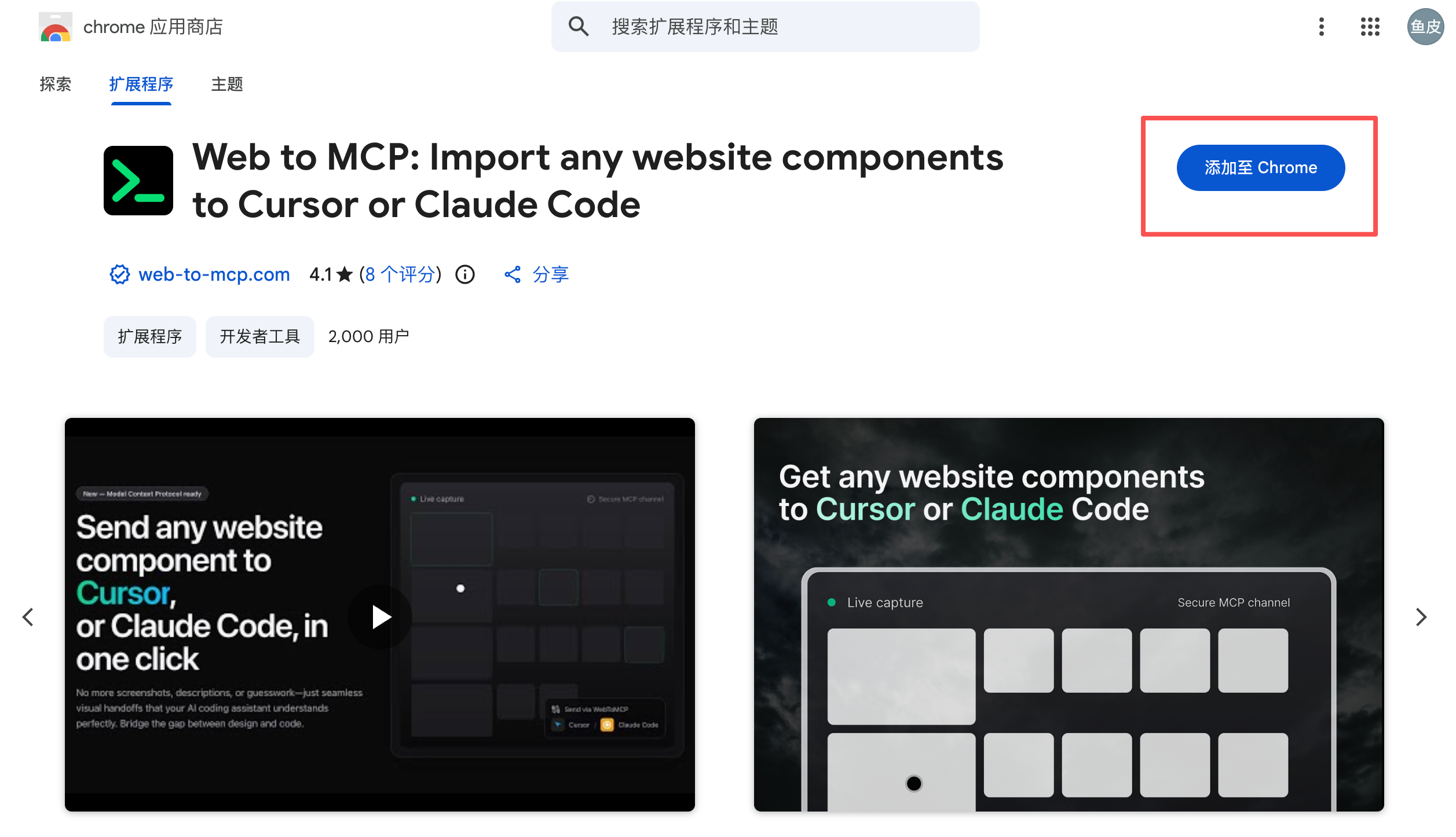
- Log in with Google account to get your MCP config:
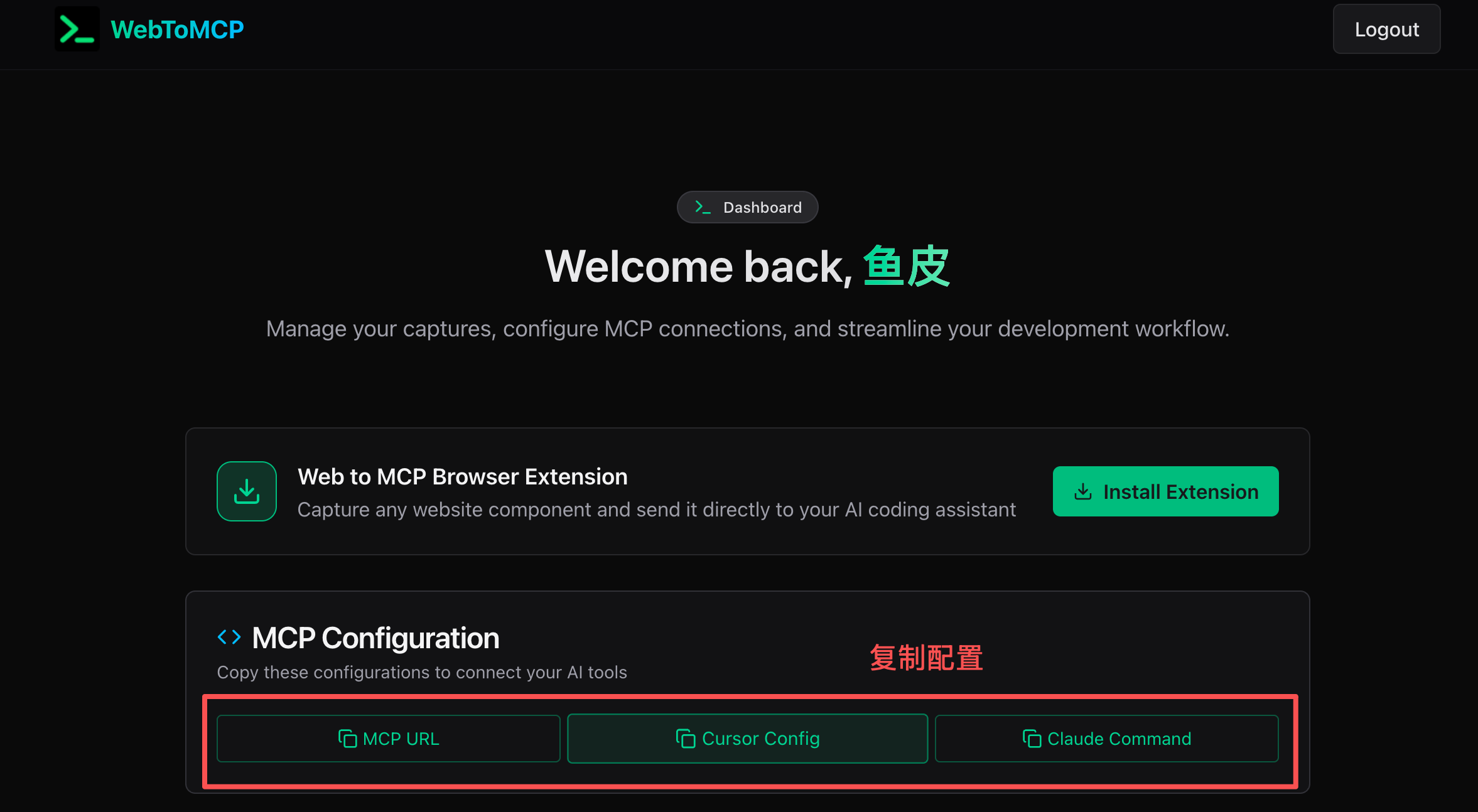
- Add to AI tool's MCP config:
{
  "mcpServers": {
    "web-to-mcp": {
      "url": "https://web-to-mcp.com/mcp/your_unique_ID"
    }
  }
}
When browsing, click the extension icon, select desired components, and directly reference them in your AI tool to quickly generate style-consistent code.
Chrome DevTools MCP for Browser Debugging
Chrome DevTools MCP by Chrome's team lets AI directly control Chrome for operations and debugging.
For frontend development, I often need to debug pages, inspect network requests, analyze performance. Previously manual in browser DevTools, now AI can do it.
For example: "Why is this site loading slowly?" AI opens DevTools, analyzes network requests, checks resource load times, then identifies issues.
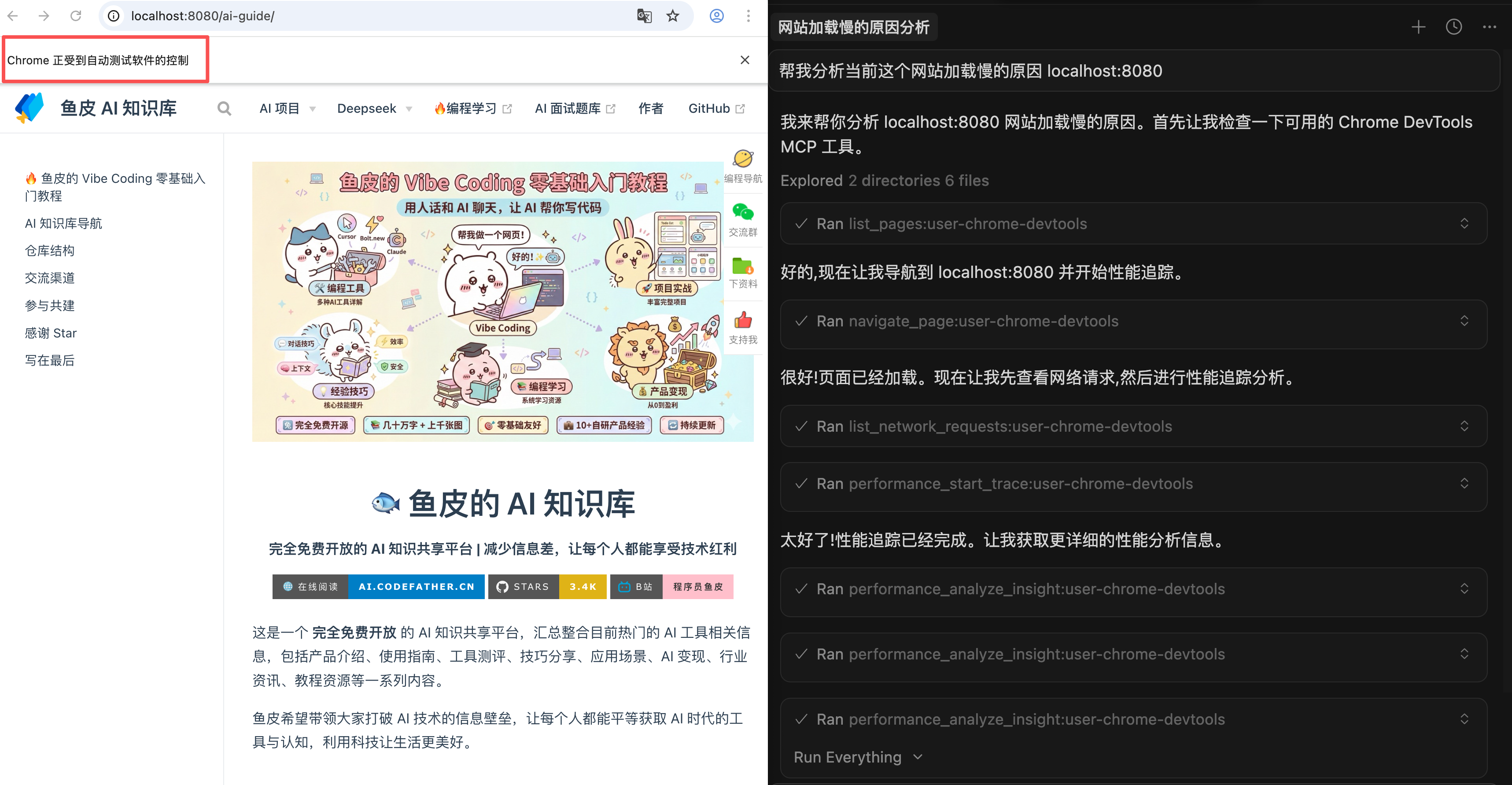
Or: "Test this form submission" - it auto-fills forms, clicks submit, checks responses.
How to use?
Add to MCP config:
{
  "mcpServers": {
    "chrome-devtools": {
      "command": "npx",
      "args": ["-y", "chrome-devtools-mcp@latest"]
    }
  }
}
After configuration, AI can automate testing and debugging. The tool auto-connects to your running Chrome browser without extra setup.
Also supports element locating, network monitoring, performance analysis, screenshots - ideal for frontend development and testing.
EdgeOne Pages MCP for One-Click Deployment
EdgeOne Pages MCP by Tencent Cloud deploys projects to Tencent's accelerated network for public access and speed boosts.
After development, you'll want others to access your site. Traditional deployment is cumbersome - manually packaging code, uploading to servers, configuring domains, setting HTTPS certificates - takes significant time.

With EdgeOne Pages MCP, I just tell AI: "Deploy this project" - it handles packaging, uploading, deployment, providing a live URL. Deployed to global accelerated network for fast worldwide access.
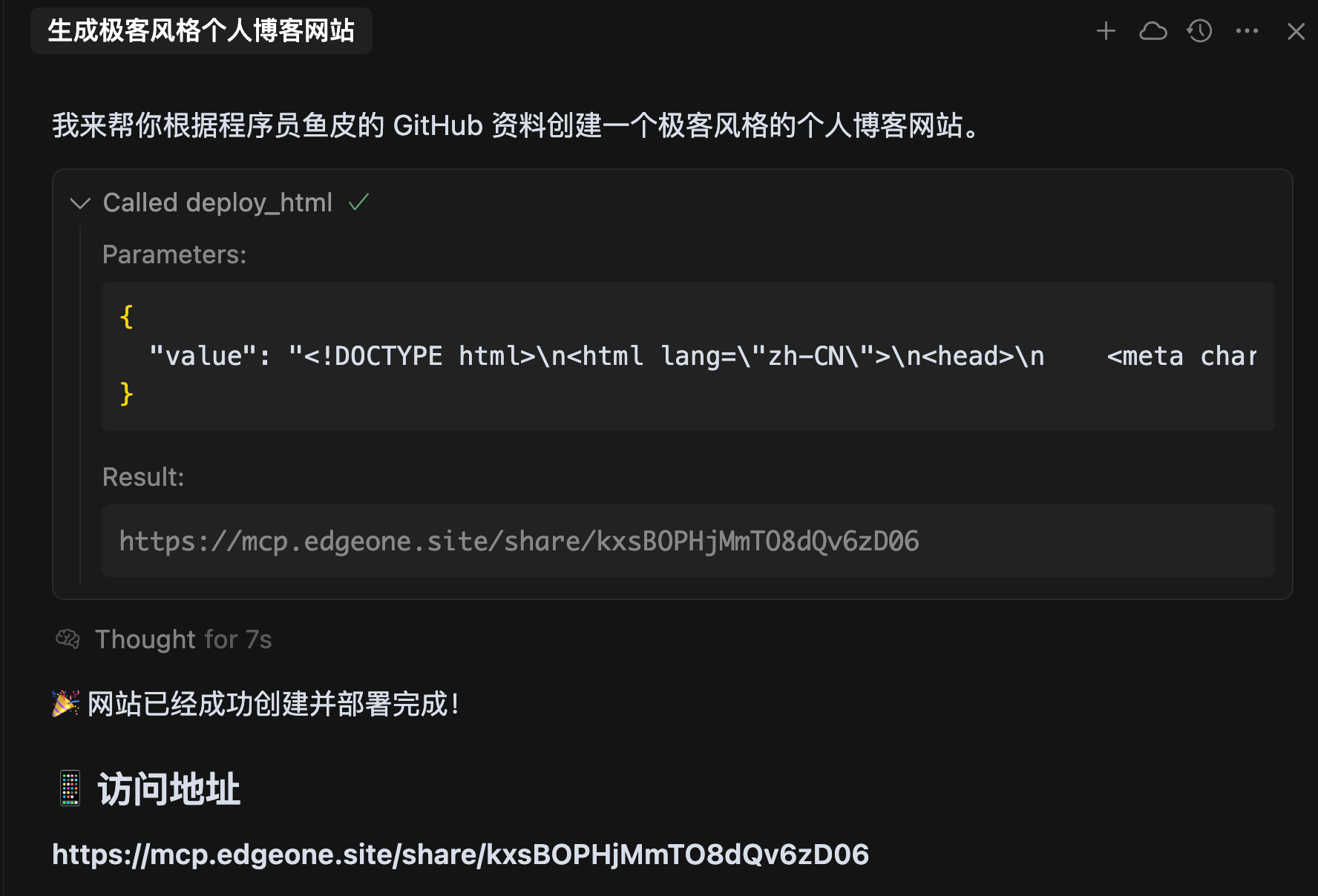
How to use?
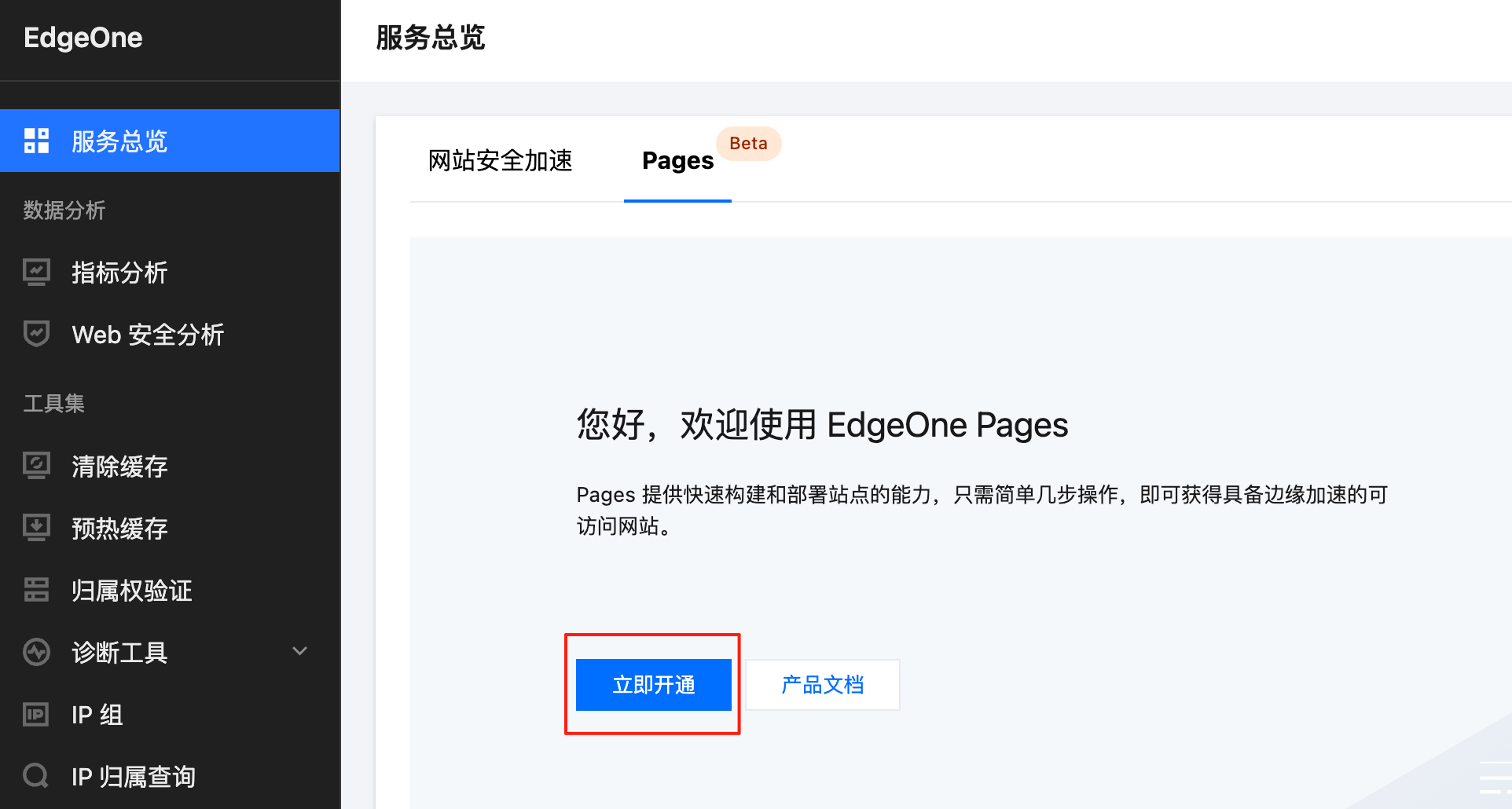
First enable Pages service at EdgeOne Console:
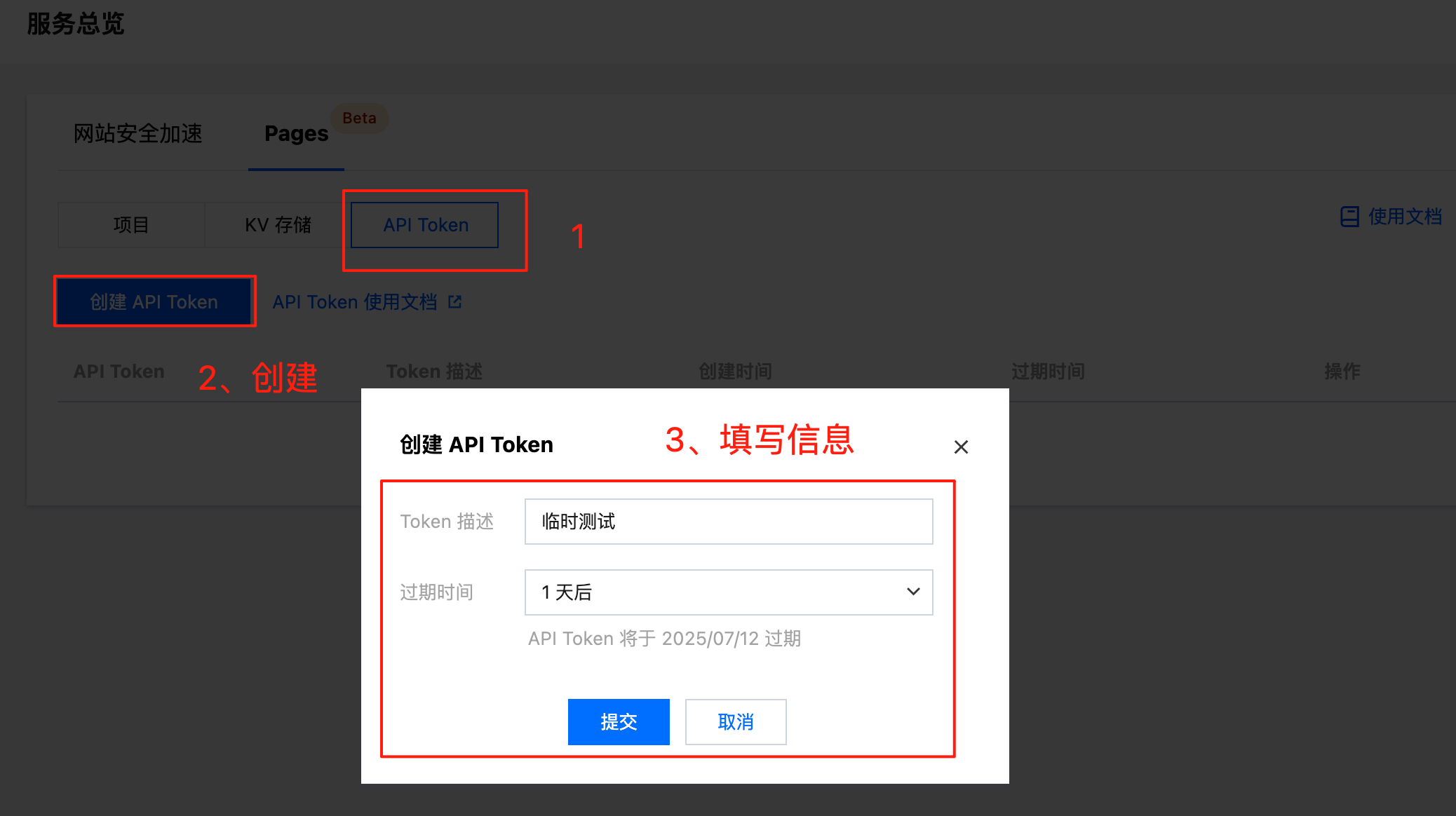
Get API Token as service credential:
Add to MCP config:
{
  "mcpServers": {
    "edgeone-pages-mcp-server": {
      "command": "npx",
      "args": ["edgeone-pages-mcp"],
      "env": {
        "EDGEONE_PAGES_API_TOKEN": "Your_API_Token"
      }
    }
  }
}
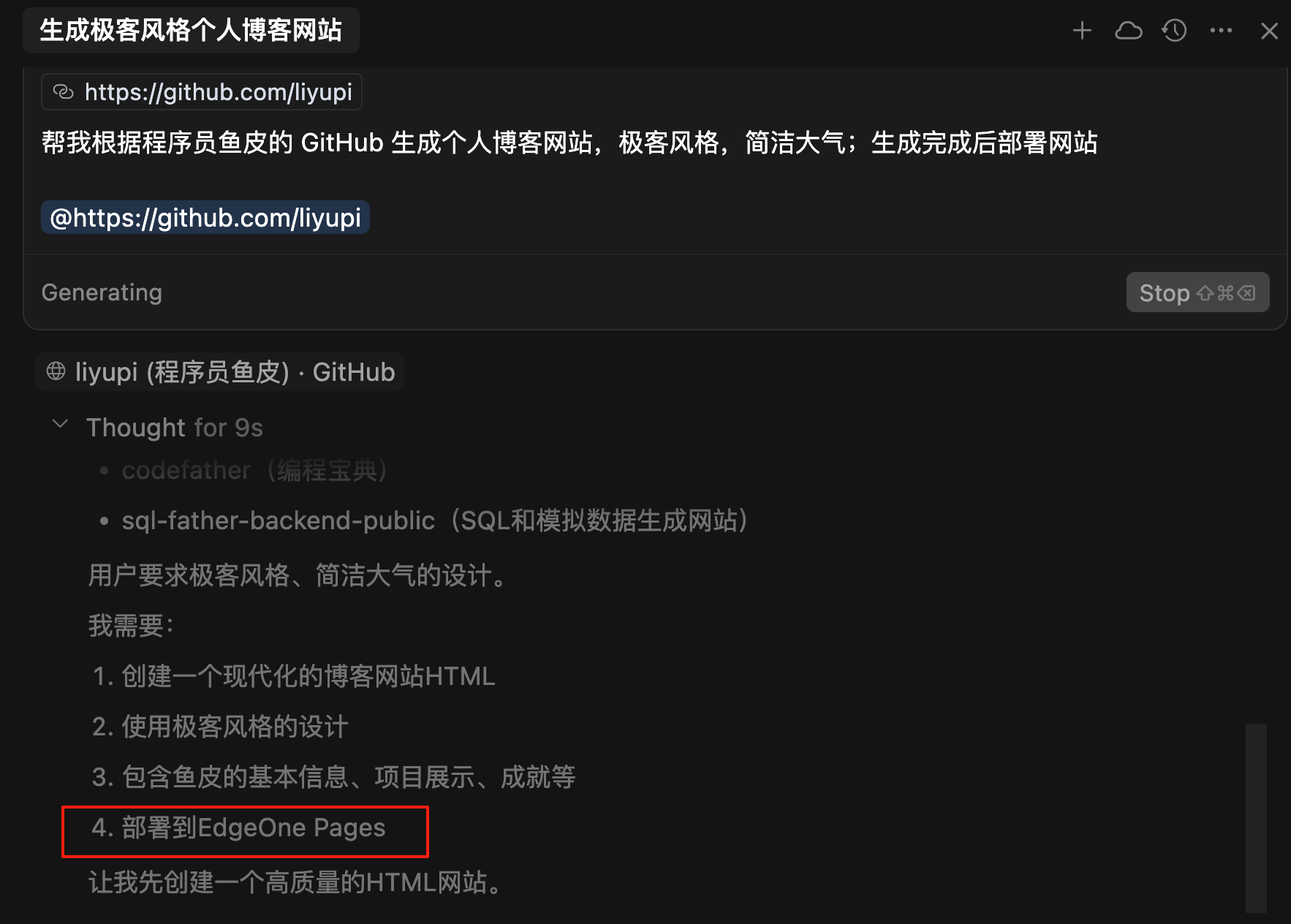
After configuration, AI can one-click deploy projects. Free deployment supports static sites, full-stack projects, auto HTTPS and CDN - perfect for personal projects and small apps.
COS MCP for Object Storage
COS MCP lets AI directly operate Tencent Cloud Object Storage.
Object storage is cloud file storage - think cloud drives.
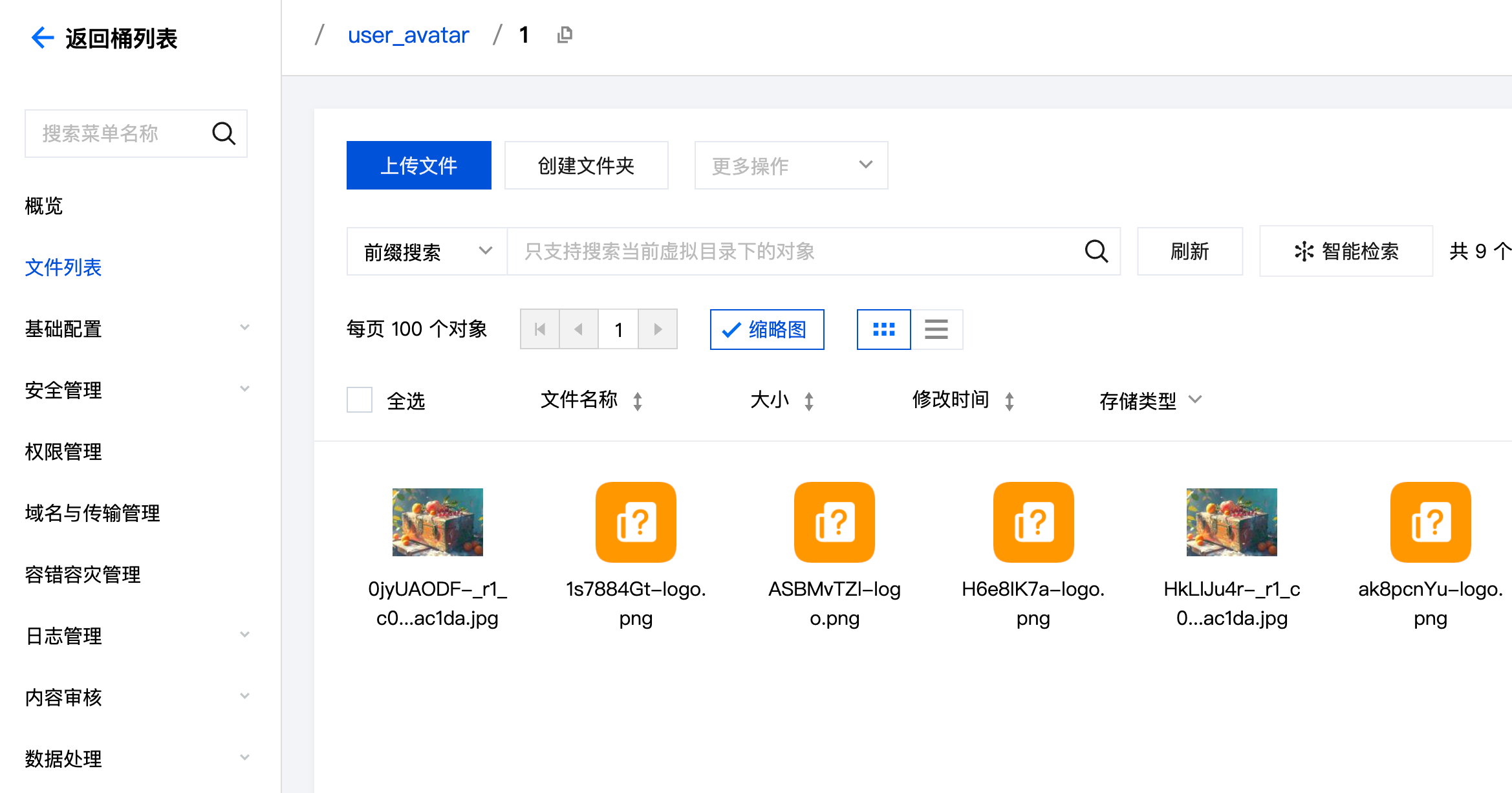
For team collaboration, we often need AI to reference project specs or images. Previously storing files locally and manually uploading to AI was inconvenient and hard to maintain/share/modify across teams.
With COS MCP, I can store shared files in the cloud and have AI directly access them.
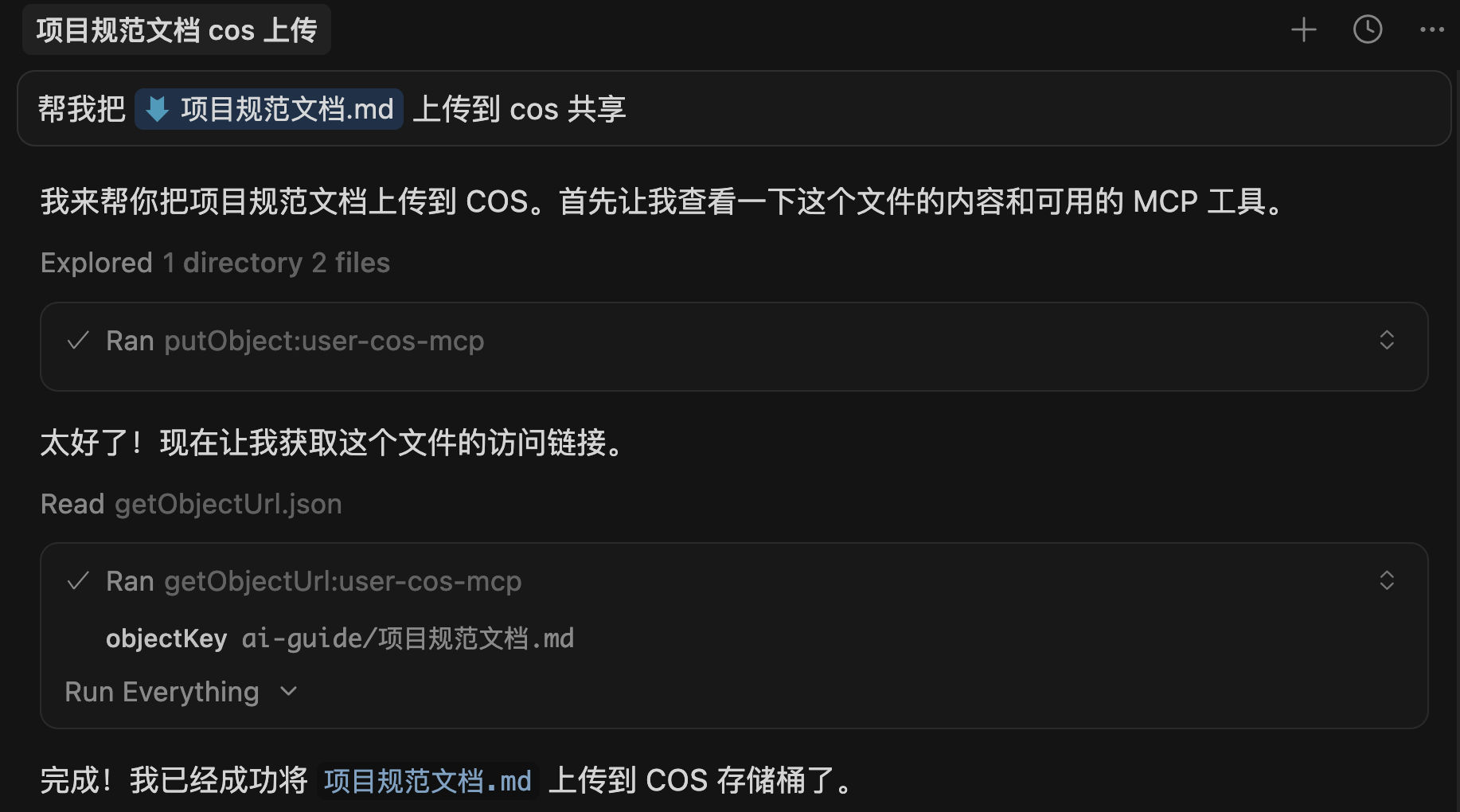
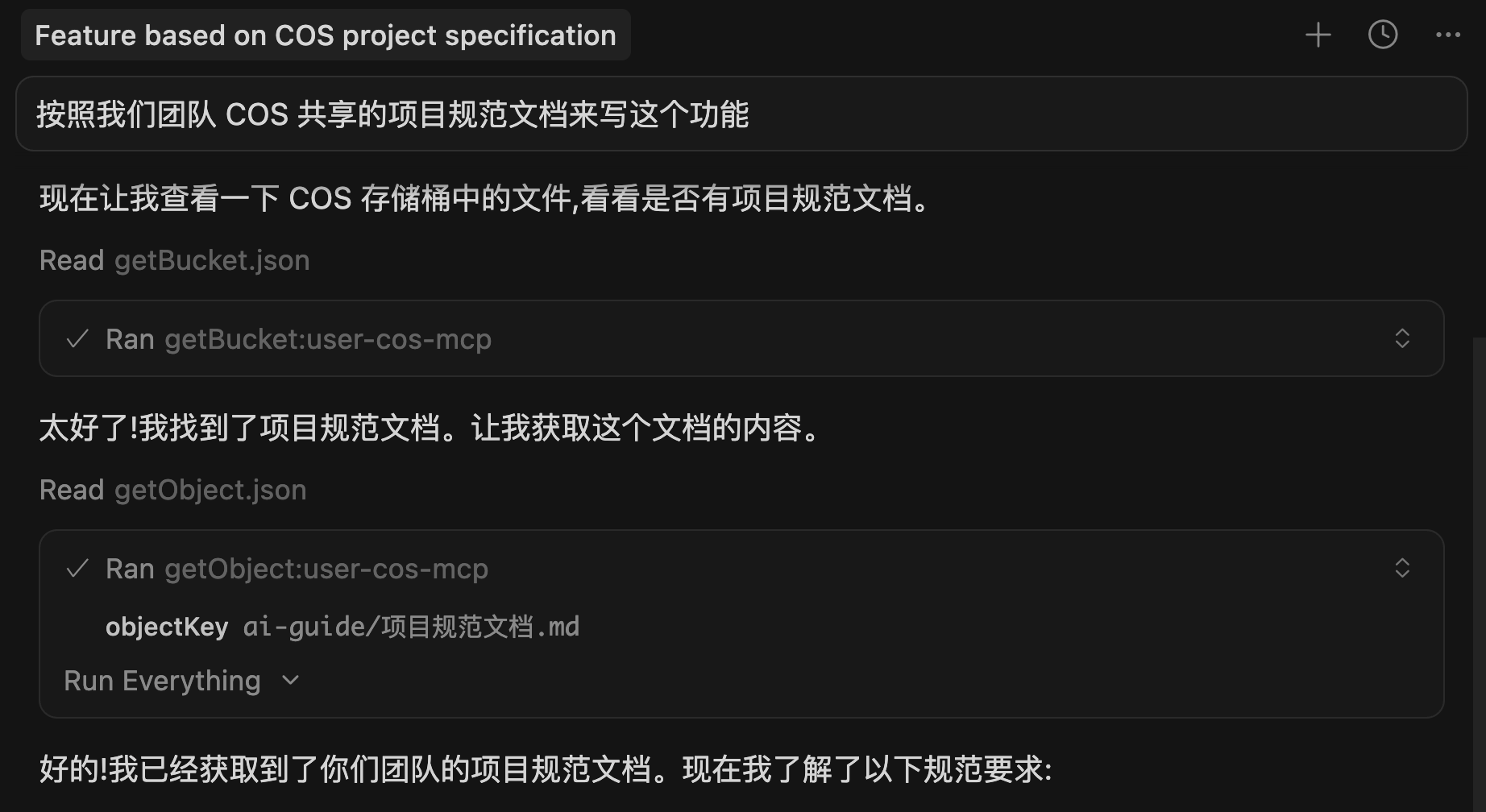
For example: "Write this feature according to our team's COS-shared project specs" - AI reads specs from COS and codes accordingly.
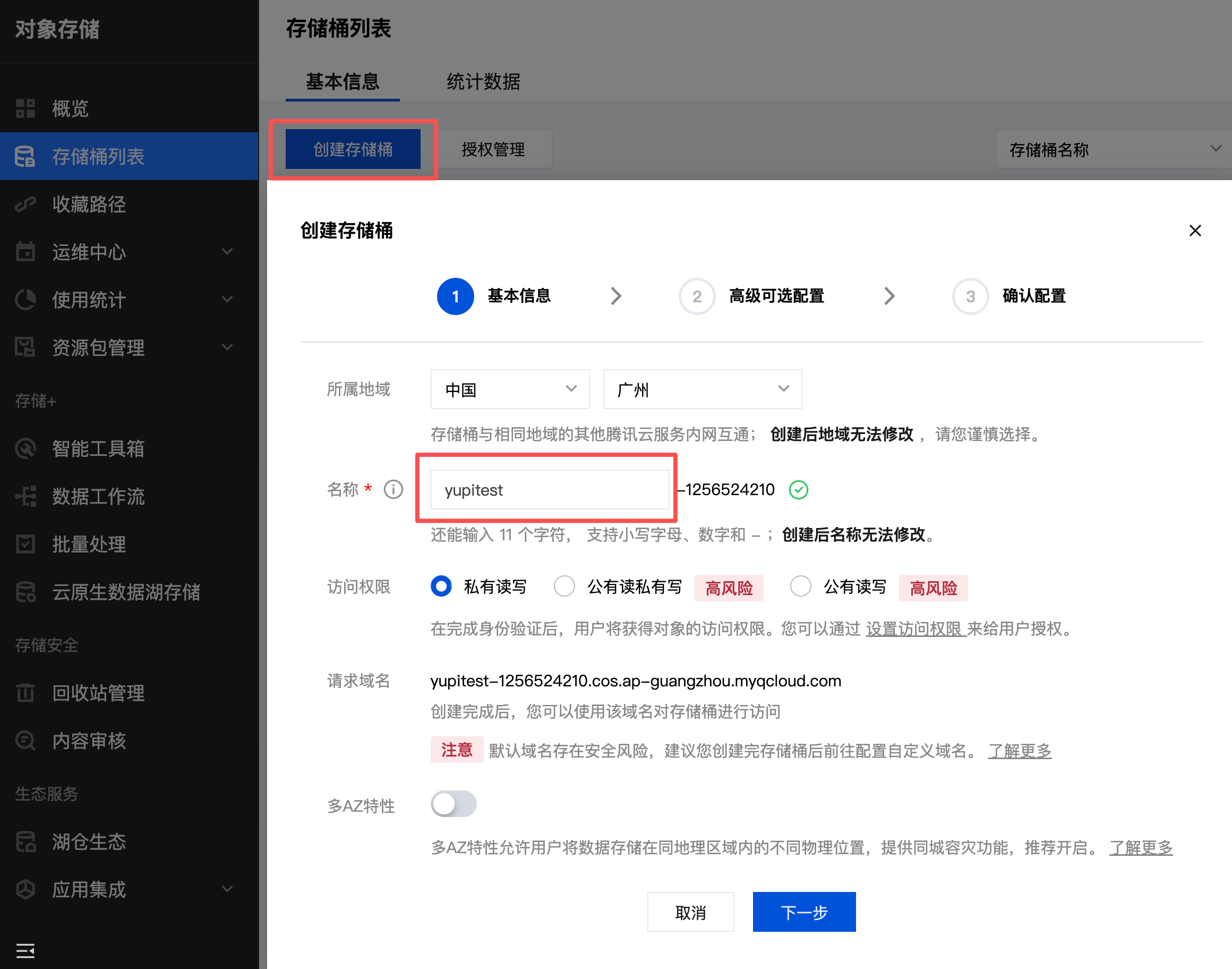
How to use?
- First enable Tencent Cloud COS service at COS Console, create a Bucket:
- Get SecretId and SecretKey at "Access Management" > "API Key Management" - keep these secure!
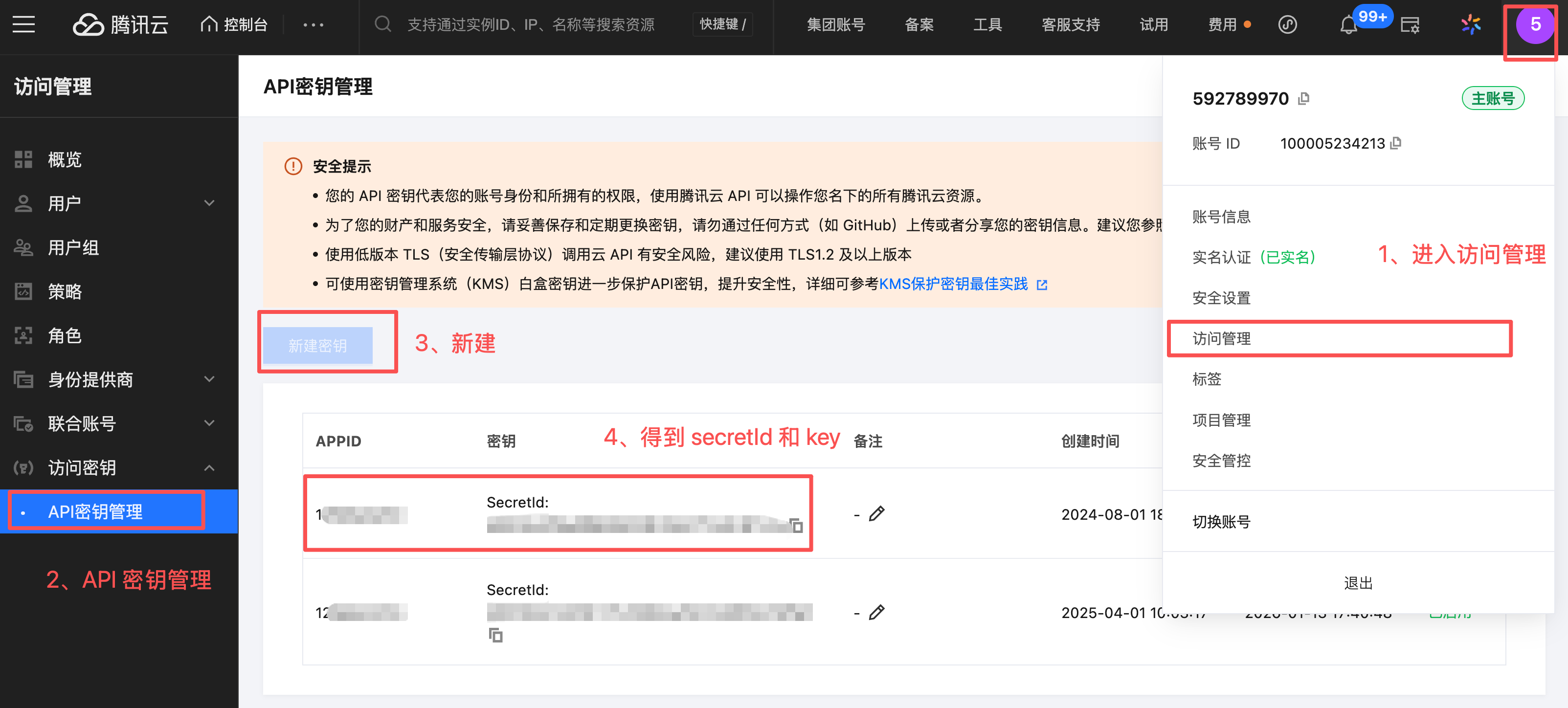
- Add to MCP config:
{
  "mcpServers": {
    "cos-mcp": {
      "command": "npx",
      "args": [
        "cos-mcp",
        "--Region=your_region",
        "--Bucket=your_bucket",
        "--SecretId=your_SecretId",
        "--SecretKey=your_SecretKey"
      ]
    }
  }
}
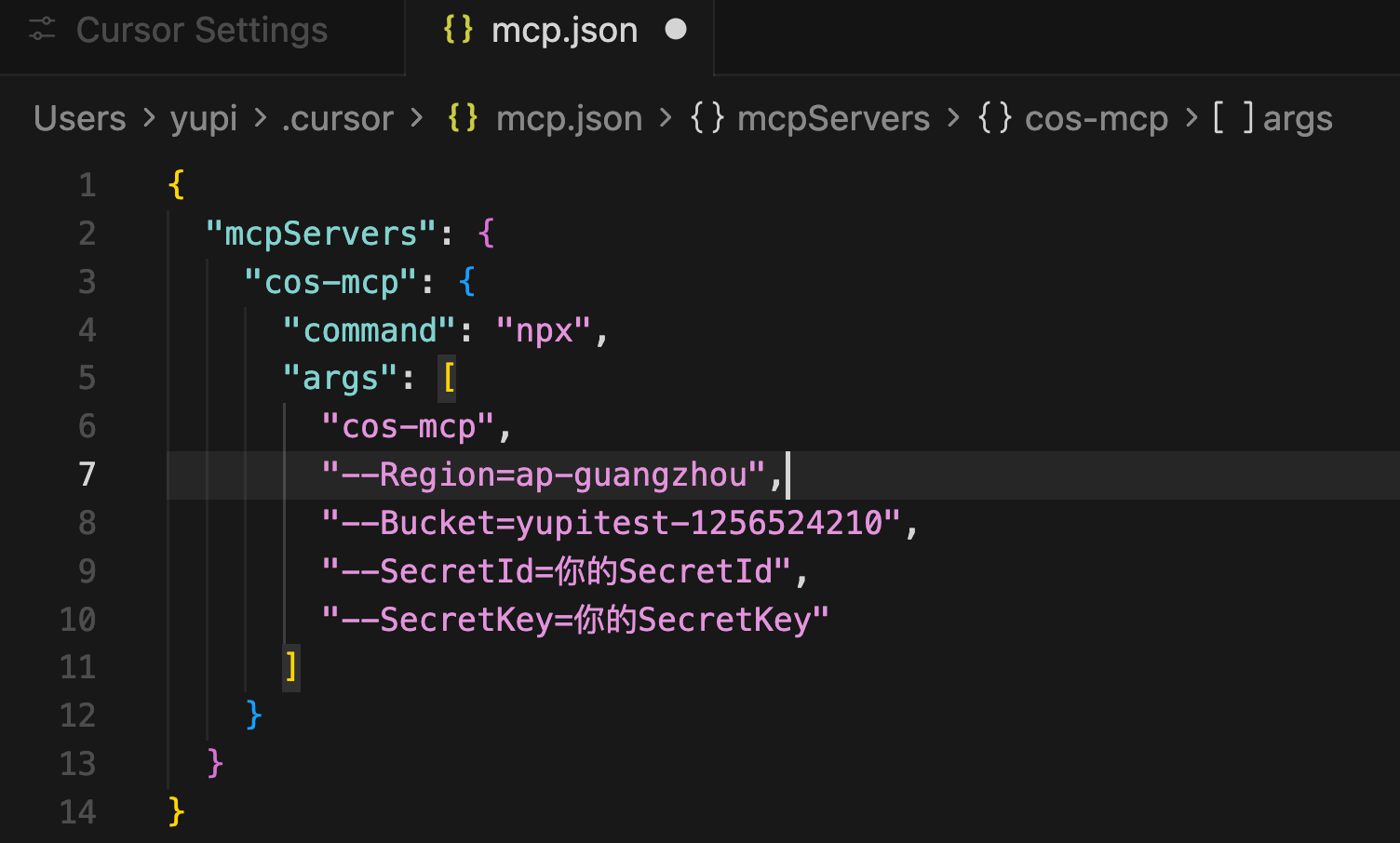
After configuration, AI can read/manage your cloud files - essentially giving AI a cloud drive.
Also supports image search, processing, document conversion, video thumbnail generation.

GitHub MCP for Repository Management
GitHub MCP by GitHub lets AI directly operate GitHub repositories.
Programmers know GitHub - the largest code hosting platform for storing code and collaborative development.
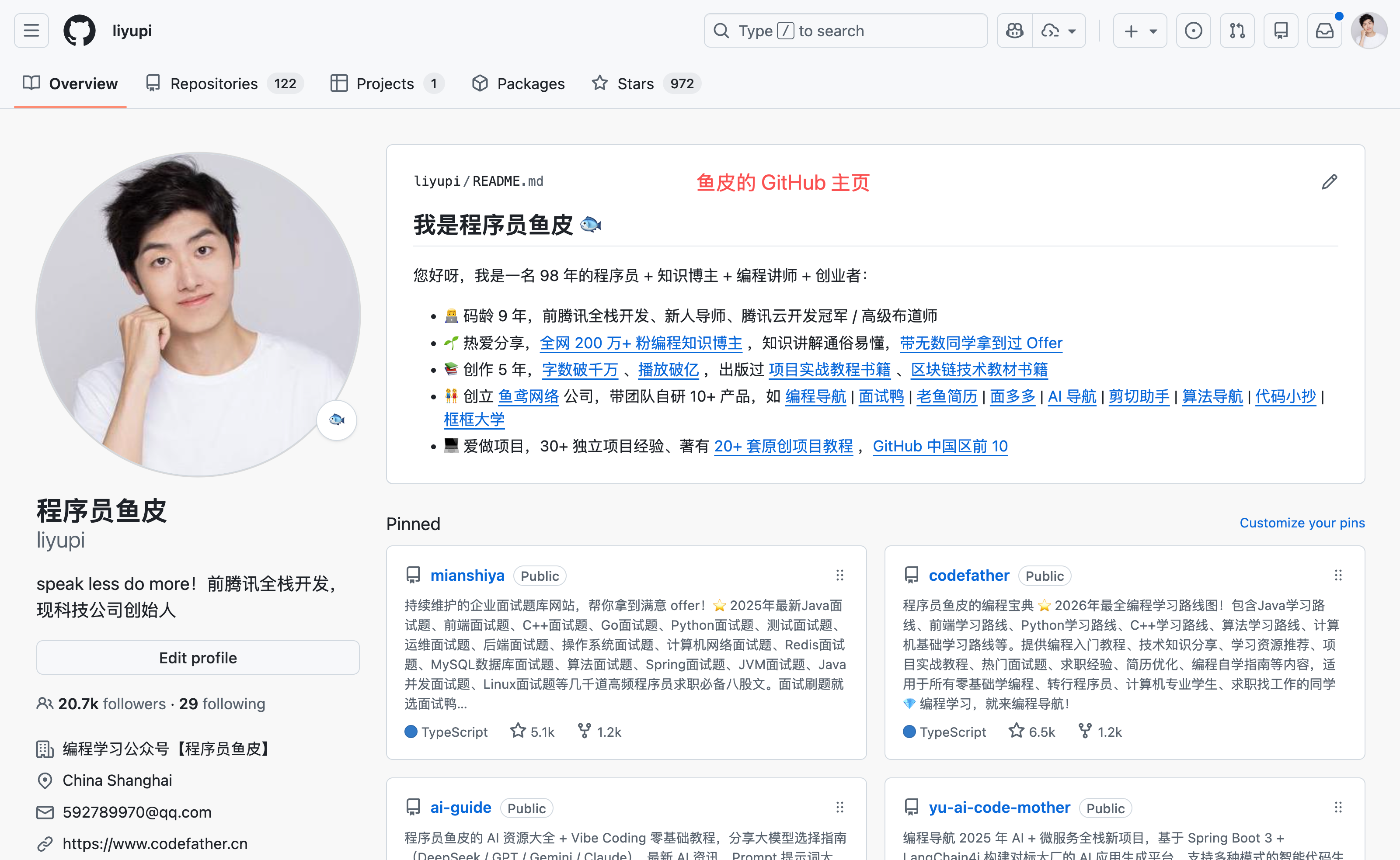
Daily development may require searching repos, creating issues, submitting PRs, reviewing changes, analyzing commit history. Previously manual on GitHub website, now AI can do it.
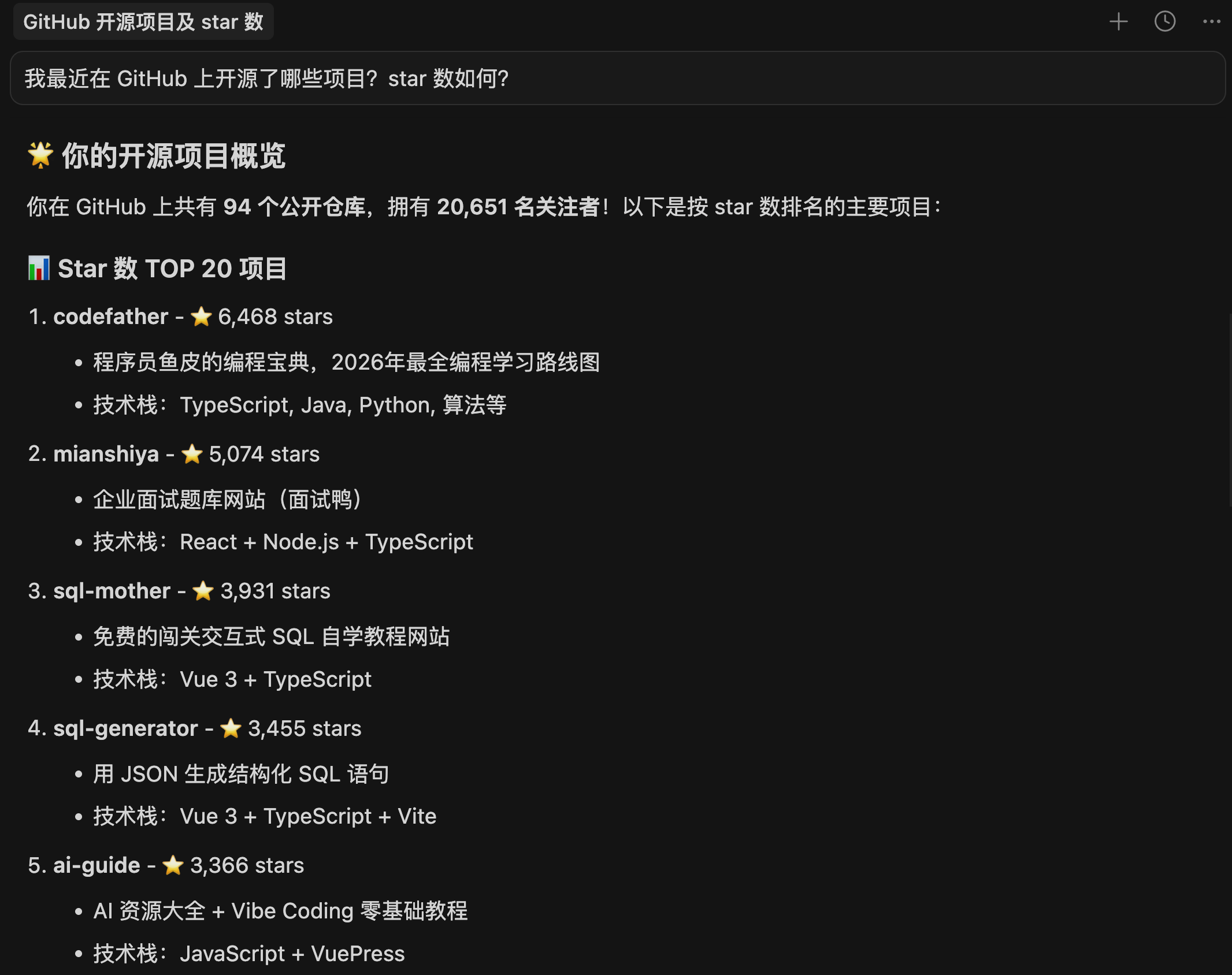
For example: "What projects have I recently open-sourced on GitHub? How many stars?"
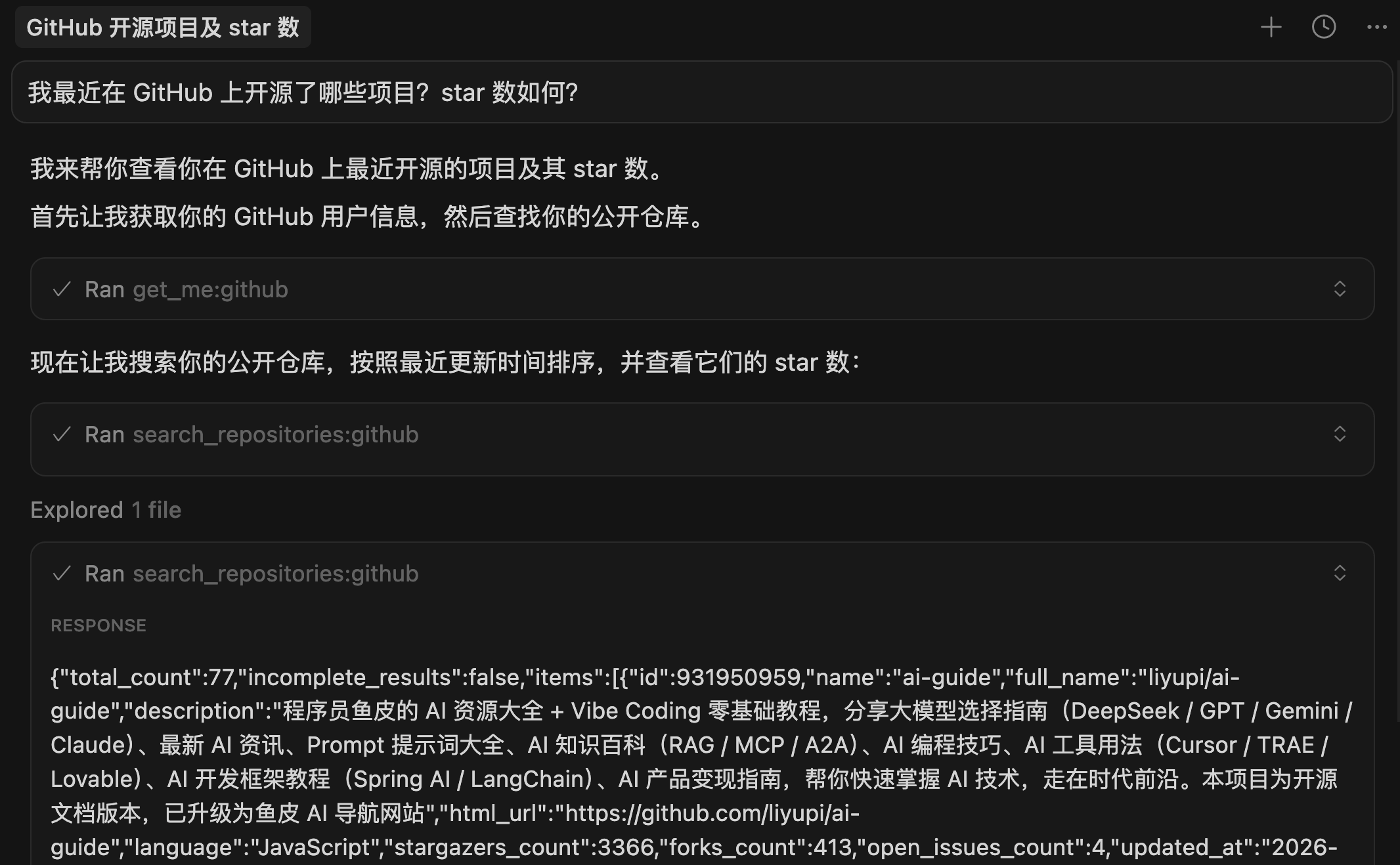
It quickly generates a data report:
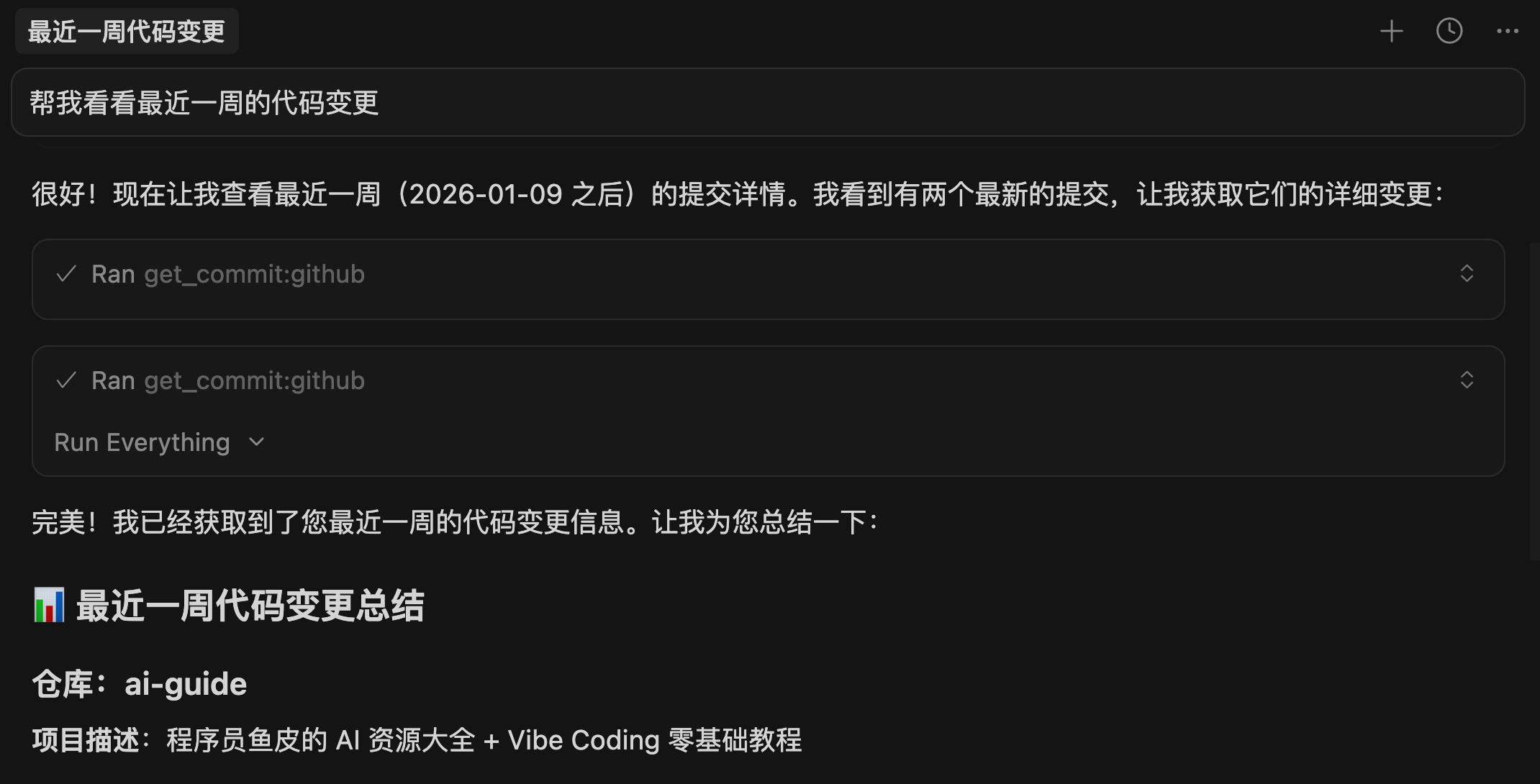
Or: "Show recent week's code changes" - analyzes Git history to show modifications.
How to use?
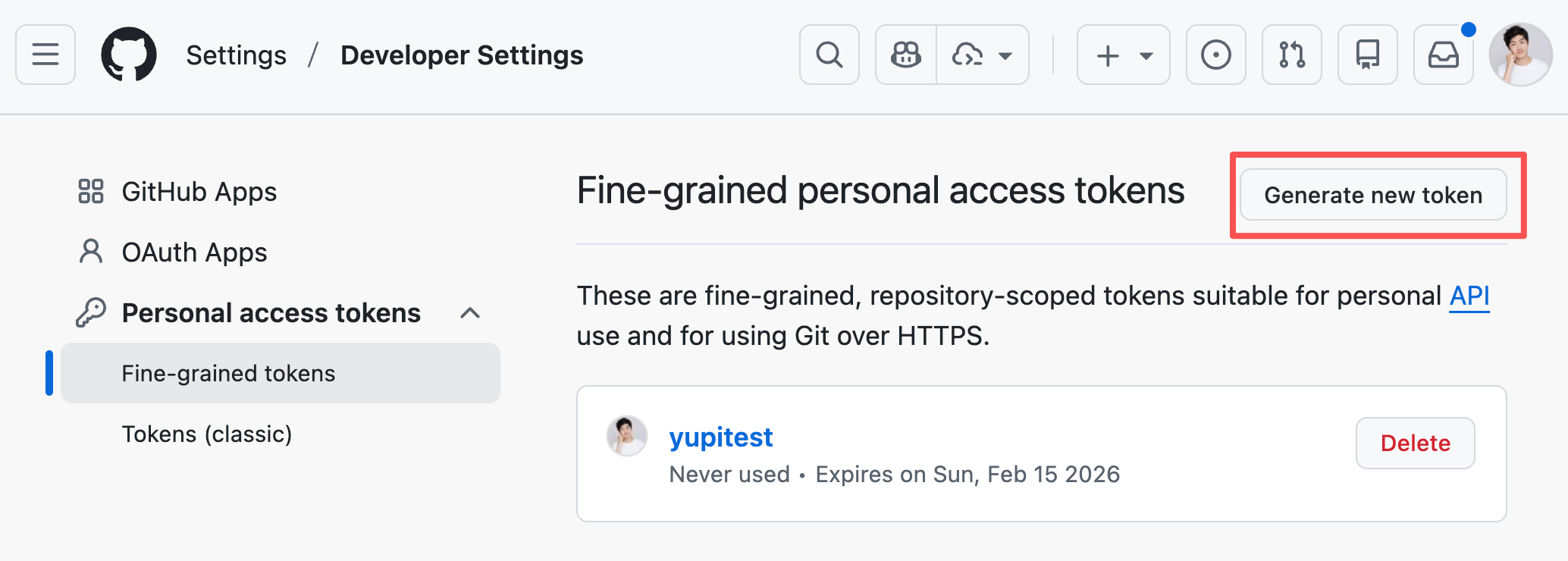
First get your Access Token as credential:
Add to MCP config:
{
  "mcpServers": {
    "github": {
      "url": "https://api.githubcopilot.com/mcp/",
      "headers": {
        "Authorization": "Bearer your_GitHub_token"
      }
    }
  }
}
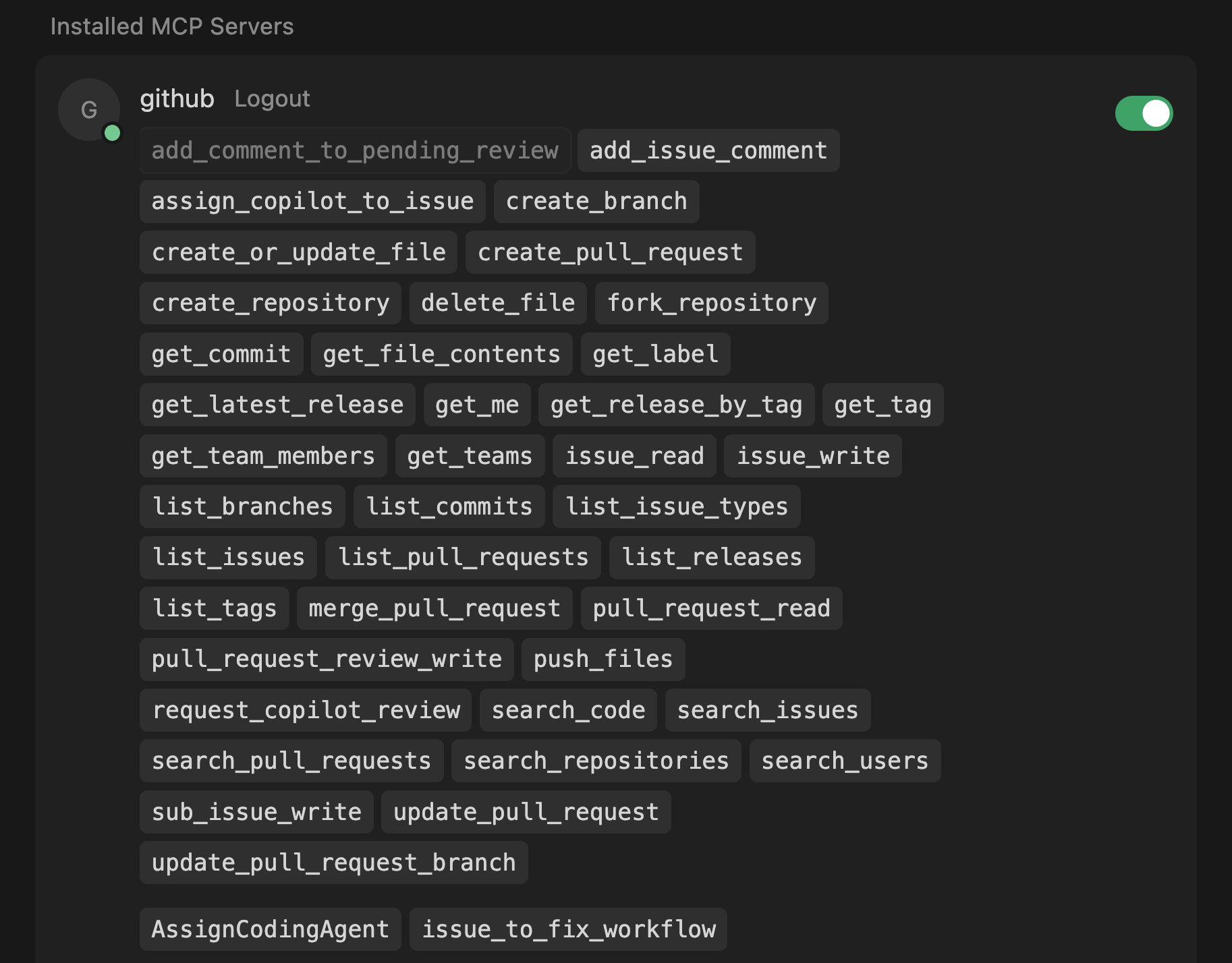
Also supports code analysis, CI/CD monitoring, security scanning - nearly anything you can do on GitHub, AI can do.
2. IDE Extension Plugins
Now let's discuss IDE extensions.
IDEs are integrated development environments - essentially code editors like VS Code, JetBrains IDEA. Plugins enhance editor capabilities for better development experience.
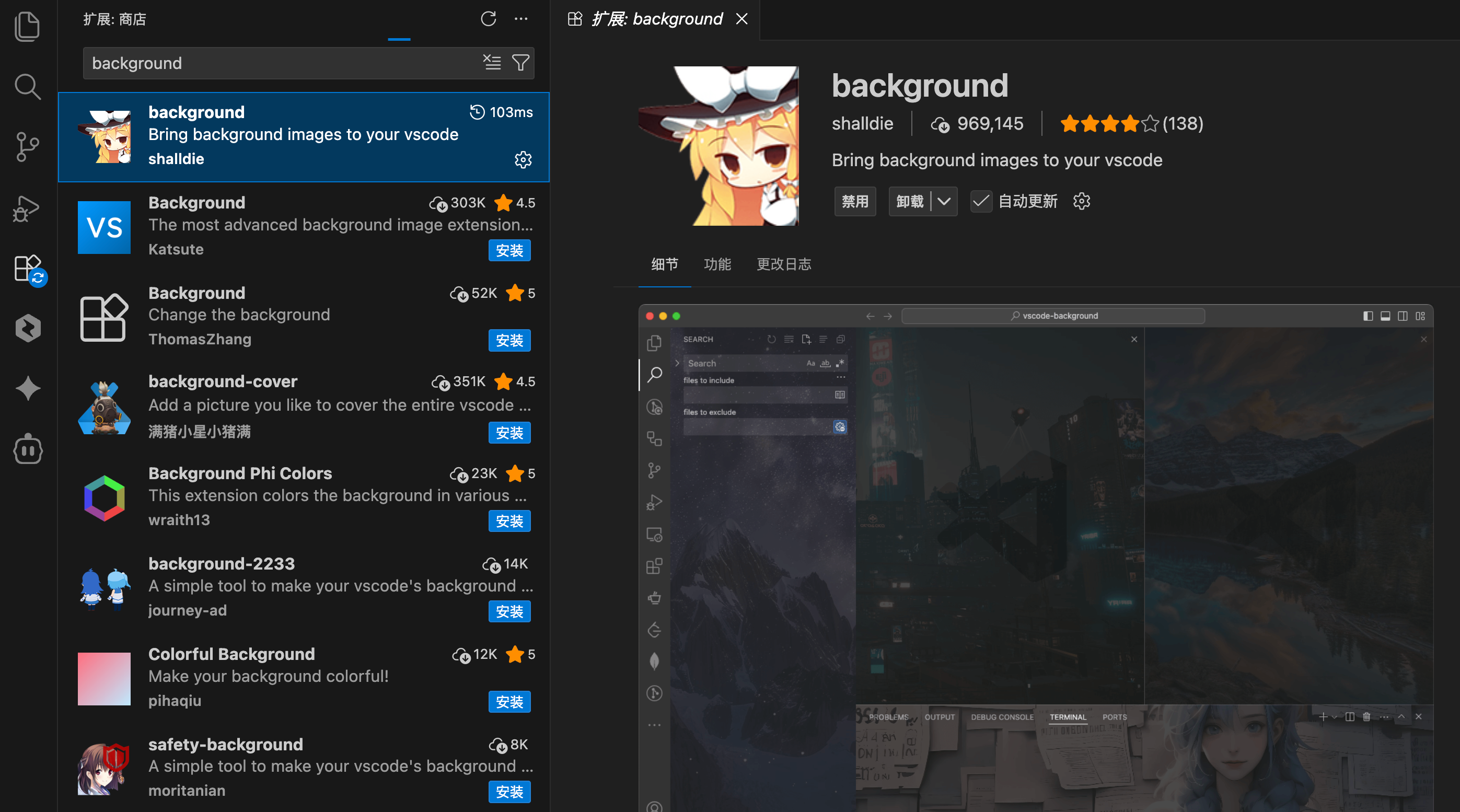
Many GUI-based AI programming tools (like Cursor) are VS Code-based, thus supporting VS Code plugins. Below I'll mainly share VS Code plugins that work out-of-the-box.
Claude Code Official Extension
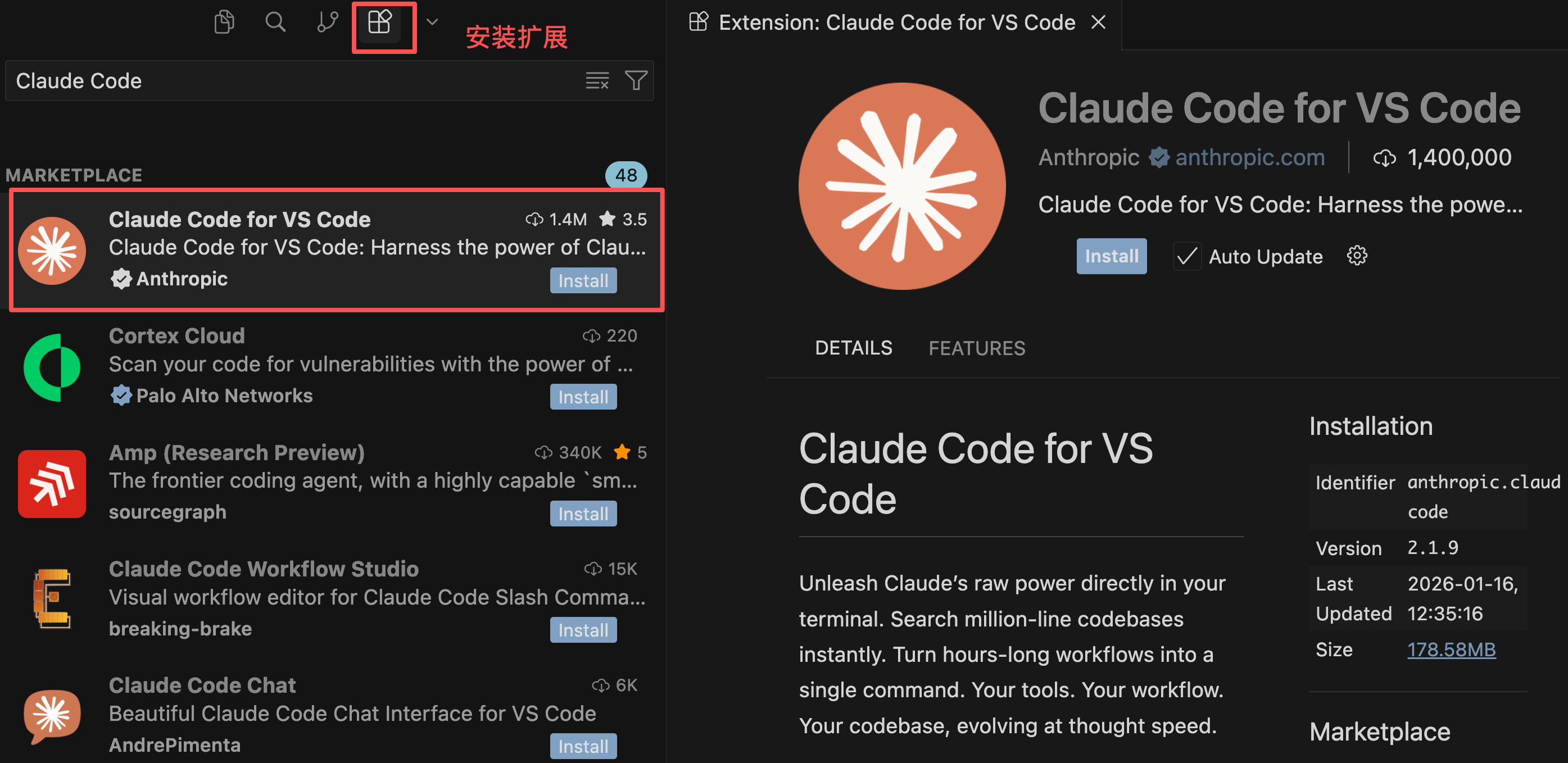
Claude Code by Anthropic was originally a standalone CLI tool. The Claude Code VS Code Extension lets you use it directly in editors without separate terminals.
Search "Claude Code" in VS Code or Cursor's extension marketplace to install:
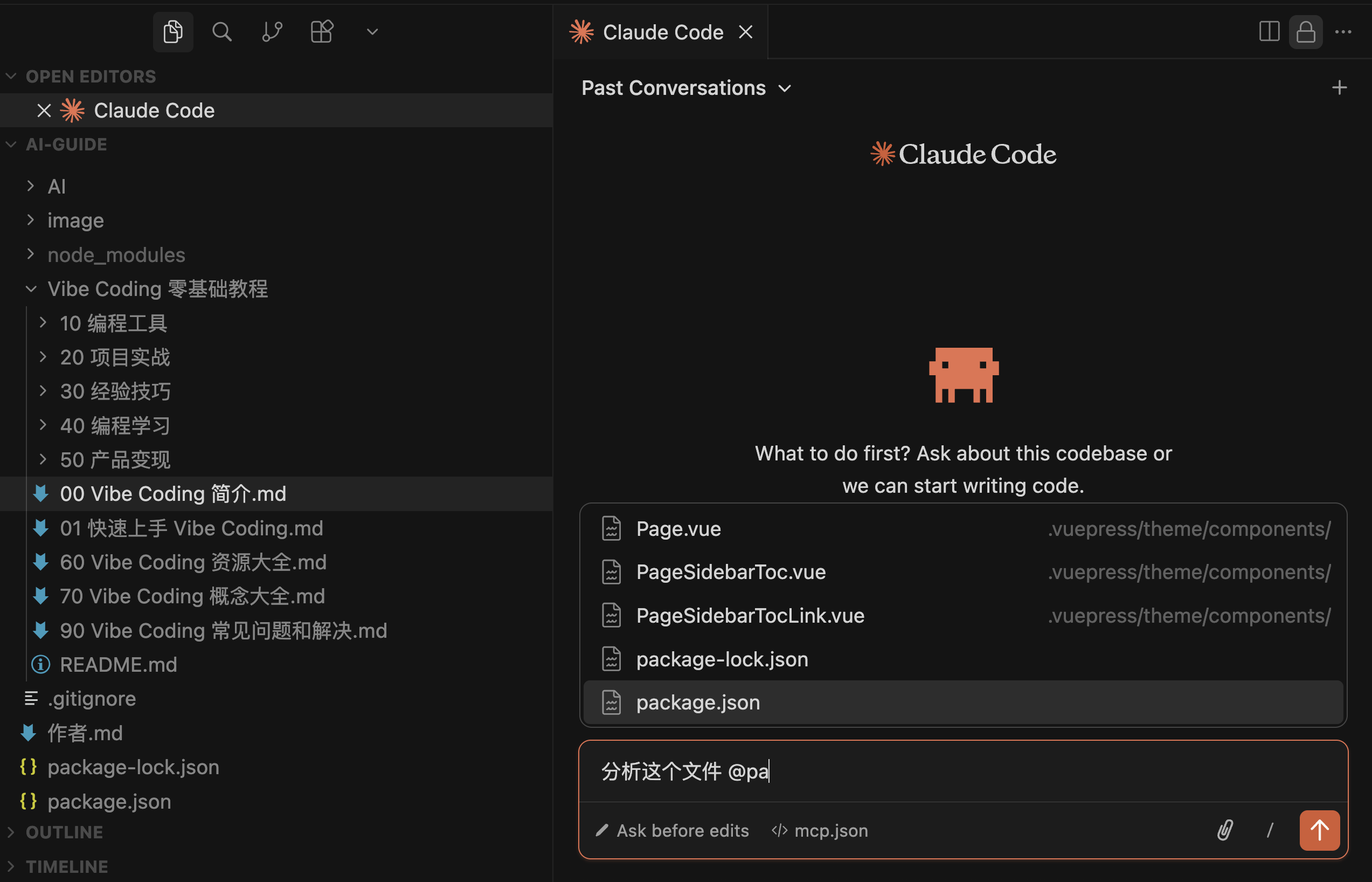
This extension provides GUI - converse with Claude via sidebar panel with flexible text input.
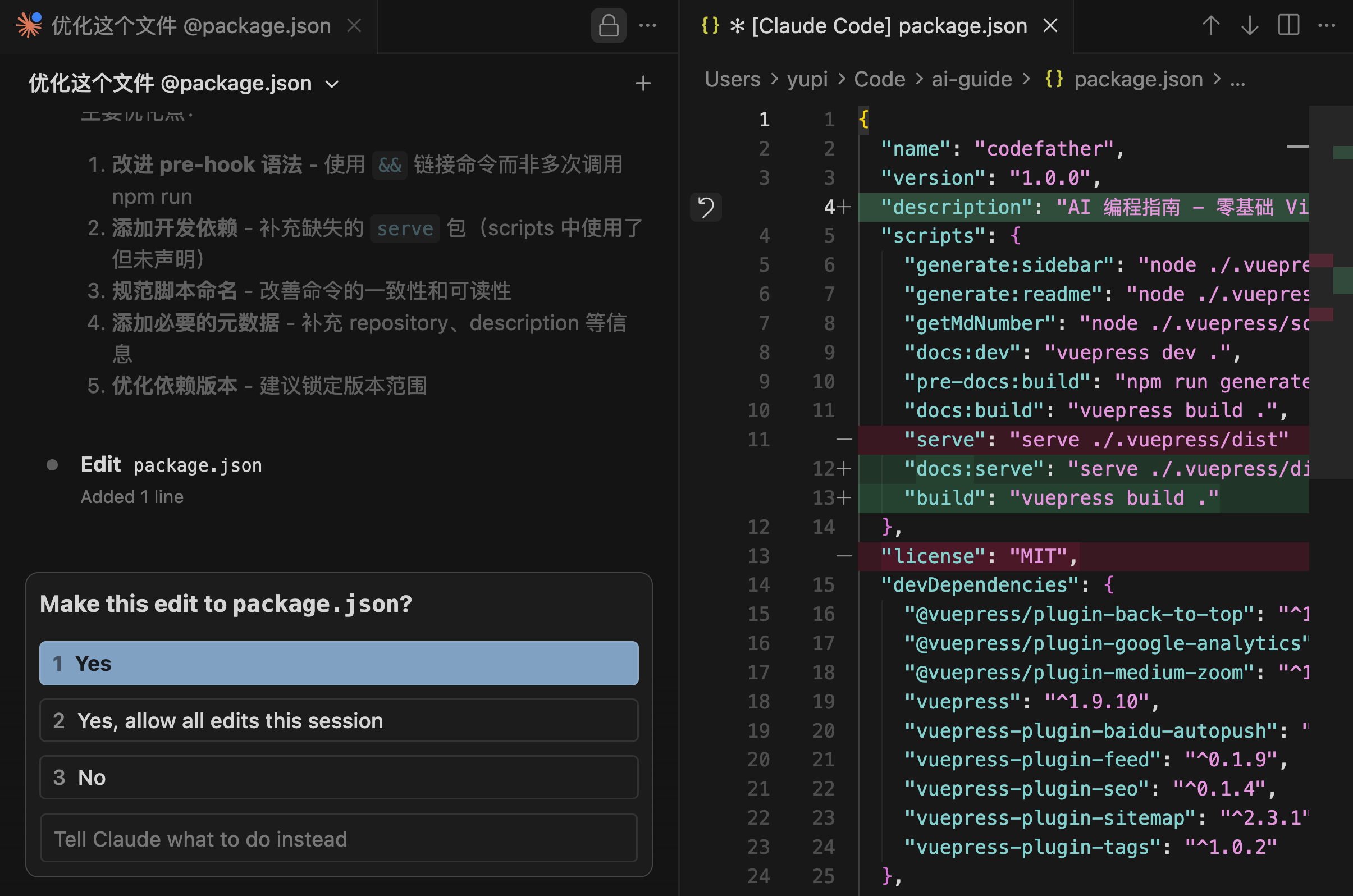
When AI modifies code, changes appear in real-time with diff comparisons showing exactly what changed.
I often use it for refactoring, bug fixes, new features. Supports parallel multi-sessions - multiple Claude agents handling different tasks (e.g. one for frontend, one for backend) for efficiency.
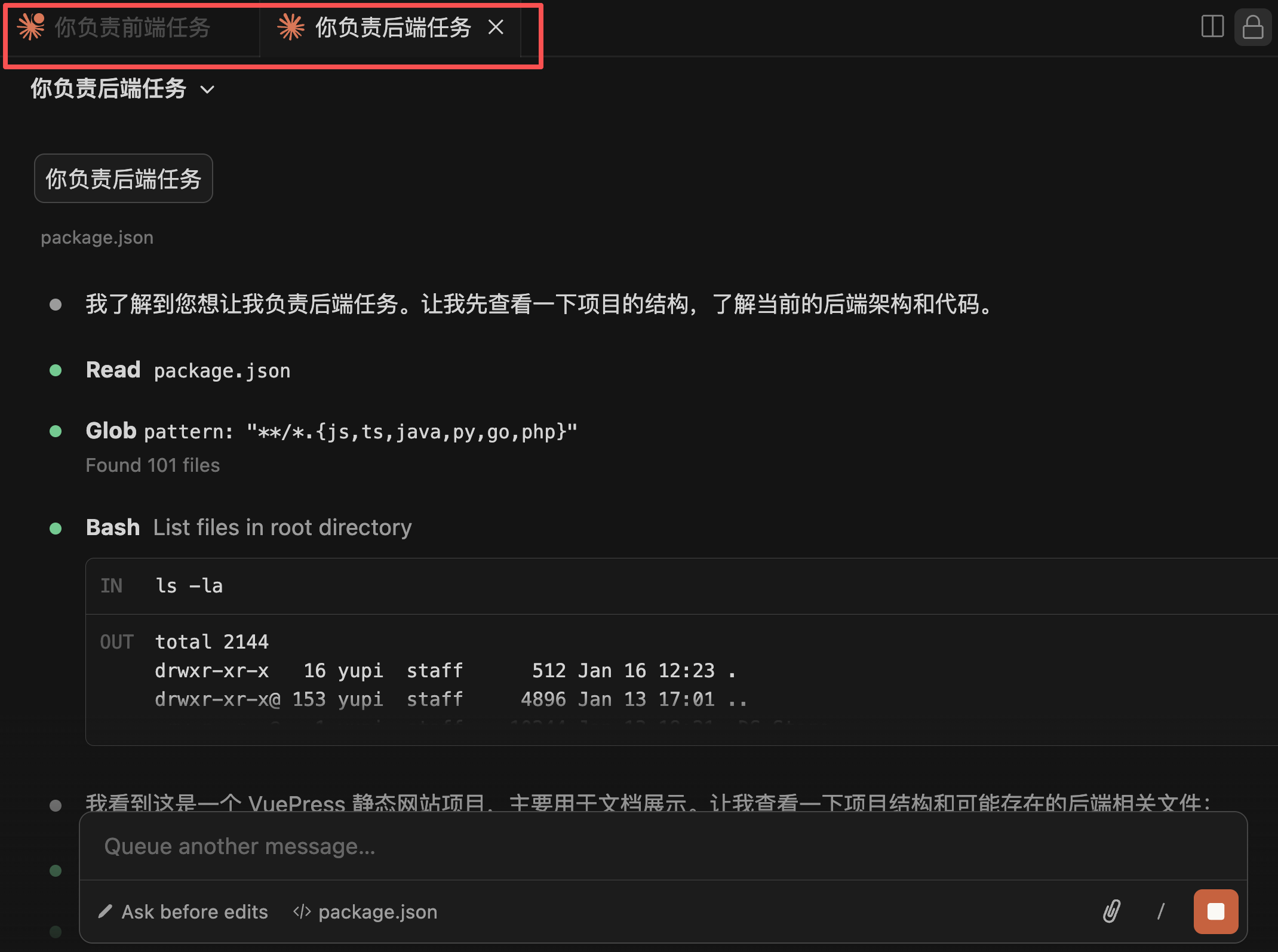
Similar plugins include Cline, GitHub Copilot - choose based on preference.
GitLens for Git Visualization
GitLens provides intuitive Git change history viewing.
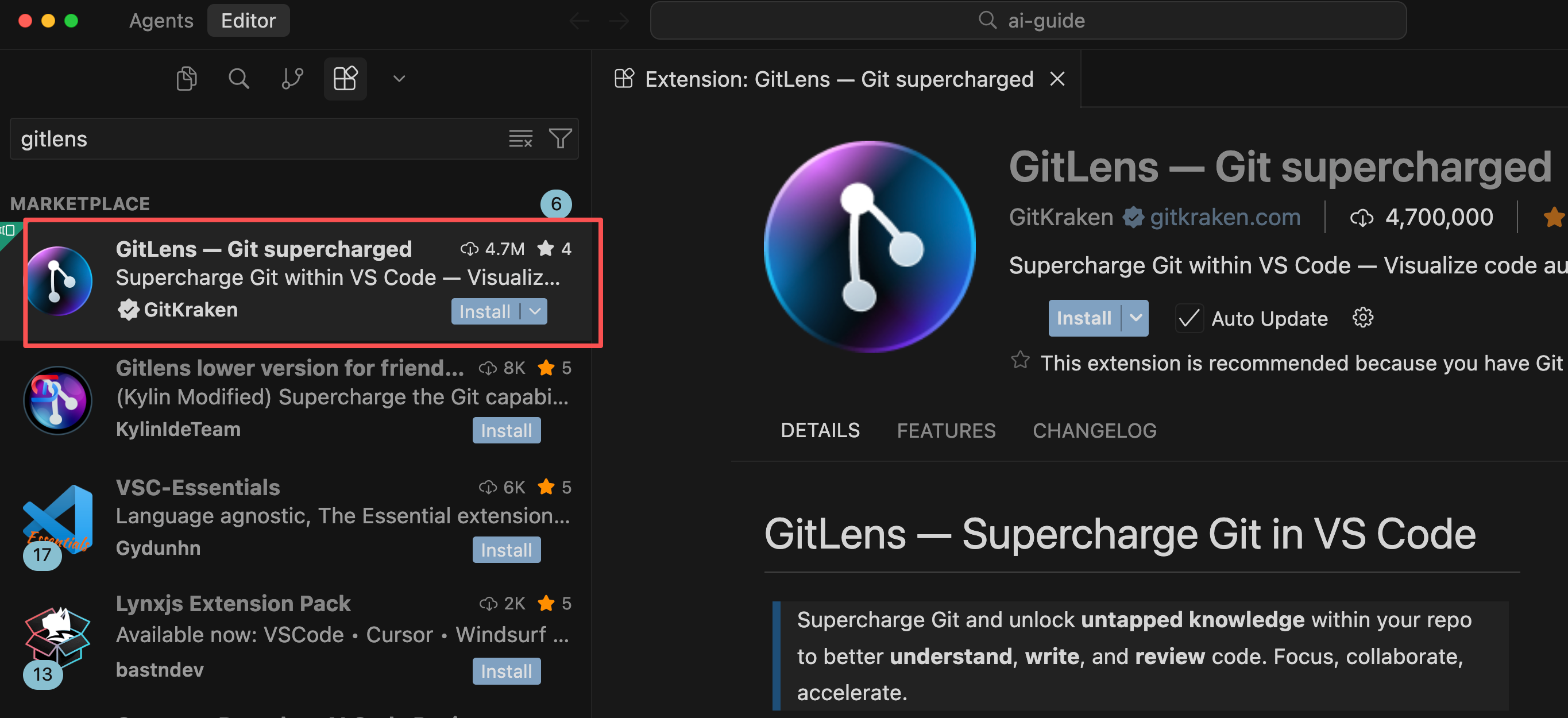
Git manages code versions - recording every change: who, when, why.
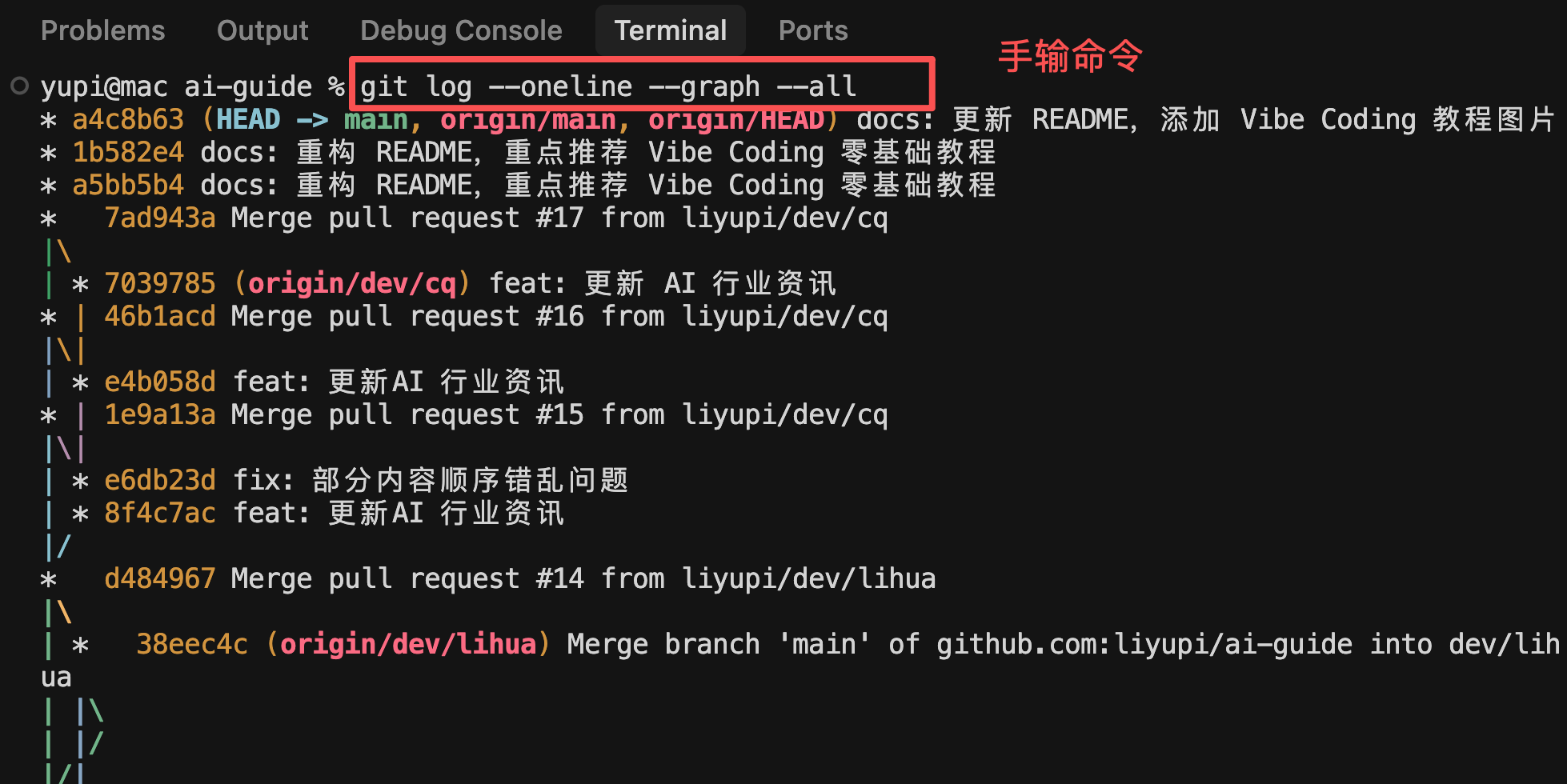
With these records, when bugs appear I can quickly find the "culprit".

But Git is CLI-only - viewing history requires manual commands in uncomfortable formats.
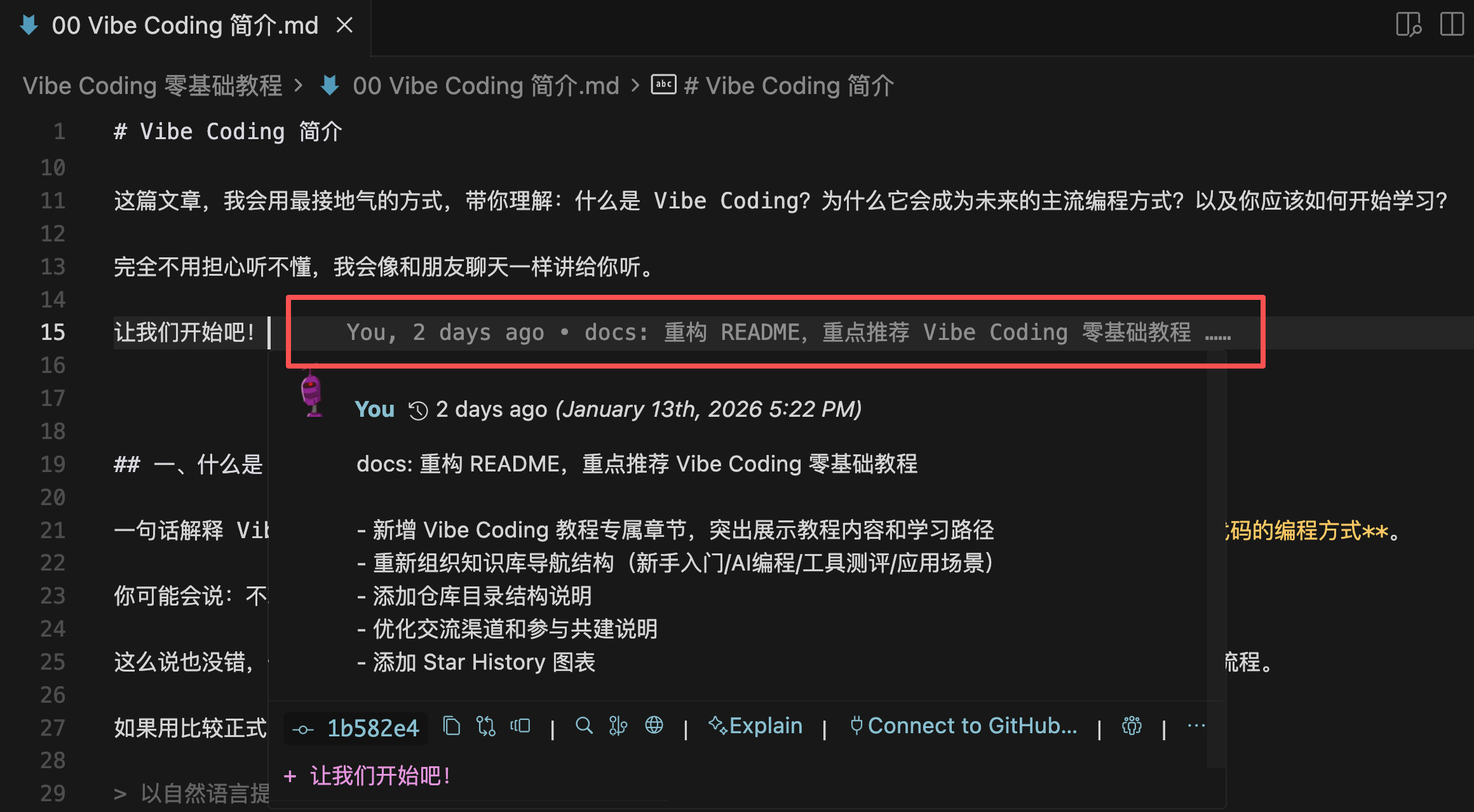
After installing GitLens from editor marketplace, hovering over any code line shows author, related PRs, etc.
The Git management panel clearly displays project commit history.
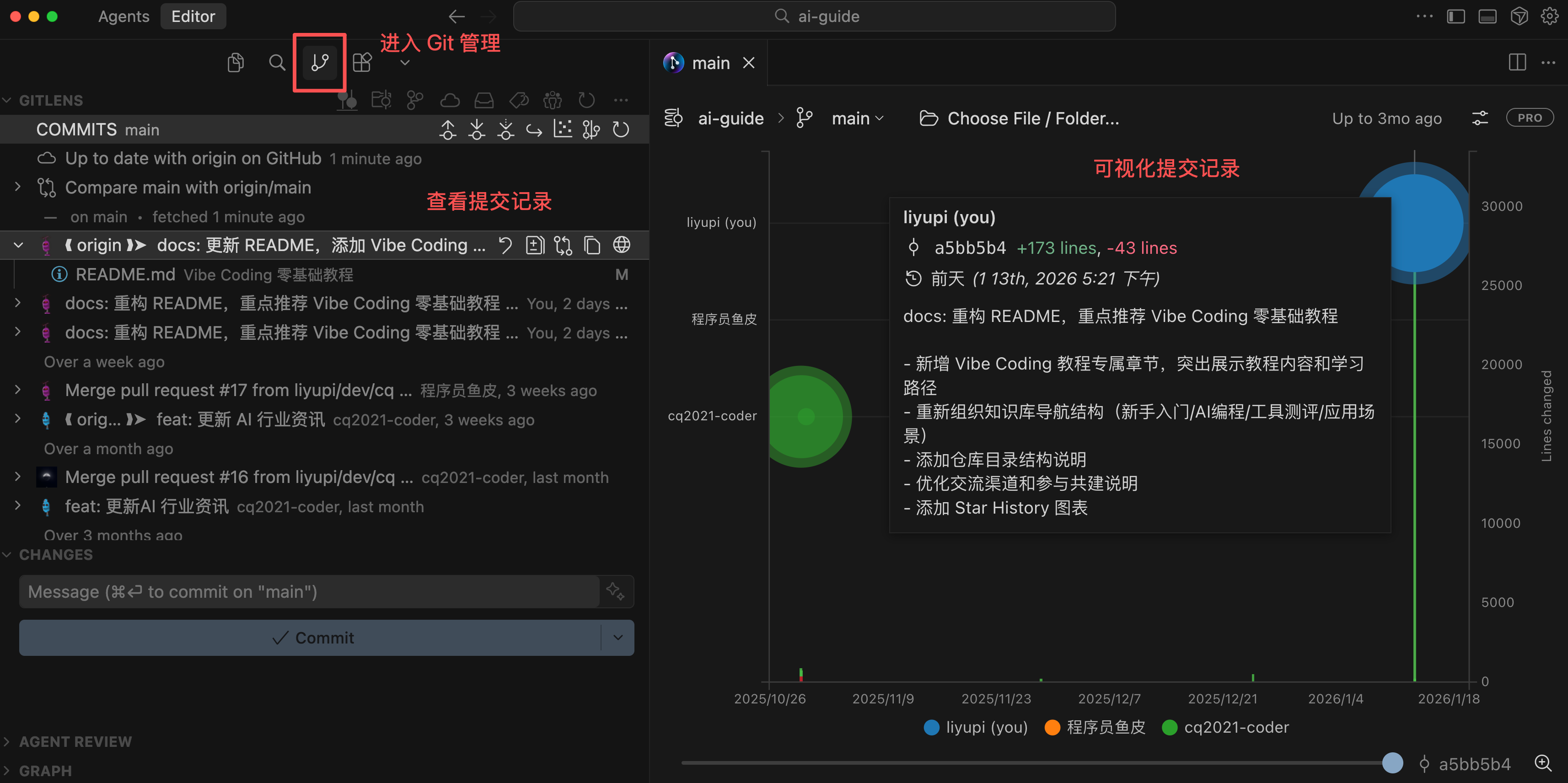
Also features AI capabilities - auto-generating commit messages, explaining changes, changelogs, and AI explanations of modification purposes.